Articles & BlogBy Trapper W. Brown9 min read
For anyone who has been sent a GitHub link and did not know what they were looking at. By the end you will be able to read a project page and its history, and you will have made your first commits on your own computer.
You have probably saved a file as report-final, then report-final-v2, then report-FINAL-really. That is version control done by hand, and it stops working the day two people edit the same file.
Git is the tool that does the job properly. GitHub is a website built around it. You do not need to write code to use either, and if you work anywhere near IT or security you will be handed links to both.
 Tracks that split and rejoin outside Union Station in Washington. A project's history in Git branches and merges the same way. Photographer unknown, Library of Congress, public domain, via Wikimedia Commons.
What is version control?
The Pro Git book, the free manual on Git's own website, defines version control as a system that records changes to files over time so that you can recall specific versions later. In practice it answers four questions about any file: what changed, who changed it, when, and why. It also lets you go back.
Git is a distributed version control system. Every person's copy of a project holds the complete history, not only the latest files. The Pro Git book notes that every such copy is, in effect, a full backup.
Nothing about this is limited to program code. Git works on any plain text: firewall rules, a game server's settings, a policy document, a novel.
The five words you will meet
| Word | Plain meaning |
|---|---|
| Repository | The project: its files plus the full history of every change. Often shortened to "repo". |
| Commit | One saved snapshot of the project, with a message, an author and a date |
| Branch | A separate line of work, so you can change things without touching the main copy |
| Merge | Bringing the changes from one branch into another |
| Pull request | On GitHub, a proposal to merge, with room to review and discuss it first |
A commit is the heart of it. GitHub's documentation compares it to saving a file, except that Git also records who made the change and when, and gives the commit a unique ID called a hash. Git's glossary says the full ID is usually written as 40 characters, and you will mostly see it shortened to the first seven or so, like b4b3d92.
A branch lets work happen to one side. Picture a small clinic that keeps its privacy policy in a repository. The approved text lives on the main branch. An office manager creates a branch named update-retention, makes two commits there, and opens a pull request. The compliance lead reads exactly which lines changed, asks one question, and approves. The merge brings those two commits into the main branch, and the history shows who proposed the change and who agreed to it.
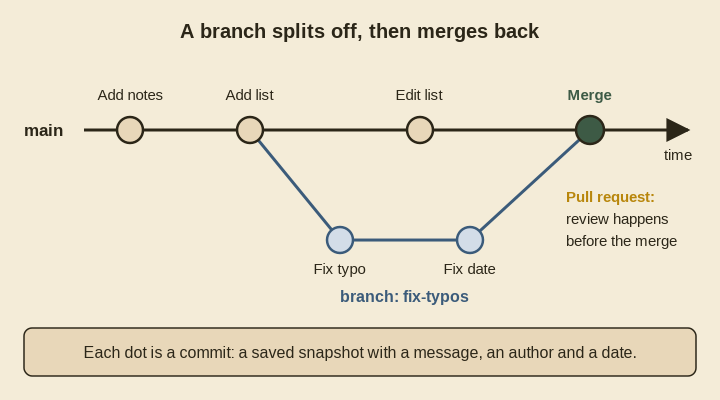 Work happens on a branch and returns to main through a merge.
Git versus GitHub
People use the two names as if they were one thing. They are not.
Git is a program that runs on your computer. GitHub's documentation describes it as a version control system that tracks changes to files. It needs no account and no internet connection.
GitHub is a website that hosts Git repositories online and adds tools around them: pull requests, issue tracking, access control. It is one of several such hosts. GitLab, Bitbucket and Codeberg do the same job, and that list is not a ranking.
The copy on your computer is called local. The copy on a host is called a remote. Three words describe how changes move between them.
| Word | Direction | What happens |
|---|---|---|
| Clone | Remote to your computer | You get a new local copy, with the whole history |
| Push | Your computer to remote | Your new commits are uploaded |
| Pull | Remote to your computer | Other people's new commits are downloaded and merged into yours |
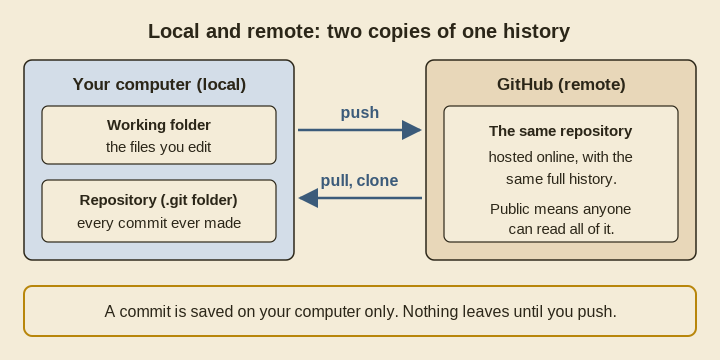 Committing is local. Pushing is what publishes.
How do you read a repository page?
GitHub moves its buttons around from time to time, so here is what to look for and not where to click.
- The name, written as owner, a slash, then the repository. It tells you whose project this is.
- The file list, which shows the default branch. GitHub's documentation says that is the branch displayed when anyone visits.
- The README, shown under the file list. It is the project's front page: what it is and how to use it.
- The commit history, usually reached from a link near the file list that shows the number of commits.
- Issues (bug reports and requests) and Pull requests (proposed changes).
Open the history and each row is one commit: a message, an author, a date and a short hash. Click one and you see the diff, the exact lines removed and added, usually colored red and green.
You can learn a lot without reading code. Is the last commit from this week or from four years ago? Is it one person or thirty? Do issues get answers? Inside a pull request, GitHub's documentation names the tabs you will see: Conversation for the discussion, Commits for the steps, Checks for automated tests, and Files changed for the diff.
Why do security people care?
History is permanent. That is the whole purpose of the tool, and it cuts both ways. A password or API key committed once stays in the history even after a later commit deletes it from the file. Anyone who cloned the repository has a copy. GitHub's documentation says to consider any leaked secret compromised immediately and to revoke it with the service that issued it. The same documentation says plainly that you cannot remove data from other people's clones.
Defenders and attackers both know this. GitHub's secret scanning searches the entire history on every branch of a public repository for that reason. A stranger can search the same history.
It is an audit trail. When a firewall rule changed last March, the history says who committed it and what the message was. One caution: the author name on a commit is whatever was typed into Git's settings, so by itself it proves little. That is why GitHub lets a project require signed commits on its protected branches.
Review comes before change. A pull request is change management in practice: propose, review, approve, record. The article Why Change Management Is a Security Control covers the idea.
Watch out
Before your first push to a public repository, read what you are about to publish. If a file holding a password or key has been committed, a later commit that deletes it does not unpublish it. Change the password or revoke the key, then deal with the history.
Try it: five commands on your own folder
Install Git from git-scm.com, the project's own site, if git --version prints nothing. Then introduce yourself once. Git's tutorial starts the same way:
git config --global user.name "Your Name"
git config --global user.email you@example.com
These two lines set the name and email that will be written into your commits.
Now make an empty folder, put a text file in it called notes.txt, and open a terminal in that folder. Everything below stays on your computer. Nothing is uploaded and no account is involved.
git init
This turns the folder into a repository by creating a hidden .git folder to hold the history.
git status
This shows what Git sees: new files, changed files, and what is lined up for the next commit.
On branch master

No commits yet

Untracked files:
  (use "git add <file>..." to include in what will be committed)
        notes.txt
Your first branch may be called main instead. It depends on your Git version and settings.
git add notes.txt
This stages the file, which means it will be part of the next snapshot.
git commit -m "Add trip notes"
This saves the snapshot, with your message attached.
[master (root-commit) b4b3d92] Add trip notes
 1 file changed, 1 insertion(+)
Change a line in the file, run git add and git commit again with a new message, then:
git log --oneline
This lists the history, one line per commit, newest first.
e4b1872 Add packing reminder
b4b3d92 Add trip notes
Your hashes will differ from these, which came from a test run in November 2026. You now have a repository with two commits and a history you can read.
| Command | What it does |
|---|---|
git init | Makes the current folder a repository |
git status | Shows what has changed and what is staged |
git add <file> | Stages a file for the next commit |
git commit -m "message" | Saves a snapshot with a message |
git log --oneline | Lists the commits, newest first |
Tip
git status changes nothing and is always safe to run. Use it before every commit and any time you are unsure what Git is about to do.
What to remember
- Version control records what changed, who changed it, when and why, and lets you go back.
- A repository is a project plus its history. A commit is one snapshot. A branch is a side line of work. A merge joins it back.
- Git runs on your computer. GitHub hosts repositories online and adds pull requests and review.
- Committing is local. Pushing is what sends your work to a remote.
- History is permanent. A secret that was committed and pushed must be revoked, not only deleted.
- You can judge a project's health from its history, issues and pull requests without reading code.
Run the five commands tonight on a folder that does not matter, and try git diff after your next edit to see what changed before you commit it. When that feels comfortable, read APIs and API Keys: Why Leaked Keys Hurt, which picks up where the security section here leaves off.