Articles & BlogBy Trapper W. Brown7 min read
"Your connection isn't private" means your browser could not confirm that the website on the other end is the one it claims to be, so it stopped before loading the page. Take it seriously, but do not panic: the cause is often something plain, such as a wrong clock on your PC or a sign-in page on public Wi-Fi.
You may see it worded slightly differently. Google's help page for Chrome writes it as "Your connection is not private." Under the message is a short code, such as NET::ERR_CERT_DATE_INVALID. That code tells you which check failed, and it is the most useful thing on the page.
 A certificate is a website's ID card, and your browser is the guard who reads it at the gate. Photo by Photographer's Mate 3rd Class Yesenia Rosas, U.S. Navy, public domain, via Wikimedia Commons.
What does this message mean?
A site whose address starts with https shows your browser a certificate, a small file that works like an ID card for the site. The article "HTTPS and Certificates: What the Padlock Means" explains how that works. For this error you only need the short version.
The U.S. Cybersecurity and Infrastructure Security Agency (CISA) describes what the browser checks: that the address matches the address on the certificate, that a certificate authority the browser trusts has signed it, and that it has not expired. If any check fails, you get the full-page warning. Google's help says that when you see it, "there's a problem with the site, the network, or your device."
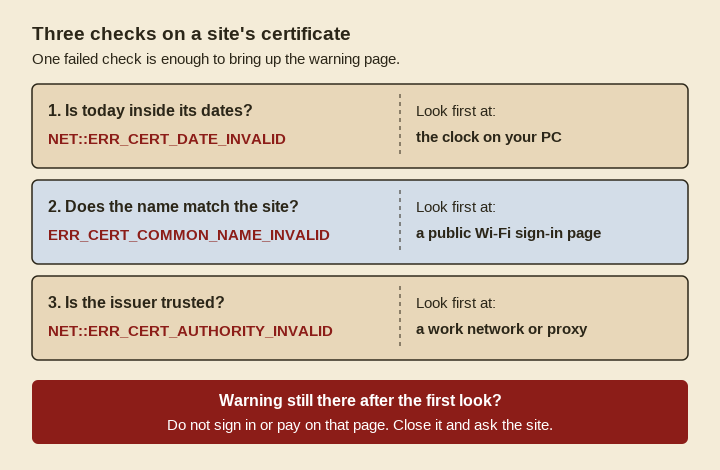 Each code names the check that failed, which tells you where to look first.
| Code on the page | The check that failed | Where Google's help points first |
|---|---|---|
NET::ERR_CERT_DATE_INVALID | By your device's clock, the certificate has expired or is not valid yet | The date and time on your device |
ERR_CERT_COMMON_NAME_INVALID | The name on the certificate does not match the address | A Wi-Fi sign-in page at a cafe or airport |
NET::ERR_CERT_AUTHORITY_INVALID | The certificate is signed by an authority your browser does not trust | A work network that inspects traffic |
The notes in Chrome's own source code list one more possibility for every one of these codes: someone between you and the site is presenting a certificate that is not the site's. A wrong clock is the plainer explanation, and the one to rule out first. The other possibility is the reason the browser stops instead of guessing.
What usually causes it?
- The date, time or time zone on your computer is wrong.
- You are on public Wi-Fi and have not yet signed in on the network's own page (often called a portal).
- A browser extension is getting in the way.
- Windows is out of date.
- Security software on the PC, or a proxy on a work network, is inspecting your secure traffic. A proxy is a server that sits between your PC and the internet.
- The site's owner let the certificate expire or set it up wrong. You cannot fix that from your side.
What to try, in order
These go from safest to most involved. None of them changes anything you cannot change back.
- Read the code and the address. Check the address for a typing mistake, then reload the page once. Write the code down.
- Check the date and time. Microsoft's instructions for Windows 11 and Windows 10 are the same: select Start, then Settings, then Time & language, then Date & time. Make sure "Set time automatically" and "Set time zone automatically" are both turned On. Then reload the page. Google's help gives this as the fix for
NET::ERR_CERT_DATE_INVALIDand for the messages "Your clock is behind" and "Your clock is ahead." - On public Wi-Fi, sign in to the network first. Google's help says to go to any address that starts with
http://, such ashttp://example.com, which lets the network show its sign-in page. Sign in there, then try your site again. - Open the page in a private window. In Chrome, select More at the top right, then New Incognito window. In Microsoft Edge, select Settings and More, then New InPrivate window. If the page opens normally there, an extension is the likely cause. Google's advice is to turn off all extensions, then turn them back on one at a time to find the one at fault.
- Update Windows. Google's steps for this error include making sure your operating system is up to date. In Windows 11, select Start, then Settings, then Windows Update, and check for updates. Microsoft's pages state that support for Windows 10 ended on October 14, 2025, and that Microsoft no longer provides free software updates from Windows Update, technical assistance, or security fixes for it.
- If your security software inspects secure traffic, ask its maker. Google's help says antivirus with "HTTPS protection" or "HTTPS scanning" can cause this error, and suggests turning the antivirus off as a test. I think that is poor advice for most people, and I do not recommend it. Leave your protection on and take the error code to the software maker's support instead.
- On a work computer, call your IT department. Google's help says a work proxy that inspects secure traffic produces
NET::ERR_CERT_AUTHORITY_INVALIDwhen its certificate is missing from your PC, and that the fix belongs to your administrator. It adds that installing a certificate on your own is "usually a security risk." - If it is one site only, and everything above checks out, the problem is the site's. Google's advice is to contact the website owner. Use a phone number or address you already have, and try again later.
Watch out
The warning page offers a way to continue anyway. Do not use it on any site where you sign in, pay, or type anything personal. While the warning is showing, your browser cannot tell you who is receiving what you type.
When to stop and get help
Stop if the warning shows on a bank, email, shopping or health site after you have fixed the clock. Do not sign in. Reach the company another way, such as the phone number on your card or statement.
Stop also if every secure site shows the warning, in more than one browser, with the clock correct. Something on the PC or the network is sitting in the middle of your connections. On a work PC that may be normal and is a question for IT. On a home PC, I think it is a reason to get help before you use that PC for anything private.
If the PC holds work or irreplaceable files and the steps have not helped, stop and take it to a repair professional.
What to remember
- The message means the browser could not confirm the site's identity. The code under it says which check failed.
- For
NET::ERR_CERT_DATE_INVALID, look at your own clock first. - On public Wi-Fi, sign in to the network's page before anything else.
- Do not continue past the warning on a site where you sign in or pay.
- Do not turn off your antivirus to make the warning go away, and do not install a certificate because a web page told you to.
- If the fault is the site's certificate, only the site's owner can fix it.
A wrong clock takes a minute to put right, and it is worth checking first every time. If the warning outlasts the simple checks, the browser is doing its job, and the safe move is to close the page.
Sources (9)
- Google Chrome Help, "Get help with common error messages in Chrome", read 15 November 2026
- Google Chrome Help, "Fix connection and loading errors in Chrome", read 15 November 2026
- Google Chrome Help, "Check if a site's connection is secure", read 15 November 2026
- Google Chrome Help, "Browse in Incognito mode", read 15 November 2026
- The Chromium Authors, "net_error_list.h" (the notes on each certificate error code), read 15 November 2026
- Microsoft Support, "Set time, date, and time zone settings in Windows", applies to Windows 11 and Windows 10, read 15 November 2026
- Microsoft Support, "Browse InPrivate in Microsoft Edge", read 15 November 2026
- Microsoft Support, "Install Windows Updates", applies to Windows 11 and Windows 10, read 15 November 2026
- CISA, "Understanding Website Certificates", released 1 February 2021, archived page