Articles & BlogBy Trapper W. Brown8 min read
For anyone who has been told to "look for the padlock". By the end you will know what it proves, what it does not, and how to read a site's certificate yourself.
HTTP is the language a browser and a web server speak to each other. Your browser asks for a page, the server sends it back. In plain HTTP, both halves of that conversation travel as readable text. Anyone on the path between you and the server can read it or change it: the owner of the Wi-Fi, your internet provider, anyone who has broken into either.
HTTPS is the same conversation held inside a protected channel. The protection comes from a protocol called Transport Layer Security (TLS), and the padlock in your address bar is the browser's way of saying TLS is switched on. What that does and does not promise is worth ten minutes of your time.
 A padlock tells you the door is locked. It tells you nothing about who owns the building. Photo by Estormiz, CC0, via Wikimedia Commons.
What does TLS do?
TLS does three jobs, and each one stops a different kind of trouble.
| Job | What it means | Without it |
|---|---|---|
| Privacy | The traffic is encrypted, so outsiders see scrambled data | Anyone on the path reads your password |
| Integrity | Any change made in transit is detected | Someone on the path swaps a download for malware |
| Identity | The server proves it holds a certificate for the name you typed | A fake server answers in the real one's place |
The first two are mathematics between your browser and the server. The third needs outside help, because your browser has never met this server before. That help is the certificate.
What is in a certificate, and who vouches for it?
A certificate is a small file that ties a name to a public key. A public key is one half of a matched pair: the server publishes it to everyone and keeps the other half, the private key, secret. Anything signed with the private key can be checked with the public one.
| Field | What it says |
|---|---|
| Subject and Subject Alternative Name | The names the certificate is good for, such as example.com and www.example.com |
| Issuer | Who signed it |
| Validity | Two dates: not valid before, not valid after |
| Public key | The server's public key |
| Serial number | The issuer's own number for this certificate |
| Signature | The issuer's signature over all of the above |
Anyone can make a certificate that claims to be example.com. What makes one believable is the issuer's signature, and that signature has to come from someone your browser already trusts.
A certificate authority (CA) is an organization whose job is to check that you control a domain and then sign a certificate saying so. Your browser or operating system ships with a list of CAs it already trusts, called the trust store.
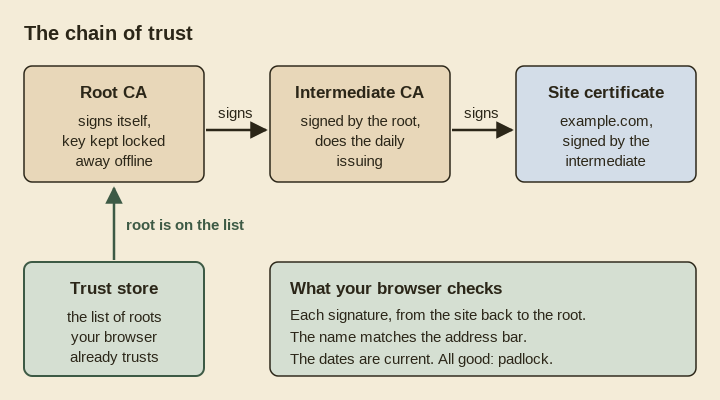 Trust runs down the chain by signature. Your browser checks it back up to a root it already holds.
The top of the chain is a root certificate. A root's private key is too valuable to use every day, so the root signs a small number of intermediate certificates, and the intermediates sign the certificates that sites use. This is the chain of trust. When a server shows your browser its certificate, it sends the intermediate along with it. The browser checks the site's certificate against the intermediate, the intermediate against the root, and looks for that root in its trust store.
If every signature holds, the name matches and the dates are current, you get a padlock. If any link fails, you get a warning.
The handshake, step by step
All of this happens before the first byte of the page, in an exchange called the handshake. The current version of the protocol, TLS 1.3, is defined in RFC 8446, and its handshake fits in one round trip.
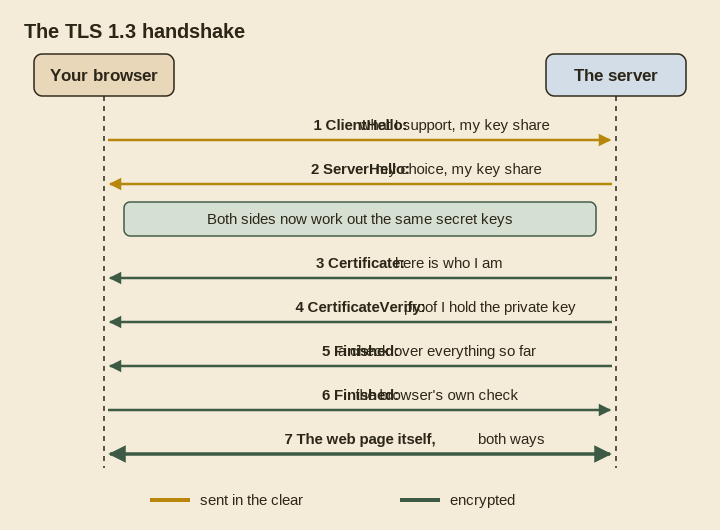 Only the first two messages travel in the clear. The certificate itself is sent encrypted.
- ClientHello. Your browser says which TLS versions and ciphers it can use, and sends a key share: its half of a key agreement.
- ServerHello. The server picks from that list and sends its own half. From the two halves, each side works out the same secret keys. Someone who watched both halves go by cannot. The RFC puts it plainly: every handshake message after this one is encrypted.
- Certificate. The server sends its certificate and the intermediate.
- CertificateVerify. The server signs the conversation so far with its private key. This is the proof that it owns the certificate and did not just copy it from somewhere.
- Finished. The server sends a check value computed over the whole handshake, so any tampering shows.
- Finished. Your browser checks the chain, the name, the dates and the signature, then sends its own check value.
- The page itself starts to flow, encrypted with the keys from step 2.
Notice what does not happen. No password and no long-term secret crosses the wire. The keys for this visit are made fresh and thrown away afterward.
Read a certificate yourself
Open any HTTPS site and click the icon at the left end of the address bar. Chrome's help page calls it the security status symbol. From there:
- Chrome and Edge: choose "Connection is secure", then "Certificate is valid".
- Firefox: choose "Connection secure", then "More information", then "View Certificate".
- Safari: click the padlock, then "Show Certificate".
The wording shifts a little between versions, but the path is always icon, connection, certificate. Find three things: the names the certificate covers, who issued it, and the date it expires. Then look for the chain, shown as a short list or a set of tabs: site, intermediate, root.
Tip
Do this once on a site you trust, such as your bank, so you know what normal looks like. A bank certificate issued to a name you have never heard of would stand out the day you see it.
What the padlock does not mean
The padlock says two things: the connection is private, and the server holds a certificate for the name in the address bar. It says nothing about whether the people behind that name are honest.
A criminal who registers a look-alike domain controls that domain, so a CA will issue a certificate for it, and the fake login page gets a padlock like any other. Google's Chrome team wrote in May 2023 that "nearly all phishing sites use HTTPS", and for that reason announced it would replace Chrome's lock with a neutral settings icon. Read the name in the address bar. The padlock only tells you that name is the one you are really talking to.
Watch out
The mistake that hurts beginners is clicking through a certificate warning to get on with their day. On any site where you log in, pay, or enter personal details, a warning means stop. Never click "proceed anyway" there, least of all on public Wi-Fi, where someone sitting between you and the site is one of the things that causes it.
A warning is the browser telling you which link in the chain failed.
| Warning says | What it usually means |
|---|---|
| Certificate has expired | The site's owner forgot to renew, or your device's clock is wrong |
| Name does not match | The certificate was issued for a different site than the one you asked for |
| Issuer is not trusted | The certificate signs itself, or something on the network is intercepting the connection |
Check your device's date first: a wrong clock makes every site look expired. There is one place where clicking through is reasonable, which is a device you own and set up yourself, such as your home router's admin page, that signs its own certificate. You know why the warning is there. Anywhere else, close the tab.
Running a site? Certificates are free
Certificates used to cost money and an afternoon. Let's Encrypt is a CA that charges nothing and issues certificates automatically. A small program on your server, called an ACME client, proves you control the domain by placing a file on the site or a record in its DNS, then fetches and installs the certificate. Let's Encrypt recommends a client called Certbot.
Its standard certificates last 90 days, and its own advice is to renew every 60. That sounds like a chore until you see that the client does it on a schedule without you. Let's Encrypt checks only that you control the domain. It does not check who you are, which is one more reason a padlock is not a character reference.
What to remember
- HTTPS is HTTP inside TLS. TLS gives privacy, integrity and proof of which server you reached.
- A certificate ties a name to a public key and carries an issuer's signature.
- Trust runs from a root in your browser's trust store, through an intermediate, to the site.
- In TLS 1.3 the two sides agree on keys in the first two messages. Everything after is encrypted.
- The padlock means "private connection to this name". It never means "safe site".
- A certificate warning on a site that asks for a password or a card number means stop.
- If you run a site, a certificate costs nothing and renews itself.
Tonight, open your bank's site and read its certificate: names, issuer, expiry, chain. The certificate depends on the name being right in the first place, so DNS: The Internet's Phone Book is the natural thing to read next.