Articles & BlogBy Trapper W. Brown7 min read
The screen that says "Enter the recovery key for this drive" means BitLocker, the Windows feature that encrypts your drive, could not unlock it automatically and is asking for a 48-digit number before Windows will start. Your files are still there and still protected. It is serious only if you cannot find the key, because nobody, Microsoft included, can make a new one for you.
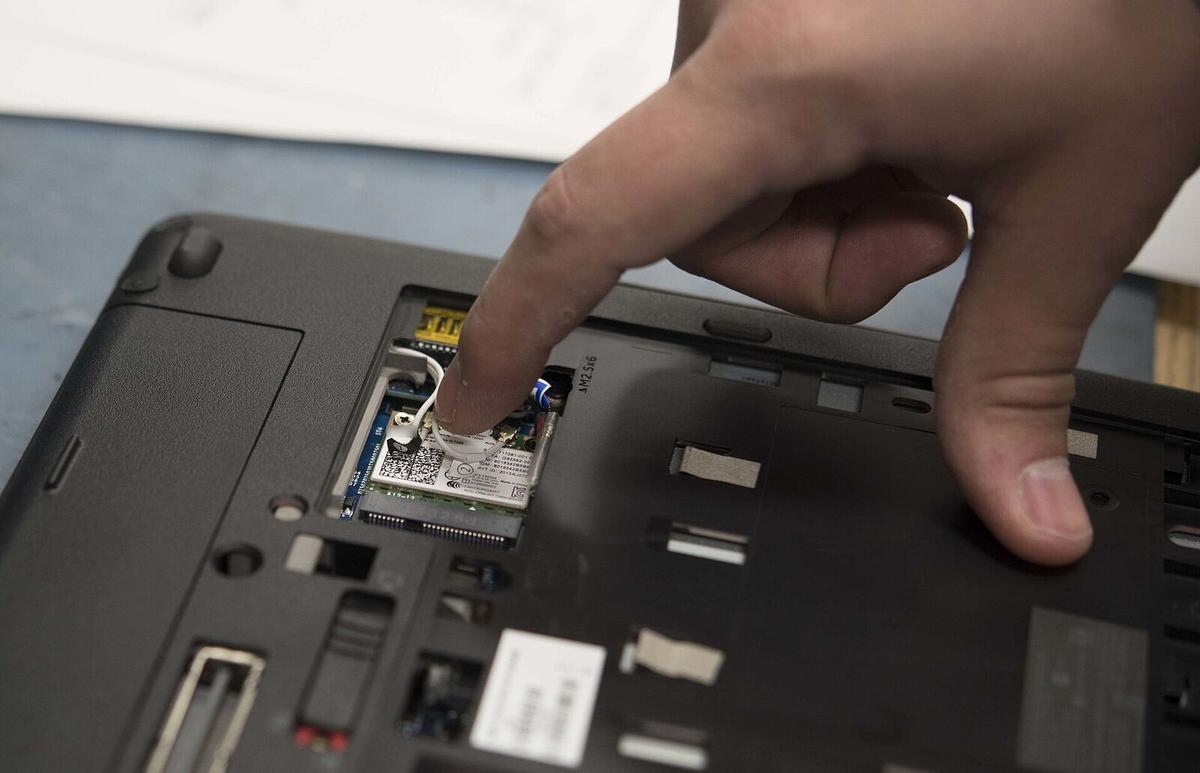 Windows cannot tell an honest hardware change from tampering, so either one can bring up the recovery screen. Photo by Airman 1st Class Jordyn Fetter, U.S. Air Force, public domain, via Wikimedia Commons.
What does this message mean?
Encryption scrambles everything on the drive so that it can be read only with the right key. The article "Encryption and Hashing in Plain Terms" covers how that works. On a PC with a TPM, short for Trusted Platform Module, the keys are stored by that security chip, which sits on the main board or inside the processor. The drive unlocks at startup and you never see it happen.
Microsoft describes the recovery key as a unique 48-digit numerical password that can unlock the drive when the normal way fails. Windows asks for it when it detects what could be an unauthorized attempt to get at the data. Microsoft adds that a change to the hardware, the firmware (the software built into the PC that runs before Windows) or the software can look the same to BitLocker as an attack, so the screen can appear even though you are the rightful owner and did nothing wrong.
You may also be asked for a recovery key on a data drive or an external drive, for example after forgetting its unlock password.
What usually causes it?
Microsoft's documentation for administrators lists common events that send a PC into BitLocker recovery when it starts. The ones a home user is most likely to meet:
- a firmware (BIOS or UEFI) update
- turning off, disabling or clearing the TPM
- replacing the main board, or moving the drive into another computer
- docking or undocking a laptop
- entering the wrong PIN too many times
- a change to the boot manager, the small program that starts Windows
Many people do not know BitLocker is on. Microsoft says a feature called Device Encryption turns it on automatically when you first sign in or set up a device with a Microsoft account or a work or school account, and it is available on Windows Home too. That matters here, because how BitLocker was turned on decides where the key went.
| How BitLocker was turned on | Where Microsoft says the key is |
|---|---|
| The device turned on Device Encryption automatically | Saved to your Microsoft account or work or school account |
| Another administrator on the PC turned on Device Encryption | Saved to that person's account |
| Someone turned on BitLocker Drive Encryption by hand | Wherever that person chose to save it |
| An organization that manages the PC turned it on by policy | The organization might have it |
What to try, in order
Microsoft's page "Find your BitLocker recovery key" applies to Windows 11 and Windows 10. You will need a second device with a web browser, such as your phone.
- Write down the recovery key ID. The screen shows a key ID. Microsoft says to note its first 8 digits. The ID is not the key. It tells you which key to use if you have more than one. Read the rest of the screen too: it can show a hint about where the key was saved, and starting in Windows 11, version 24H2, a hint of the Microsoft account that holds it.
- Undo a recent change, if you made one. If the screen appeared right after you changed something, such as a dock or a part, put it back and start the PC again. Microsoft treats undoing the change as one way out.
- Check your Microsoft account. On the other device, go to
https://aka.ms/myrecoverykeyand sign in with your Microsoft account. Find the entry whose key ID matches, and type its 48-digit recovery key into the locked PC. If someone else set up the device or turned BitLocker on, the key might be in that person's Microsoft account, so ask them to look. - Check a work or school account. If the device was ever signed in to an organization, the key could be stored there. Go to
https://aka.ms/aadrecoverykey, sign in with the work or school account, select Devices, expand the device, and select View BitLocker Keys. Match the key ID. If you cannot see it yourself, the organization's IT support may be able to. - Look for a printout. The key may have been printed when BitLocker was turned on. Microsoft's advice is to look where you keep important papers related to the device.
- Try a USB flash drive. If the key was saved to a flash drive, plug it into the locked PC and follow the instructions. If it was saved there as a text file, open the file on a different device and read the key from it.
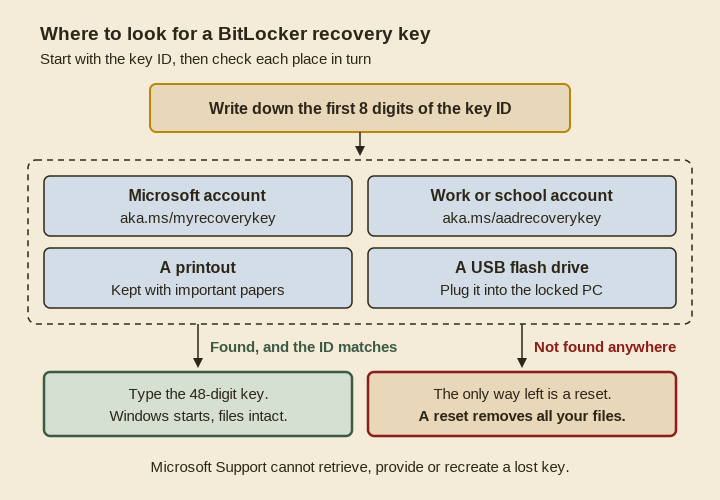 Four places to look, and two ways it can end.
Watch out
If the key cannot be found, the only route Microsoft gives is one that destroys your data. Its page says that if you cannot find the key and cannot undo the change that caused the screen, you will have to reset the device using one of the Windows recovery options, and that resetting will remove all of your files. Photos, documents and anything else not backed up somewhere else are gone for good. Treat a reset as the end of the search and not as a repair.
Microsoft's "Recovery options in Windows" page lays out the ways to reset or reinstall, and notes that most options in the Windows Recovery Environment ask for the BitLocker key themselves. Read it before you start, and search for the key once more first.
There is no step here for getting around BitLocker, because there is no safe or honest one.
When to stop and get help
Stop and call your IT department if the PC belongs to, or is managed by, an employer or a school. Microsoft says to check with them for the key. Do not reset a work device yourself.
Stop before a reset if the drive holds anything you cannot replace. Go back through every Microsoft account in the household, every old work or school account, and every drawer of paperwork. Microsoft states plainly that its support staff cannot retrieve, provide or recreate a lost recovery key, so I think anyone who offers to recover or bypass one for a fee deserves suspicion. A repair shop can help you search and can carry out a reset. It cannot produce the key.
What to remember
- The screen means BitLocker wants proof before it unlocks the drive. Your files have not been damaged.
- Note the first 8 digits of the recovery key ID, then look for the key that matches.
- The usual places are a Microsoft account, a work or school account, a printout and a USB flash drive.
- The key may be in the account of whoever set up the PC.
- Microsoft Support cannot recover a lost key, and a reset removes all of your files.
- Once you are back in, make a second copy of the key and keep it away from the computer.
For that last point, Microsoft's steps on Windows 11 and Windows 10 are short: from Start, type BitLocker, select Manage BitLocker, then Back up your recovery key, and choose where to save it. Microsoft warns against storing a printout or a flash drive holding the key with the computer, since a thief who gets both gets your data. A backup of your files matters as much as a backup of the key, and "Backups That Work: The 3-2-1 Rule" explains how to keep one. If the PC holds work or irreplaceable files and these steps have not helped, stop and take it to a repair professional before you reset anything.
Sources (8)
- Microsoft Support, "Find your BitLocker recovery key", read 15 November 2026
- Microsoft Support, "BitLocker overview", read 15 November 2026
- Microsoft Support, "Device Encryption in Windows", read 15 November 2026
- Microsoft Support, "Back Up Your BitLocker Recovery Key", read 15 November 2026
- Microsoft Learn, "BitLocker recovery overview", read 15 November 2026
- Microsoft Learn, "BitLocker preboot recovery screen", read 15 November 2026
- Microsoft Support, "Recovery options in Windows", read 15 November 2026
- Microsoft Support, "What's a Trusted Platform Module (TPM)?", read 15 November 2026