Articles & BlogBy Trapper W. Brown8 min read
For anyone with a Wi-Fi router at home, including the one the internet company installed and nobody has touched since. By the end you will have checked the six settings that do most of the work.
Every device in your house reaches the internet through one small box. Phones, laptops, the television, the doorbell camera: all of it passes through the router. If someone else controls that box, they sit in the middle of everything.
Routers come with dozens of settings, and most can be left alone. Six of them decide whether the box is yours or anybody's. Plan on half an hour.
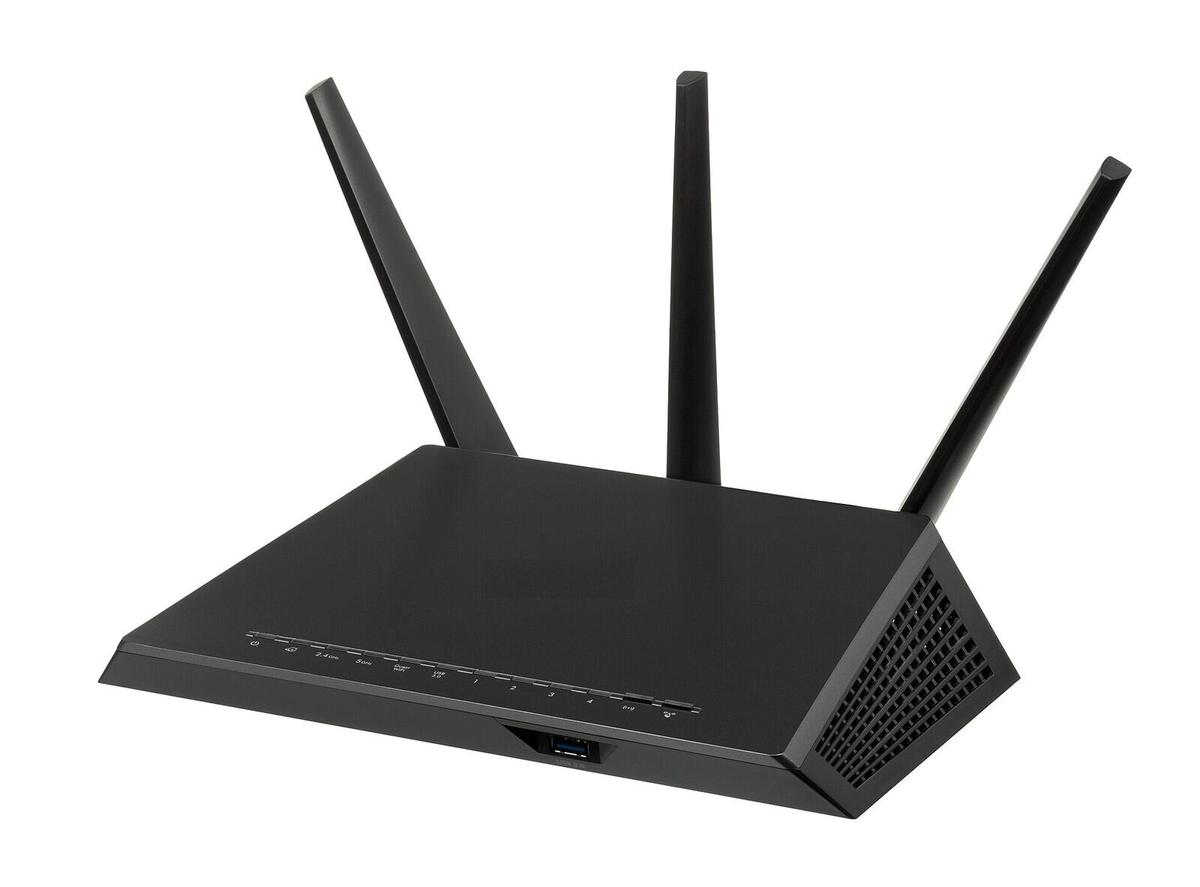 A typical home router. The settings that protect it are inside, on its admin page. Photo by Evan-Amos, public domain, via Wikimedia Commons.
To change anything you need the router's admin page, the control panel you open in a web browser or in the maker's phone app. If you have not found yours yet, the article IP Addresses, Ports and Your Home Router shows how to look up the router's address on your network. Type that address into a browser while connected to your home Wi-Fi and a login page appears.
| # | Setting | Set it to |
|---|---|---|
| 1 | Admin password | Your own, long and unique |
| 2 | Firmware updates | Automatic, or checked by hand a few times a year |
| 3 | Wi-Fi security type | WPA3 Personal, or WPA2 Personal if a device needs it |
| 4 | WPS | Off |
| 5 | Guest network | On, for visitors and smart devices |
| 6 | Remote administration | Off |
1. The admin password
Your router has two passwords, and people mix them up. The Wi-Fi password is the one you give to family so their phones can join. The admin password opens the control panel where every other setting lives.
Many routers ship with an admin login printed on a sticker or set to something widely known, such as "admin." Anyone who gets onto your Wi-Fi, or any infected device already on it, can try that login. The Federal Trade Commission (FTC), in its guide to securing home Wi-Fi, says to change the default administrative username, password and network name to something unique. CISA, the US cybersecurity agency, puts changing the default administrator password among its first steps.
Make it long and use it nowhere else. The FBI's advice in a May 2025 router warning is unique, random passwords of at least 16 characters. A password manager will make one and remember it. While you are there, pick a network name that does not give away your family name or address.
2. Firmware updates
Firmware is the software that runs the router itself. Like a phone, a router needs updates to close security holes. Unlike a phone, it will not nag you about them.
Look in the admin page for a section called something like "Firmware," "Software update" or "Router update." If there is an automatic option, turn it on. If not, press the check button now and put a reminder in your calendar to do it again every few months. The FTC and CISA both say to check the maker's website for the latest version.
Watch out
Updates stop one day. When a maker ends support for a model, newly found holes stay open for good. The FBI warned in May 2025 that criminals were taking over these "end of life" routers and passing their own traffic through them, which hides the criminals behind the owner's home address. Its advice was direct: replace a router that no longer gets updates. If the update page shows nothing newer than several years ago, look up your model on the maker's site.
3. WPA3 or WPA2
Wi-Fi travels through the air, so it is scrambled so that neighbors and passersby cannot read it. The security type is the method of scrambling, and the names are a jumble of letters.
| Name on the menu | Verdict |
|---|---|
| WPA3 Personal | Best. Use it if every device you own can connect |
| WPA2 Personal | Good. Fine for older devices |
| A mixed WPA2 and WPA3 mode | A sensible middle while you still own older devices |
| WPA (with no number) or WEP | Outdated. Do not use |
| Open, or "None" | No protection at all |
The FTC says to set the router to WPA3 Personal or WPA2 Personal, and calls WPA and WEP outdated. CISA recommends WPA3 Personal. The Wi-Fi Alliance, the industry group behind the names, says WPA3 Personal adds protection against attempts to guess the password.
If a router offers nothing newer than WPA or WEP, the FTC's advice is to try updating its software and, if that does not add WPA2 or WPA3, to consider getting a new router. And if switching to WPA3 knocks an old printer or tablet off the network, step back to the mixed mode or WPA2.
4. WPS off
WPS, short for Wi-Fi Protected Setup, is the feature behind the button on many routers that lets a device join without typing the password. The FTC describes it as pushing a button on the router to connect a device.
The trouble is the second way WPS works: a short PIN. CISA says a design flaw in that PIN lets it be guessed by brute force, which means trying numbers until one works, and advises turning WPS off. The FTC says the same. Find "WPS" in the wireless settings and disable it.
5. A guest network
A guest network is a second Wi-Fi name and password on the same router. Devices on it can reach the internet. On most routers they cannot reach the devices on your main network.
The FTC gives two reasons to use one. Fewer people know your main password, and if a visitor's phone carries something nasty, it is less likely to reach your own devices.
I would go one step further and put smart devices there as well: televisions, speakers, plugs, cameras, the doorbell. These gadgets often get few updates and you cannot inspect what they do. On the guest side, a weak one has a much harder time reaching the laptop with your tax returns on it.
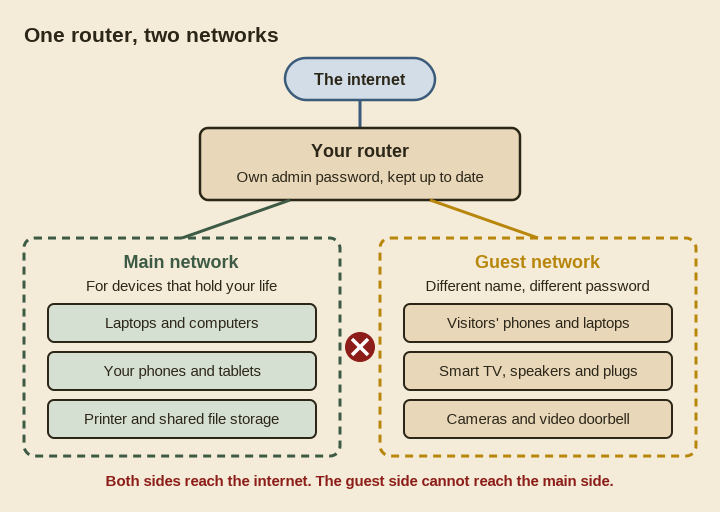 Two networks from one box. A problem on the right stays on the right.
Tip
If sending video from your phone to the television stops working after the move, that is the separation doing its job. Either join your phone to the guest network for movie night, or keep that one device on the main side. Give the guest network its own strong password as well. An open guest network invites the whole street.
6. Remote administration off, and UPnP
Remote administration (also called remote management or web access from WAN) lets someone open the router's admin page from anywhere on the internet. You almost never need that. The FTC and CISA both say to turn it off, and the FBI's 2025 warning named routers with remote administration switched on among those being taken over. The FBI's steps were to disable it, save the change and restart the router.
Some newer routers are managed through the maker's phone app and an online account instead. If yours works that way, protect that account with a strong password and a second sign-in step.
Then there is UPnP, Universal Plug and Play. It lets devices on your network ask the router to open a door to the internet on their behalf, with no question put to you. The FTC lists it among features to turn off. CISA says to disable it unless you have a specific need.
This one is a judgment call, because some game consoles and voice chat apps lean on UPnP to connect players to each other. My suggestion: turn it off and see if anything breaks. If a console starts complaining about its connection, you have found your specific need, and you can turn it back on knowing why.
When you finish, log out of the admin page. The FTC includes that step, and it also suggests confirming that the router's built-in firewall is switched on.
Here is the list.
- Open the router's admin page and sign in
- Change the admin password to a long one of your own
- Check for a firmware update and turn on automatic updates if offered
- Set Wi-Fi security to WPA3 Personal, or WPA2 Personal
- Turn off WPS
- Turn on the guest network, with its own password
- Move smart devices to the guest network
- Turn off remote administration
- Decide on UPnP: off unless something you use needs it
- Log out of the admin page
What to remember
- The admin password and the Wi-Fi password are different. Change the admin one first.
- A router needs updates like any computer, and one that no longer gets them should be replaced.
- WPA3 Personal or WPA2 Personal. Never WEP, plain WPA or an open network.
- WPS off. Typing the password once is the safer way to join.
- Visitors and smart gadgets go on the guest network.
- Remote administration off. UPnP off unless something you use needs it.
Set these once and the router can go back to being a box you ignore. For what those doors that UPnP opens really are, and how the router's firewall decides what gets in, read Firewalls, NAT and Port Forwarding.