Articles & BlogBy Trapper W. Brown8 min read
For parents, grandparents and anyone raising a child who plays or chats online. By the end you will know which settings to look for and what to say, and where to turn if something goes wrong.
Most of what children do online is ordinary. They play, they watch, they talk to friends from school. Your job is not to stand guard over every minute of it. It is to set the device up sensibly and to be the person they come to when something feels off.
Settings handle what a machine can check: age ratings, time, spending, who can send a message. Conversation handles everything else, and it still works when your child is at a friend's house on someone else's tablet.
 Games are where many children first talk to people they have never met. Photo by Evan-Amos, public domain, via Wikimedia Commons.
Start with the talk, then the settings
Why that order? Because settings wear out and the talk does not. The FTC's guide for parents on video games (January 2025) says it directly: parental controls and ratings are strong tools, "but they're no substitute for talking with your child about your rules and expectations."
A child who feels watched learns to hide. A child who helped make the rules is more likely to tell you when one gets broken, including by someone else. So set the controls with your child in the room and say what each one does. Nothing you switch on should be a secret.
Keep the first talk short. Three points cover most of it for a young child: we do not tell people online where we live or go to school, we do not keep secrets with people we met in a game, and if anything feels wrong you can tell me and you will not be in trouble.
What the built-in controls can do
You probably do not need to buy anything. An FTC consumer alert (June 2026) names three free tools that come from the makers of the devices: Apple's Family Sharing, Google's Family Link and Microsoft Family Safety. It says they can be used to set screen time limits, restrict apps and content, and show you which sites and apps your child uses. Game consoles have their own. The ESRB, which rates games, keeps a parental controls page with a link for each of Nintendo Switch, PlayStation, Xbox, Windows PCs and Meta Quest headsets.
The names of the menus differ and change often, so look for the idea instead of the exact label. The FTC's video game guide lists the controls worth finding:
| Look for a setting that | What it does |
|---|---|
| Restricts games by rating | Blocks titles above the age you choose |
| Sets time limits | Ends play at a set hour or after a set time |
| Limits purchases | Turns spending off, asks for a password, or sets a dollar cap |
| Restricts chat | Limits messages and voice to approved friends, or turns them off |
| Restricts location sharing | Stops the device showing where your child is |
| Controls the profile | Hides real name, age and photo from strangers |
Loosen the settings as your child grows.
Tip
Where the system offers a child account or child profile, use it, and do not hand over your own account with a few limits added. The limits then belong to the child and not to one device.
Five things to do today:
- Set up a child account or profile on the device your child uses most
- Set the game rating limit and require a password for purchases
- Set chat to friends only, and go through the friends list together
- Show your child where the block and report buttons are
- Have the three-point talk
Ratings: what the letters do and do not tell you
Most games sold in the US carry a rating from the ESRB. Its ratings guide gives these age bands:
| Rating | Suitable for |
|---|---|
| E, Everyone | All ages |
| E10+, Everyone 10+ | Ages 10 and up |
| T, Teen | Ages 13 and up |
| M, Mature 17+ | Ages 17 and up |
| AO, Adults Only 18+ | Adults only |
The letter describes what the game's makers put in it. It says nothing about the other players. For that, look below the letter for small notices the ESRB calls Interactive Elements. "Users Interact" means players can talk and share things with each other, unfiltered. "In-Game Purchases" means real money can be spent. "Shares Location" means the game can show other users where a player is. The ESRB says these notices do not change the rating, and the FTC adds that ratings do not cover ads or content made by other players.
So an E-rated game with "Users Interact" on the box is a gentle game with an open chat room attached. Decide about each part separately.
Chat, strangers and "let's move to another app"
Chat is where a child meets people you have never seen. The setting to find is the one that limits chat to friends only. The FTC then suggests going through the friends list together and removing anyone your child does not know in real life.
Teach one sign above all others. If someone your child met in a game asks to carry on talking in a different app, the FTC says it "could be a sign that the player is trying to start a personal connection." It even offers a line a child can use: "No thanks. I'd rather just keep playing the game." Practice it out loud once at the kitchen table.
The second sign is personal questions: age, school, address, whether parents are home. The FTC's advice is for your child to block that player and tell you or another trusted adult. Most games have a "report player" tool as well. Show your child where it is.
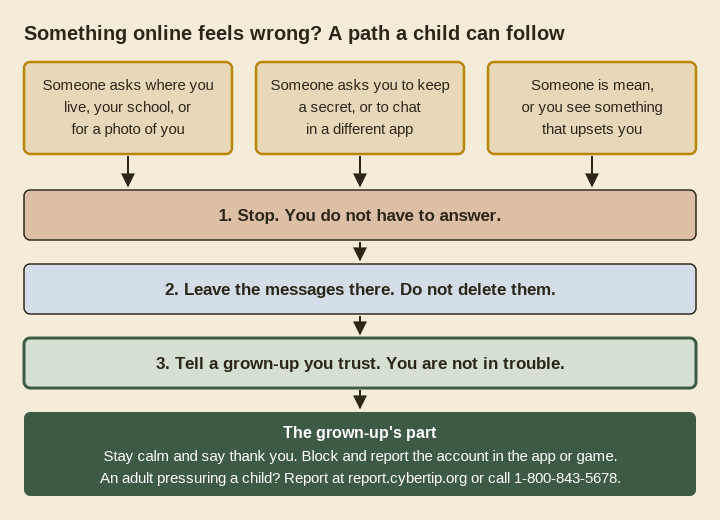 Three steps a child can remember. Print it and put it by the console.
Photos and location
The FTC's guide on kids and cell phones (November 2024) gives a rule short enough for a child: think before you share photos, videos and messages. Once a picture is sent, the sender no longer decides who sees it.
Make the family rule specific. No photos that show the school name or the house number. No photos of other children without asking them. Location sharing stays on only for family, and the same guide says to remind children to share their location only with friends they trust and know in person. Our article What Your Social Media Tells a Burglar shows how much one photo can give away.
Watch out
The mistake that does the most harm is punishing a child for telling you. If the response to "someone sent me something weird" is losing the tablet for a month, the next weird thing will go unmentioned. Thank them first. Sort out the rules later.
If something goes wrong
Stay calm, and start by telling your child they did the right thing. Then:
- Do not delete the messages or the account.
- Take screenshots that show the username, the messages and the date.
- Report the account with the app's or game's own report tool, then block it.
- If an adult has asked a child for images, sent sexual material or tried to arrange a meeting, report it to the CyberTipline.
- If anyone is in immediate danger, call 911.
The CyberTipline is run by the National Center for Missing & Exploited Children (NCMEC), which calls it the nation's centralized reporting system for the online exploitation of children. Its staff review each tip and pass it to law enforcement. The FBI's Internet Crime Complaint Center sends parents to the same place: its page says crimes against children should be filed with NCMEC.
| Situation | Where to go |
|---|---|
| Immediate danger | Call 911 or your local police |
| An adult is pressuring or exploiting a child online | report.cybertip.org, or call 1-800-843-5678 at any hour |
| An explicit image of someone under 18 has been or may be shared | takeitdown.ncmec.org |
| Rude or bullying players | The game's or app's report tool |
If someone threatens to share a picture of your child unless they send money or more pictures, NCMEC's guidance is clear on three points. The person making the threat is to blame, not the child. Get help before deciding whether to pay, because paying rarely stops it. Block the person but do not delete the profile or the messages, since those help stop them. NCMEC's Take It Down service is free, can be used without giving a name, and works without the image ever leaving your child's device.
What to remember
- Talk first, settings second. Set the controls with your child, never behind their back.
- Free family tools from Apple, Google, Microsoft and the console makers cover ratings, time, spending and chat.
- A game's rating describes the game, not the other players. Look for "Users Interact."
- "Let's chat in another app" from a stranger is the sign to stop and tell.
- Never punish the telling.
- Do not delete. Report in the app, then at report.cybertip.org or 1-800-843-5678.
Pick one thing to do tonight: sit beside your child for one round of the game they like best and ask who they play with. The answer tells you which settings to check, and it opens the conversation that matters more than any of them.