Articles & BlogBy Trapper W. Brown9 min read
For anyone who has been told to "check the logs" and did not know where to look. By the end you will be able to find the login records on a Linux or Windows machine and read one line of them with confidence.
Every computer you own keeps a diary. It writes down when it started, who signed in, which program crashed and what tried to connect. It has been doing this since the day you switched it on, and you have probably never read a page.
Those pages are the logs. When something goes wrong, they are often the only witness. Reading them is a skill, and it is much less mysterious than the wall of text suggests.
 A quartermaster writes up the deck log as her ship moors. A computer's log does the same job: one dated line for each event. Photo by Chris Williamson, U.S. Navy, public domain, via Wikimedia Commons.
What is a log line?
The US National Institute of Standards and Technology wrote the standard guide on this in 2006, Special Publication 800-92. It opens with a definition: "A log is a record of the events occurring within an organization's systems and networks." A log is made of entries, and each entry describes one event.
A useful entry answers four questions: when, where, who and what. A ship's deck log does this by hand. A computer does it thousands of times a day, one line per event, written by whichever program saw the event happen.
That is all a log line is. The hard part is knowing which of the many logs to open.
Where does a Linux machine keep its logs?
On almost every current Linux system, a service called the journal collects messages from the kernel and from every running service. You read it with journalctl. Its manual says members of the adm, wheel or systemd-journal groups can read everything, and other users see only their own entries, so put sudo in front if the output looks thin.
journalctl -n 20
This shows the 20 most recent entries.
journalctl -u ssh --since today
This shows today's messages from one service, here the SSH server. The unit is named ssh on Debian and Ubuntu and sshd on most other distributions.
journalctl -p warning -b
This shows messages since the last boot at priority "warning" or more serious.
| Option | What it does |
|---|---|
-n 20 | Show the most recent 20 entries |
-f | Follow: keep printing new entries as they arrive |
-u NAME | Only messages from one service |
-b | Only messages from the current boot |
-p LEVEL | Only this priority or worse, from emerg (0) down to debug (7) |
--since, --until | A time window: today, yesterday, or a date and time |
-g TEXT | Only messages matching a pattern |
-r | Newest first |
Many systems also keep plain text files under /var/log. Where a program named rsyslog is installed, Debian's default configuration sends authentication messages to /var/log/auth.log and nearly everything else to /var/log/syslog. The file is not guaranteed to be there. Debian 12's release notes say rsyslog is no longer installed by default and point you to journalctl instead.
sudo grep "Failed password" /var/log/auth.log
This prints every failed SSH password login in the file, on systems that have it.
How do you read a failed login?
Here is a line you will find on any Linux machine that accepts SSH logins from the internet:
Nov 12 09:14:07 web01 sshd[2143]: Failed password for invalid user admin from 203.0.113.45 port 52144 ssh2
It looks dense. It is eight small facts in a fixed order.
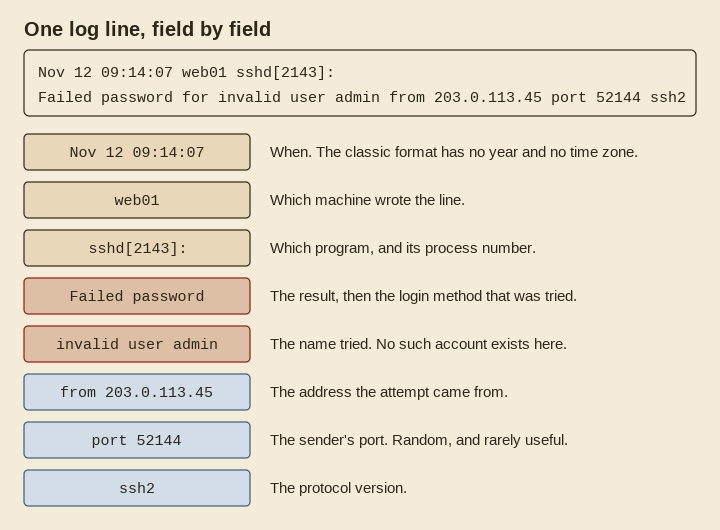 The first three fields come from the logging system. The rest is the message the SSH server wrote.
The wording after the colon comes straight from the OpenSSH source code. The first word is Accepted or Failed. The words invalid user appear only when the name is not an account on the machine. Since OpenSSH 9.8, released in July 2024, the program name on some of these lines is sshd-session.
Now read it as a defender. Someone at 203.0.113.45 guessed the name "admin" with a password, and this machine has no such user. One line like that is background noise. A hundred lines from one address, each with a different name, is someone working through a list. The line to worry about is the one that says Accepted right after a long run of Failed from the same address.
The same event on Windows. Windows keeps its logs in a structured store you read with Event Viewer (search for it from the Start menu). Under "Windows Logs" are three you should know: Application, Security and System. Logins live in Security, and each kind of event has a number. Microsoft's documentation says event 4625 is "logged for any logon failure." A successful logon is 4624.
| Field in event 4625 | What it tells you |
|---|---|
| Account For Which Logon Failed | The name that was tried |
| Logon Type | How: 2 at the keyboard, 3 over the network, 7 unlocking, 10 Remote Desktop |
| Failure Reason, Status, Sub Status | Why: 0xC0000064 is a bad user name, 0xC000006A a bad password |
| Source Network Address | Where it came from. 127.0.0.1 or ::1 is the machine itself |
The format differs and the questions are identical: when, where, who, what.
What time was it, really?
Look again at the SSH line. It says "Nov 12 09:14:07" and nothing about the year or the time zone. That classic format assumes you know which clock the machine uses. When you compare logs from two machines, a wrong assumption puts events out of order, and the story you build from them is false.
NIST's guide makes two points here. Organizations with systems in several time zones often need to convert every logged time to a single zone, and every machine should keep its clock in step using the Network Time Protocol (NTP).
The single zone is nearly always UTC, the world's reference time. A timestamp written the modern way carries its zone with it: 2026-11-12T09:14:07-05:00 is five hours behind UTC, and a trailing Z means UTC itself. Windows stores event times in UTC internally.
timedatectl
This prints your local time, UTC, your time zone, and whether the clock is synchronized.
journalctl -n 5 --utc -o short-iso
This shows the last five entries with full timestamps in UTC.
Watch out
Never trust a timeline built from logs until you know each machine's time zone and whether its clock was right. A server set to UTC and a laptop set to local time will disagree by hours about the same event, and both will look correct.
What should you keep, and for how long?
There is no single right answer, and NIST says so. Its guide calls the core problem a balance between limited resources and "a continuous supply of log data," and warns that "recording more data is not necessarily better." Keep what you would need to answer a question later. For most people that means three things first: logins (successes and failures), changes to accounts and permissions, and what the firewall or router allowed in.
How long is a judgment. The guide notes that data about an event "could be needed weeks or months after the event occurred," because intrusions are often found late. Some organizations have the minimum set for them: the guide lists laws and standards such as HIPAA and PCI DSS among the reasons logs are kept. And when an incident is under way, the rule changes from retention to preservation: stop anything that would delete the logs covering it.
Storing logs on the machine that wrote them has one flaw. Whoever takes over the machine can erase them. The fix is central logging: every machine sends a copy of each entry, as it is written, to a separate log server. Syslog, the oldest way of doing this, is still in use, and one line of rsyslog configuration (*.* @192.168.1.10) forwards everything to another host. Larger organizations feed those copies into a search and alerting system.
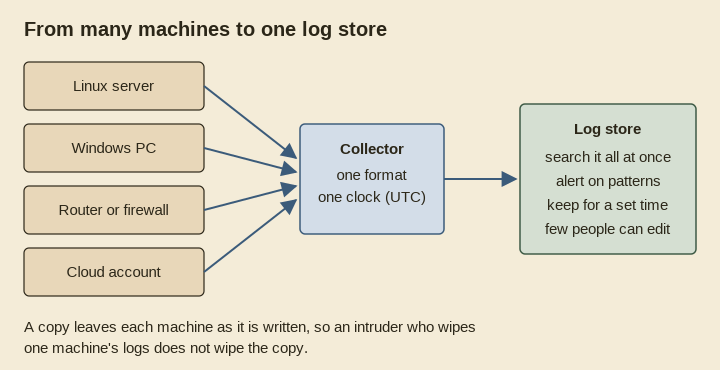 Central logging: the copy is out of reach before anyone can tamper with the original.
Tip
Logs fill disks. On Linux, journalctl --disk-usage shows how much space the journal is using. Check it before you turn on more detailed logging, and read your logs when nothing is wrong so you know what normal looks like.
Try it tonight on your own machine
Make a failed login on purpose, then find it. Do this only on a computer that is yours.
On Windows: lock the screen, type a wrong password once, then sign in properly. Open PowerShell as Administrator and run:
Get-WinEvent -FilterHashtable @{LogName='Security'; Id=4625} -MaxEvents 5
This lists the five most recent failed logons, newest first. Open the same event in Event Viewer and find the account name, the Logon Type and the Sub Status.
On Linux: lock the screen, type a wrong password once, then unlock. Then run:
sudo journalctl --since today -g "fail"
This shows today's entries that contain "fail". Find yours by its time, and name each field in it.
What to remember
- A log entry is one event: when, where, who and what.
- On Linux, start with
journalctl./var/log/auth.logexists only where rsyslog is installed. - On Windows, logins are in the Security log. 4625 is a failure, 4624 a success.
- A failed SSH line gives you the name tried, the source address and whether the account even exists.
- Fix the clock question first. Convert everything to UTC before you compare machines.
- Keep logins, account changes and firewall decisions. How long is your judgment, unless a law sets it.
- Send copies off the machine so an intruder cannot erase the only record.
Once you can read one line, the next skill is using many of them under pressure. The First Hour: The Incident Response Lifecycle shows where logs fit when something has already gone wrong, and SSH: Logging In to Another Machine Safely explains how to make those failed password lines stop mattering.