Articles & BlogBy Trapper W. Brown8 min read
For anyone who has never opened a terminal. By the end you will be able to move around a Linux system, read and search files, check on the machine, and look up the rest yourself.
The command line looks like a test you did not study for: a black window, a blinking cursor, no buttons. It is closer to texting a very literal assistant. You type one short line, it does that one thing, and it answers.
Servers are run this way, and many have no desktop at all. About 25 commands cover the bulk of the work. This article walks through them.
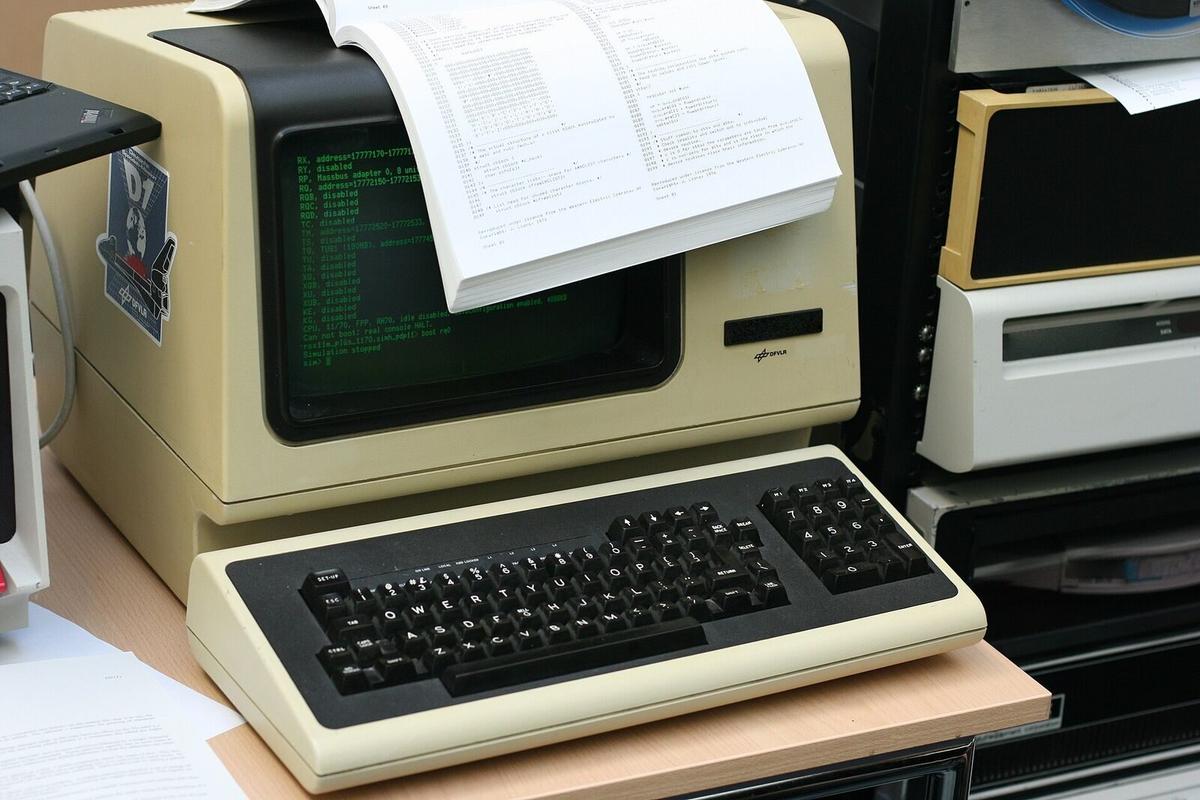 A DEC VT100, from the days when the terminal was a machine of its own on the desk. Photo by Wolfgang Stief, CC0, via Wikimedia Commons.
What are a terminal and a shell?
A terminal used to be a machine like the one above: a screen and a keyboard wired to a computer somewhere else. Today it is a window that plays the same part.
The shell is the program running inside that window. It reads the line you type, runs it, and prints the result. The usual one is Bash, and it is the one this article uses.
The shell shows it is ready by printing a prompt. On Ubuntu and many others it looks like this:
sam@laptop:~$
Read it left to right. sam is the user you are logged in as. laptop is the name of the machine. ~ is the folder you are standing in, and ~ is shorthand for your home folder, /home/sam. The $ means you are a normal user. If it ever shows #, you are root, the administrator, and every command deserves a second look.
How is a command built?
Almost every command has the same three parts, separated by spaces.
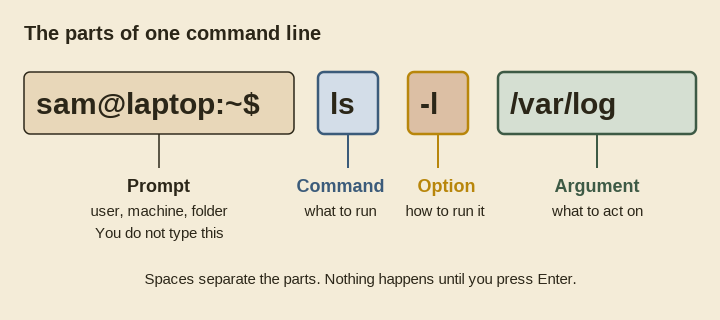 Command, option, argument: the pattern behind nearly every line you will type.
The command is the program to run. Options change how it behaves, and start with a dash: -l is a short option, --help is a long one. Short options can be stacked, so ls -l -a and ls -la mean the same. The argument is what to act on, usually a file or folder.
Linux is case sensitive. Notes.txt and notes.txt are two different files, and LS is not a command.
Arguments are usually paths, and there are two kinds. A path that starts with / is absolute: it is spelled out in full from the top of the system, like /var/log, and means the same thing wherever you are. A path that does not start with / is relative: it is read from the folder you are standing in. Three shortcuts save typing. A single dot . means "here", two dots .. mean "one level up", and ~ means your home folder.
Which commands do most of the work?
Here they are, grouped by job.
| Moving around and files | What it does |
|---|---|
pwd | Prints the folder you are in |
ls | Lists what is in a folder. ls -l adds details, ls -a shows hidden files. |
cd folder | Moves into a folder. cd .. goes up one level, plain cd goes home. |
mkdir name | Makes a folder |
touch name | Makes an empty file if none exists |
cp from to | Copies a file. Add -r to copy a folder. |
mv from to | Moves a file, or renames it |
rm name | Deletes a file. There is no recycle bin. |
| Reading and finding | What it does |
|---|---|
cat file | Prints a whole file to the screen |
less file | Opens a file one page at a time. Space for the next page, /word to search, q to quit. |
head file | Prints the first 10 lines |
tail file | Prints the last 10 lines. tail -f keeps printing as the file grows, which is how you watch a log. |
grep word file | Prints only the lines that contain the word. -i ignores case, -r searches a whole folder. |
find folder -name "*.log" | Finds files by name, anywhere under a folder |
| System and help | What it does |
|---|---|
ps aux | Lists every running program |
top | A live view of what is using the processor and memory. q quits. |
df -h | Shows how full each disk is |
du -sh folder | Shows how much space one folder takes |
free -h | Shows memory in use and available |
man command | Opens the manual for a command. q quits. |
command --help | Prints a short summary of options |
history | Lists the commands you have typed |
sudo command | Runs one command as the administrator |
The -h on df, du and free means "human readable": sizes in megabytes and gigabytes.
The two that matter most are man and --help. Nobody memorizes options. People who look fast in a terminal are mostly people who look things up without embarrassment.
Tip
Press Tab and the shell finishes the name you started typing. Press it twice and it shows every match. Use it all the time: it is faster, and a name that will not complete is a name you have misspelled. The up arrow brings back earlier commands, and Ctrl+R searches them. Ctrl+C stops a command that is stuck.
Pipes and redirection
Each command does one small thing. The power comes from joining them.
A pipe, written |, takes what one command prints and feeds it to the next as input.
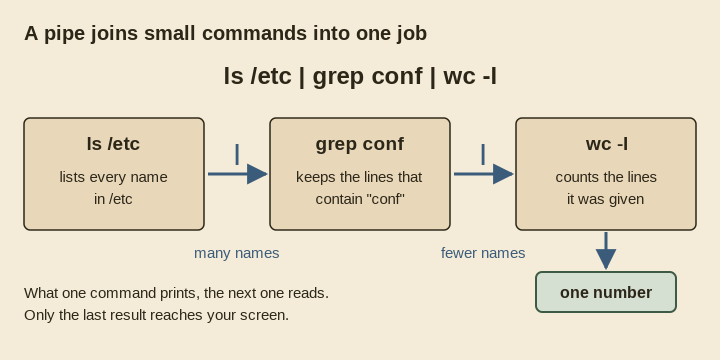 Three small commands, two pipes, one answer.
Redirection sends output to a file in place of the screen. > writes a new file, and replaces one that is already there. >> adds to the end.
ps aux | grep ssh
This lists every running program, then keeps only the lines that mention ssh.
df -h > disk-report.txt
This saves the disk report to a file. Nothing appears on screen.
A first session to type along with
Open a terminal and type each line, pressing Enter after each. Your name and dates will differ from mine.
pwd
Shows where you are. You start at home.
/home/sam
mkdir practice
cd practice
Makes a folder named practice and steps into it. Neither prints anything. On the command line, silence means it worked.
echo "first line" > notes.txt
echo "second line" >> notes.txt
echo prints its argument. The first line sends that into a new file, the second adds to it.
cat notes.txt
Prints the file.
first line
second line
ls -l
Lists the folder with details.
total 4
-rw-r--r-- 1 sam sam 23 Nov 11 19:02 notes.txt
cp notes.txt copy.txt
grep second *.txt
Copies the file, then searches every .txt file for the word "second". The * stands for "anything".
copy.txt:second line
notes.txt:second line
ls | wc -l
Counts the entries in the folder by piping the list into a line counter.
2
cd ..
rm -r practice
Steps back out and deletes the practice folder and everything in it. You are back where you started.
When a line fails, the shell says why, and three messages cover most cases. "command not found" means you misspelled the command or it is not installed. "No such file or directory" means the path is wrong, so check it with ls. "Permission denied" means the file exists but your user may not touch it. Read the message before you try again. It is nearly always telling you the truth.
Two ways beginners get hurt
The first is rm. It does not ask and it does not keep a copy. With -r it deletes folders and everything below them. With -f it never prompts, even for protected files. Put together as rm -rf, one typo in the path is enough. rm -rf ~/practice removes a practice folder. rm -rf ~ /practice, with one stray space, removes your whole home folder first.
Before any rm -r, run ls on the same path and look at what comes back. While you are learning, rm -i asks before each deletion.
The second is sudo. It runs a command as root, the account that may change anything on the system. It asks for your own password, and remembers it for a few minutes. That is fine for installing software. It is a problem when you put sudo in front of something you do not understand.
Watch out
Do not paste commands from a website, a video description or a chat message unless you can say what each part does. A single line can download a script and run it as root, and a web page can hide text that only shows up once pasted. Type it out, or paste into a text editor first and read it. If a guide says to pipe a download straight into sudo bash, look for a different guide.
What to remember
- The terminal is the window, the shell is the program in it, and the prompt tells you who and where you are.
- Command, options, argument, separated by spaces.
pwd,lsandcdtell you where you are and move you around.cat,less,grepandtail -fcover most reading and searching.- A pipe feeds one command's output into the next.
>replaces a file,>>adds to it. manand--helpanswer most questions faster than a search engine.lsbefore yourm -r. Understand a line before yousudoit.
Run the practice session twice, then try man ls and read the first screen. When ls -l starts to look familiar, the letters at the start of each line are the next thing to learn, and Linux Files, Users and Permissions explains them.