Articles & BlogBy Trapper W. Brown7 min read
"DNS server isn't responding" and DNS_PROBE_FINISHED_NXDOMAIN both mean the same basic thing: your computer asked for the address behind a website's name and did not get one it could use. It is an annoyance, not damage: the message is about a lookup that failed, and it does not mean anything is wrong with your files.
The two messages are not identical, though, and the difference tells you where to look. One says nobody answered the question. The other says somebody answered, and the answer was "no such name."
 A card catalog answers one question: where is the thing with this name? DNS does the same job for websites. Photo by MarkBuckawicki, CC0, via Wikimedia Commons.
What does this message mean?
Computers find each other by number, not by name. DNS, the Domain Name System, is the lookup service that turns a name such as example.com into the number your PC needs. The article "DNS: The Internet's Phone Book" explains how a lookup travels. Here you only need to know that your PC sends each lookup to a DNS server, and on a home network your router normally tells the PC which server to use.
| What you see | What it means | Where to look first |
|---|---|---|
| DNS server isn't responding | The PC sent its lookup and no answer came back | Your PC's settings, your router, or your provider |
DNS_PROBE_FINISHED_NXDOMAIN | An answer came back, and it said the name does not exist | The spelling of the address |
ERR_NAME_NOT_RESOLVED | Google's Chrome help: the web address "doesn't exist or now has a different IP address" | The spelling, then the site itself |
NXDOMAIN is the name of one of the reply codes a DNS server can send back. The document that defines DNS terms says it "signifies that the domain name referenced in the query does not exist." Chrome's source code pairs this code with its advice to check the address for a typing mistake.
What usually causes it?
- The address has a typing mistake, or the site no longer exists under that name.
- You are on public Wi-Fi and have not signed in on the network's own page yet.
- Your PC has saved an old "no such name" answer and keeps reusing it.
- The router, the modem, or your internet provider is having trouble.
- A proxy setting on the PC is sending traffic somewhere that does not answer. A proxy is a server that sits between your PC and the internet.
- The DNS server set on the PC is wrong or cannot be reached.
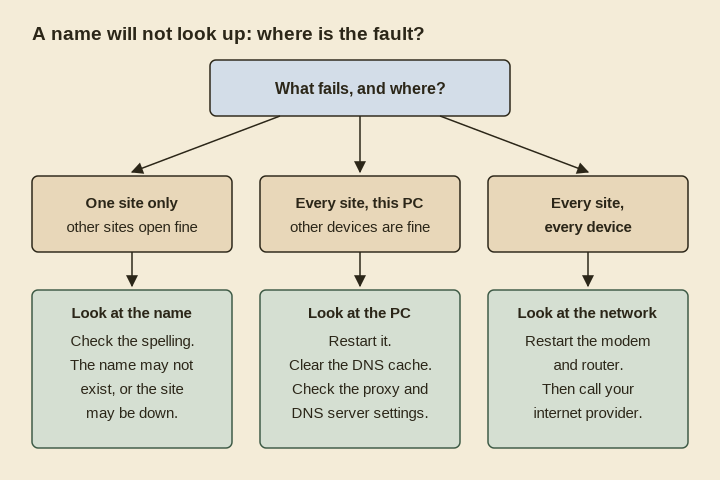 Two quick tests, another site and another device, tell you which third of the problem you are in.
What to try, in order
The steps follow Microsoft's Wi-Fi troubleshooting guide for Windows 11 and Windows 10 and Google's help for Chrome. They run from safest to most involved.
-
Check the address and try another site. Look for a typing mistake, then reload. Open a second, well-known site. If only one site fails, the problem is that name or that site, and nothing on your PC needs fixing.
-
Try another device on the same network. Microsoft's guide says that if another laptop or phone connects, "the source of the problem is likely due to your device." If nothing in the house can open a site, skip to step 4.
-
Restart the PC. Save your work, then select Start, then Power, then Restart.
-
Restart the modem and router. Microsoft's guide says this "helps create a new connection" to your internet provider. The full unplug-and-wait order is in "No internet, secured: What the Wi-Fi Message Means and What to Try".
-
Run the Windows network troubleshooter. In Windows 11, Microsoft points you to the Network and Internet troubleshooter in the Get Help app. In Windows 10, select Start, then Settings, then Network and Internet, then Status, then Network troubleshooter.
-
Clear the DNS cache. Select Search on the taskbar, type
command prompt, and choose Run as administrator, then Yes. Type the command below and press Enter.ipconfig /flushdnsMicrosoft's reference says this "flushes and resets the contents of the DNS client resolver cache." In plain terms, it throws away the lookups your PC has saved, including failed ones. It changes no settings, and the cache refills by itself as you browse.
-
Check for a proxy. Go to Settings, then Network & Internet, then Proxy. Microsoft's guide says to turn off any manual proxy settings. Leave them alone on a work PC: Microsoft notes that an organization might require a proxy.
-
See which DNS server the PC is using, and whether it answers. In the same Command Prompt window, type:
ipconfig /all | findstr /c:"DNS Servers"This only reads and displays; it changes nothing. Note the address it shows, then type
pingfollowed by a space and that address. Ping sends a few small test messages and reports whether replies came back. It also changes nothing. Microsoft's guide says to verify that a DNS server is listed and that you can ping it. -
Look at the DNS setting itself. Microsoft describes where it lives: in Network & internet settings, select Wi-Fi, then Manage known networks, then your network (or select Ethernet for a wired connection). Next to IP assignment, select Edit. "Automatic (DHCP)" lets the router set the address and the DNS server, and Microsoft marks it as recommended. "Manual" lets you type them yourself. If this is set to Manual and you did not set it, write down what is there, switch to Automatic, and save.
Microsoft's guide also says that if the PC has a valid address but cannot reach its DNS server, you can change the DNS server to a different address in that same Manual screen. I am not going to name one. Whoever runs your DNS server sees the names you look up, so that choice deserves more thought than a troubleshooting step gives it. "DNS: The Internet's Phone Book" covers what a resolver can see and how to test a lookup yourself with nslookup.
The stronger commands in Microsoft's guide (release and renew, the network stack resets, and Network reset) deal with the connection as a whole. They are covered, with what each one changes, in "No internet, secured: What the Wi-Fi Message Means and What to Try".
Watch out
Do not download a "DNS fixer" or "network repair" tool. Every step that works is already built into Windows.
When to stop and get help
Call your internet provider if every device in the house fails after you have restarted the modem and router. The fault is probably outside your home. If you can get online another way, such as on your phone's mobile data, check whether the provider is reporting an outage.
Ask your IT department if this is a work computer. The proxy and DNS settings on it were probably set on purpose.
If only this PC fails and the steps above have not helped, the next steps reset network settings and belong in the article named above. If the PC holds work or irreplaceable files and the steps have not helped, stop and take it to a repair professional.
What to remember
- Both messages mean a name could not be turned into an address. They are about a lookup, not about your files.
- NXDOMAIN means "that name does not exist." Check the spelling first.
- Test another site and another device before you change anything. Those two tests tell you whether to look at the name, the PC or the network.
ipconfig /flushdnsclears saved lookups and changes nothing else.- Leave the DNS setting on Automatic unless you have a reason and know who will be answering your lookups.
The fault can be as small as a typing mistake, a router that needs a restart, or a provider outage that ends by itself. Work through the list in order and stop at the first step that brings the site back.
Sources (9)
- Microsoft Support, "Fix Wi-Fi connection issues in Windows", applies to Windows 10 and Windows 11, read 15 November 2026
- Microsoft Support, "Essential Network Settings and Tasks in Windows", applies to Windows 10 and Windows 11, read 15 November 2026
- Microsoft Support, "Use a proxy server in Windows", applies to Windows 10 and Windows 11, read 15 November 2026
- Microsoft Learn, "ipconfig", read 15 November 2026
- Microsoft Learn, "Troubleshooting DNS clients", read 15 November 2026
- Google Chrome Help, "Get help with common error messages in Chrome", read 15 November 2026
- Google Chrome Help, "Fix connection and loading errors in Chrome", read 15 November 2026
- The Chromium Authors, "localized_error.cc" (the error page text chosen for each DNS probe result), read 15 November 2026
- IETF, RFC 9499, "DNS Terminology", March 2024