Articles & BlogBy Trapper W. Brown7 min read
"Your PIN is no longer available due to a change to the security settings on this device" means Windows has stopped accepting the PIN that was set up on this PC and wants you to make a new one. Your account still exists and the message says nothing about your files. It becomes a real problem only if the PIN was the one way you knew to get in, so the job is to find your other way.
 A sign-in problem is the kind of call a help desk takes, and on a work PC the help desk is where this one should go. Photo by Senior Airman Clayton Wear, U.S. Air Force, public domain, via Wikimedia Commons.
What does this message mean?
A Windows PIN is part of Windows Hello, Microsoft's name for signing in with a PIN, a fingerprint or your face.
Microsoft's documentation makes three points about the PIN. It is tied to the specific device where it was set up, and it cannot be used anywhere else. It stays on that device and is never sent to a server. And it is backed by the TPM, short for Trusted Platform Module, a security chip on the main board or inside the processor. Microsoft says that when you enter the PIN, you unlock a sign-in key, and Windows uses that key to prove who you are.
So the PIN is only half of the arrangement. The other half is the key material the chip protects. If that is cleared or changed, your PIN has nothing left to unlock, however correctly you type it.
Microsoft has no support page that quotes this message word for word. Its page on Windows Hello problems covers the situation in one line: if you are asked to create a PIN again after already having one, it may be due to security updates or changes in the system.
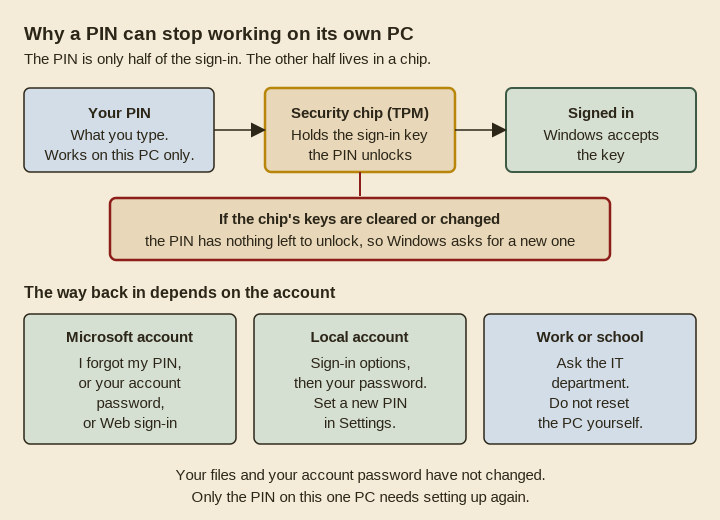 The PIN unlocks a key held by a chip, so a change to the chip can strand the PIN.
What usually causes it?
Two causes appear on Microsoft's pages.
- The security chip was cleared. Microsoft's TPM page says clearing the TPM causes you to lose all the keys created with it and the data those keys protect, and it gives a sign-in PIN as an example.
- A security update or a change in the system. That is the wording of the Windows Hello page quoted above.
My own reading, not Microsoft's statement: since the PIN is tied to that specific hardware, I think a replaced main board would strand the old PIN too.
None of this touches your password: Microsoft says the PIN on a device is different from your Microsoft account password.
What to try, in order
These steps come from Microsoft's "Change or reset your PIN in Windows" and "Troubleshoot Problems Signing In to Windows" pages, which apply to Windows 11 and Windows 10.
- Restart the PC. Microsoft says restarting can clear temporary errors that cause sign-in trouble.
- Check that the PC is online. Select the Network icon on the lock screen. Microsoft notes that in some cases you cannot sign in without an internet connection.
- Follow the prompt, or select "I forgot my PIN". If the screen offers a link to set up your PIN again, select it. Otherwise look below the PIN box. Microsoft says that if I forgot my PIN is there, you select it and follow the instructions, which have you prove who you are with your Microsoft account and then choose a new PIN. This option exists only for Microsoft accounts, not for local accounts.
- Sign in with your password. Select Sign-in options on the sign-in screen and choose the password entry. For a local account, meaning one that exists only on this PC, Microsoft says this is the way: sign in with the password, then reset the PIN from Settings.
- If you do not know the password, reset it through Microsoft. For a Microsoft account, the page lists three ways: select I forgot my password on the sign-in screen, or select Sign-in options, then Web sign-in, and choose Forgot my password, or go to Microsoft's password reset page from any browser on another device. Microsoft then verifies you with a code sent to the email address or phone number on the account. For a local account, Microsoft's steps are to select the password entry, select OK, then Reset password, and answer the security questions you set when the account was made.
- Set a new PIN once you are in. In Settings > Accounts > Sign-in options, select PIN (Windows Hello) and set it up again.
| Your account | The route Microsoft gives |
|---|---|
| Microsoft account | I forgot my PIN, your account password, or Web sign-in |
| Local account | Sign-in options, then your password, then a new PIN in Settings |
| Work or school account | Your organization's IT department |
One setting can hide the password box. Microsoft's passwordless option, which allows only Windows Hello sign-in for Microsoft accounts on the device, removes the password choice from the sign-in screen. If you see no password option, that may be why, and I forgot my PIN and Web sign-in remain.
Watch out
If none of those routes works, what is left is Microsoft's recovery tools, and some of them remove your files. Do not start a reset from the sign-in screen while your files have no backup. If the drive is encrypted, the recovery tools will ask for your BitLocker recovery key: see "Enter the recovery key for this drive: Where to Find Your BitLocker Key". Read Microsoft's "Recovery options in Windows" page before choosing anything on it.
Some fixes are left out on purpose. Clearing the TPM is sometimes offered as one. It is the very thing Microsoft names as a cause, and Microsoft warns that it can result in data loss. Nothing here edits the registry, deletes system folders or uses an outside tool to get past the sign-in screen. I think of those as back doors: a method that lets you in without proof lets a thief in too.
When to stop and get help
Stop and call your IT department if the PC belongs to an employer or a school. Microsoft's documentation shows that organizations run their own PIN reset process, and it says not to clear the TPM on a device you do not own.
Stop if you cannot get into your Microsoft account at all. Microsoft's sign-in helper, linked from its password pages, is the route. Microsoft says its support agents are not allowed to send password reset links or to access and change account details, and that it cannot help you retrieve or get around a lost password. I think anyone who offers to do that for a fee deserves suspicion.
Nothing on Microsoft's pages ties this message to a failing part, so I would not pay for a replacement drive on the strength of it.
What to remember
- The PIN belongs to one PC and is backed by its security chip. It is not your account password.
- With a Microsoft account, use I forgot my PIN, your password or Web sign-in. With a local account, use your password.
- Do not clear the TPM, and do not use tools that promise to get around the sign-in screen.
- A reset is the last resort, and only after your files are backed up.
The lesson I take from this message is to keep more than one way in: know your account password even if you type a PIN every day, and keep the recovery email and phone number on your Microsoft account current. "Locking Down a Windows or Mac Computer" covers the other settings worth having, and "Backups That Work: The 3-2-1 Rule" covers the files. If the PC holds work or irreplaceable files and these steps have not helped, stop and take it to a repair professional.
Sources (12)
- Microsoft Support, "Change or reset your PIN in Windows", read 15 November 2026
- Microsoft Support, "Windows Hello common issues and troubleshooting tips", read 15 November 2026
- Microsoft Support, "Troubleshoot Problems Signing In to Windows", read 15 November 2026
- Microsoft Support, "Configure Windows Hello", read 15 November 2026
- Microsoft Support, "Go passwordless in Windows", read 15 November 2026
- Microsoft Support, "Change or reset your Microsoft account password in Windows", read 15 November 2026
- Microsoft Support, "Reset a forgotten Microsoft account password", read 15 November 2026
- Microsoft Support, "What's a Trusted Platform Module (TPM)?", read 15 November 2026
- Microsoft Learn, "Windows Hello for Business Frequently Asked Questions (FAQ)", read 15 November 2026
- Microsoft Learn, "Troubleshoot the TPM", read 15 November 2026
- Microsoft Learn, "PIN reset", read 15 November 2026
- Microsoft Support, "Recovery options in Windows", read 15 November 2026