Articles & BlogBy Trapper W. Brown7 min read
Windows Update error 0x800f081f means Windows went to fetch the files it needs to install or repair one of its own parts and could not find them. Your documents and photos are not what is missing. The PC usually keeps working, but the update or feature will not install until Windows can reach a good set of those files.
 A repair needs the right part from the storeroom, and this code means Windows could not find the part where it looked. Photo by Petty Officer 1st Class Ryre Arciaga, U.S. Navy, public domain, via Wikimedia Commons.
What does this message mean?
Microsoft's references give 0x800f081f the name CBS_E_SOURCE_MISSING and the description "The source for the package or file not found." The message Microsoft lists with it reads "The source files could not be found."
Two terms explain that. Windows is built from parts called components, and it keeps its own stock of them in the component store, a folder inside the Windows folder. A source, or repair source, is where Windows goes for a fresh copy when it has to add or mend a part. Microsoft's page on repair sources says Windows Update is the default source, and that a set of files such as Windows installation media can be used instead.
So the code describes a failed errand. Windows needed a file, went to its source, and came back with nothing it could use.
What usually causes it?
Microsoft documents the code in four places, and the cause is different in each.
| Where you saw it | What Microsoft's page says |
|---|---|
| Installing a Windows update | The technical page's cause is "Component Store corruption." The home page lists the code, in its Windows 10 section, as corrupted or missing system files or an incomplete download |
| Turning on .NET Framework 3.5 | The files for this feature are not kept on the PC. The code can appear when another source was named and it lacks the files, cannot be read, or holds files that are damaged or wrong for this version of Windows |
| Running the DISM repair command | DISM shows the code with the message that the source files could not be found |
| Upgrading to a new version of Windows | "The source files could not be found." Microsoft points to installing over the top from Windows installation media |
.NET Framework is Microsoft software that some programs need in order to run, and version 3.5 is an old one. Microsoft's page explains that Windows holds only a description of that feature. When you turn it on, Windows contacts Windows Update to download the files, and how a PC is set up to get updates can break that step.
Microsoft's pages also carry a note that support for Windows 10 ended on October 14, 2025, and that Microsoft no longer provides free software updates from Windows Update for it.
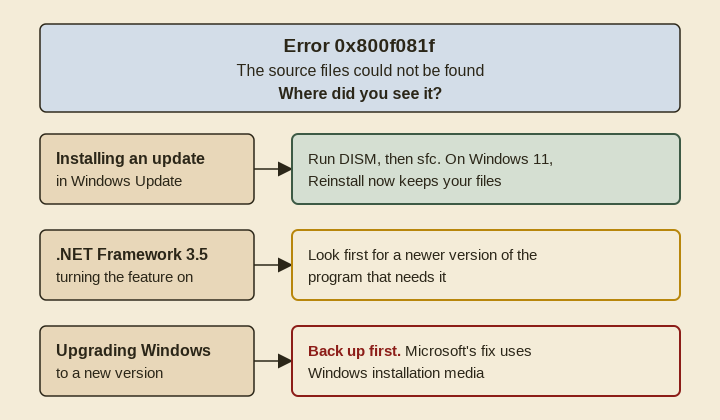 One code, three situations, and a different first move for each.
What to try, in order
Watch out
Microsoft's update troubleshooting page says to back up your personal files before trying any of its fixes, and its recovery page warns that some recovery options can result in data loss. Copy what matters to another drive first. "Backups That Work: The 3-2-1 Rule" explains how.
-
Check that the PC is online, then restart. Windows Update is the default source, so Windows has to be able to reach it. On Windows 11 and Windows 10, Microsoft's path is Start > Settings > Network & Internet > Wi-Fi. Restart and try the update again.
-
Run the Windows Update troubleshooter. "Windows Update Error 0x80070002: What It Means and What to Try" has the full path for Windows 11 and Windows 10, along with the free space check.
-
Run the two repair commands. Microsoft's technical page gives this fix for the code: run
Dism.exe /Online /Cleanup-Image /Restorehealth, thenSfc.exe /Scannow, then restart the device. The first repairs the component store with good copies from Windows Update. The second scans protected system files and replaces damaged ones. Both change Windows' own files. "Windows Update Error 0x80073712: What It Means and What to Try" owns these steps: how to open the window they run in, what each result means and what to do next. -
On Windows 11, reinstall the current version and keep everything. Microsoft calls this option Fix problems using Windows Update. Its page says the process reinstalls the same version of Windows already on the PC, repairs system files and components, and preserves your apps, files and settings. Keep the PC plugged in and online the whole time.
- Select Start > Settings > System > Recovery.
- Under Fix problems using Windows Update, select Reinstall now.
- Choose whether the PC may restart by itself 15 minutes after the installation completes, then select OK.
- Windows downloads and installs a repair version of the last update that installed successfully. Restart when it finishes if you did not allow the automatic restart.
Microsoft says the option may be missing on a PC managed by a workplace or school, or on a version of Windows 11 older than the 2022 annual update. It also needs the February 2024 optional update or a later one. Sometimes Windows offers it without being asked: after a failed update, the Windows Update page in Settings may say "Reinstall your current version of Windows to repair system files and components."
-
If the code came from .NET Framework 3.5, look for another way first. Microsoft's own page opens with a caution: version 3.5 was released in 2008, and before installing it you should try to find an updated version of your software that uses a newer .NET. If you still need it, the steps on that page, which is titled for Windows 10, are to select Start, search for Windows Features, tick .NET Framework 3.5 (includes .NET 2.0 and 3.0), select OK and restart if asked. From Windows 11 version 26H1 on, Microsoft says 3.5 can no longer be installed as a Windows component and comes only as a standalone installer, which that page links to.
Microsoft documents more, and I think it belongs to someone who does this work often:
- Its fix for this code on Windows 10 when .NET Framework 3.5 will not install uses Windows installation media and the Group Policy editor, an administrator's tool. The page is under Sources, and its steps are not printed here.
- DISM and the .NET Framework 3.5 install can both be pointed at another source. For .NET Framework 3.5, Microsoft warns that source files from a different version of Windows can leave the system in an unsupported state, so this is not a step to improvise.
- Reset this PC and a reinstall from installation media sit near the bottom of Microsoft's recovery page, which says of Reset this PC, "This option is most disruptive." A reinstall from media removes everything.
When to stop and get help
Stop when the repair commands and the Windows 11 reinstall have not cleared the code and the next step would be Reset this PC or installation media. Those can cost you programs, settings or files, and they go far better with a full backup in hand. "Backing Up Your Computer and Reimaging It: The Deep Guide" covers that.
Stop also if the PC belongs to an employer or a school. Microsoft's pages say such a PC may be set to get its files from the organization and not from Windows Update, and only the people who run it can change that.
If the PC holds work or irreplaceable files and the steps have not helped, stop and take it to a repair professional.
What to remember
- 0x800f081f means Windows could not find the source files to install or repair one of its own parts.
- Your own files are not the ones missing, and the PC usually keeps working.
- Where you saw it matters: an update, .NET Framework 3.5 and an upgrade each have a different first move.
- For an update: back up, check the connection, then run DISM and sfc.
- Windows 11 can reinstall its current version and keep your apps, files and settings.
- Reset this PC and installation media come last, after a backup.
The repair in step 4 is the one Microsoft built for update trouble. If Windows offers it on the update page, I think that is the moment to stop experimenting and take it.
Sources (10)
- Microsoft Learn, "Common Windows Update errors", updated 6 May 2026
- Microsoft Learn, "Fix Windows Update corruptions and installation failures", updated 12 February 2026
- Microsoft Support, "Troubleshoot problems updating Windows"
- Microsoft Support, "Fix issues by reinstalling the current version of Windows"
- Microsoft Support, "Recovery options in Windows"
- Microsoft Learn, ".NET Framework 3.5 installation errors: 0x800F0906, 0x800F081F, 0x800F0907, 0x800F0922", updated 12 February 2026
- Microsoft Learn, "Install .NET Framework 3.5 on Windows 10 and Windows Server", updated 10 February 2026
- Microsoft Learn, "Configure a Windows Repair Source", updated 15 December 2021
- Microsoft Support, "Get help with Windows upgrade and installation errors"
- Microsoft Support, "Windows Update Troubleshooter"