Articles & BlogBy Trapper W. Brown7 min read
Windows Update error 0x80070002 means Windows went looking for a file the update needed and did not find it. It is rarely serious: the update did not install, your own files are not part of the problem, and the first fixes are a restart and a built-in repair tool.
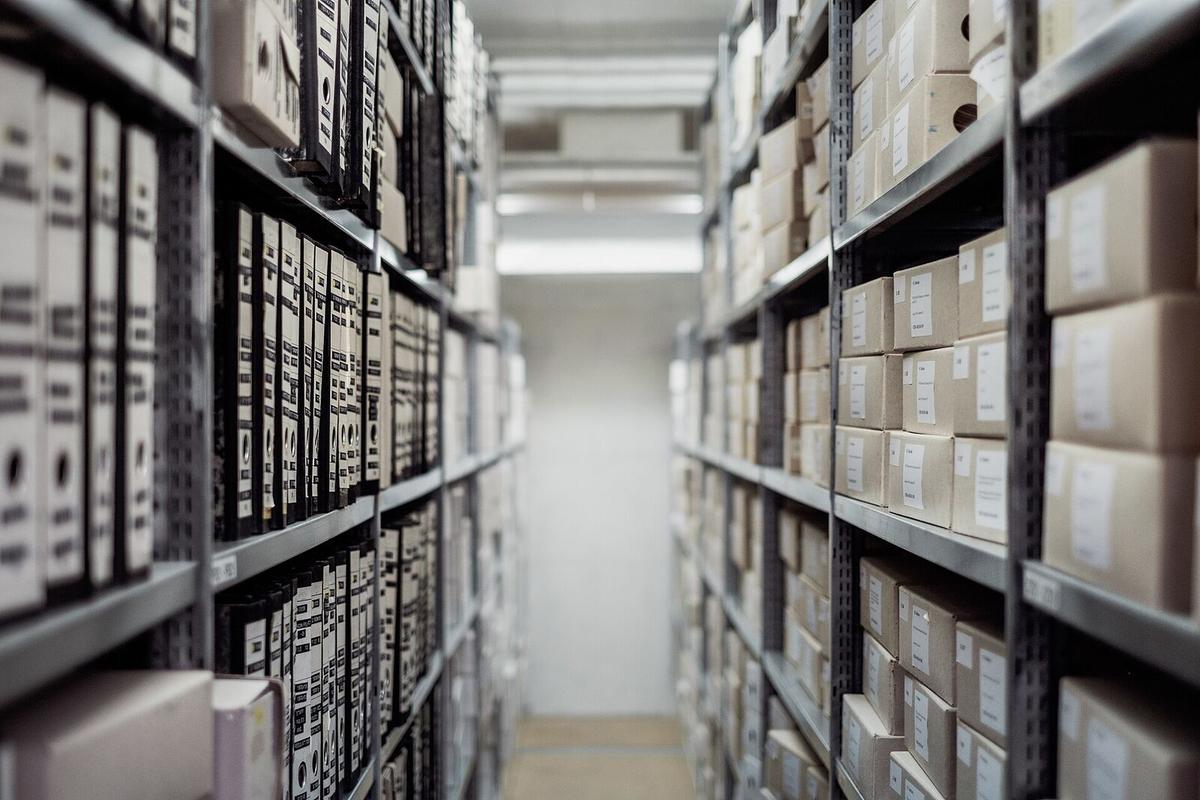 An update is a long list of files to fetch from the shelves, and this code means one of them was not where the list said. Photo by Samuel Zeller, CC0, via Wikimedia Commons.
What does this message mean?
Windows keeps a numbered list of errors. Microsoft's reference gives number 2 the name ERROR_FILE_NOT_FOUND and the text "The system cannot find the file specified." Microsoft's page on update corruption lists 0x80070002 under that same name and text. The long code is error number 2 in the format Windows Update reports.
Microsoft's support page for home users is less exact. It lists 0x80070002, in its sections for both Windows 11 and Windows 10, with the cause "Update failed to install." That is true and not much help, so the why comes from the more technical pages.
The words around the code on your screen vary. Microsoft's pages document the code, and none of the pages listed under Sources quotes one fixed sentence for it.
What usually causes it?
Microsoft has one troubleshooting page for this exact code. It is written for Windows Server and the people who manage those machines. It says the error typically comes from missing or damaged files the update needs, or from earlier updates that did not finish. It lists three ways that happens:
- An earlier update stopped partway and left Windows in an inconsistent state.
- System files are missing from the folders where Windows expects them.
- Settings in the registry (the database of Windows settings) point to files or services that no longer exist.
The home-user page adds causes through its steps: another program getting in the way of the update, too little free space, and damaged files in the update cache, which is the folder where Windows keeps the updates it has downloaded.
| Where you saw it | What Microsoft's page says |
|---|---|
| Installing a regular update | "Update failed to install": restart, run the troubleshooter, check disk space |
| Upgrading to a new version of Windows, shown as 0x80070002 0x20009 | The system cannot find the file specified. If the PC has disks you are not installing Windows on, remove those disks |
| On a Windows Server machine | Missing or damaged files, or an unfinished earlier update. The fixes are for administrators |
The second row is a different situation. Microsoft's upgrade pages say the two-part code comes up while setup checks the drives, for example when an old system drive was left connected after a new one went in. "0xC1900101: What the Windows Upgrade Error Means and What to Try" explains how to read two-part upgrade codes.
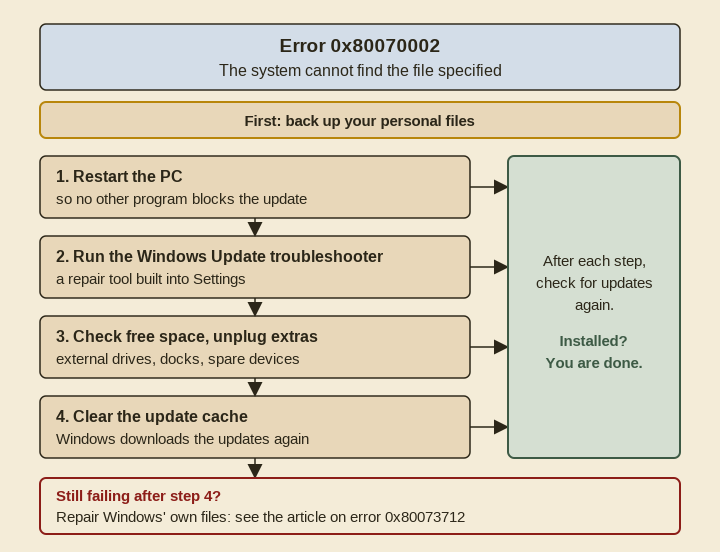 Four steps from Microsoft's own page, safest first, before any repair of Windows itself.
What to try, in order
These steps come from Microsoft's support page "Troubleshoot problems updating Windows", which covers Windows 11 and Windows 10. Steps 1 to 3 are the ones it lists under this code. Steps 4 to 6 come from its general list.
Watch out
Microsoft's page says to back up your personal files before trying any of its fixes. Copy what matters to a USB drive or another drive first. "Backups That Work: The 3-2-1 Rule" explains how.
- Restart the PC. Microsoft's reason: a restart makes sure no other program is blocking the update. Save your work first. Then try the update again.
- Run the Windows Update troubleshooter. A troubleshooter is a built-in tool that tests for known faults and repairs what it can. On Windows 11: Start > Settings > System > Troubleshoot > Other troubleshooters, then Run beside Windows Update. On Windows 10: Start > Settings > Update & Security > Troubleshoot > Additional troubleshooters, then under Get up and running select Windows Update and Run the troubleshooter. Microsoft's page on the troubleshooter says to restart the device when it finishes.
- Check free space. Microsoft says a PC needs at least 16 GB free to upgrade a 32-bit system, or 20 GB for a 64-bit one. Its page on update space says feature updates typically need 6 GB to 11 GB or more, and quality updates, the smaller regular ones, 2 GB to 3 GB or more. On Windows 11, open File Explorer and select This PC to see the free space on each drive. Start > Settings > System > Storage > Cleanup recommendations suggests files to remove. Read each item before you select it: Microsoft warns that removing a previous version of Windows from that list cannot be undone.
- Unplug extra hardware. Remove external drives, docks and other devices the PC does not need to run, then try the update again.
- Check for updates again. On Windows 11: Start > Settings > Windows Update > Check for updates. On Windows 10: Start > Settings > Update & Security > Windows Update > Check for updates. Many updates finish only after a restart.
- Clear the Windows Update cache. Microsoft's page says damaged update files in the cache can cause errors. Clearing it makes Windows download the updates again. You need an administrator account. Press the Windows key and R, type
services.mscand press Enter. That opens the list of Windows background services and changes nothing by itself. Find Windows Update in the list, right-click it and select Stop. In File Explorer go toC:\Windows\SoftwareDistributionand delete the files and folders inside it. Go back to the Services window, right-click Windows Update and select Start. Delete only what is inside that one folder. Leave the folder itself, and everything else underC:\Windows, alone.
If the code comes back, the next level is repairing Windows' own files with two built-in commands. "Windows Update Error 0x80073712: What It Means and What to Try" owns those steps, and "Windows Update Error 0x800f081f: What It Means and What to Try" covers the repair that reinstalls the current version of Windows 11 and keeps your files.
Microsoft documents more, and I think it belongs to someone who does this work often:
- The support page has an advanced section of commands that rename the update folders. Microsoft recommends those only for people comfortable in the command line.
- The same section describes removing security software from another company for a while. This article leaves that out.
- The Windows Server page starts by telling the reader to back up the system disk. Its fixes read Windows' own log files, edit the registry and copy system files from a working machine. Those fixes exist, the page is under Sources, and none of them is printed here.
When to stop and get help
Stop when the six steps and the repair commands have not worked and the next move would edit the registry or copy system files by hand.
Stop also if the PC belongs to an employer or a school. Its updates are managed by someone else, and the fix is theirs to make.
If the PC holds work or irreplaceable files and the steps have not helped, stop and take it to a repair professional.
What to remember
- 0x80070002 means "The system cannot find the file specified." An update needed a file that was not there.
- It is rarely serious. Your own files are not what is missing.
- Back up first, then restart, run the troubleshooter, check free space and unplug extra hardware.
- Clearing the update cache makes Windows download the updates again. Delete only the contents of that one folder.
- With 0x20009 after it, the code is about an upgrade and extra drives, which is a different fix.
- Registry edits and hand-copied system files are for someone who can undo them.
Most of the time this code clears with a restart and the troubleshooter. If an update is frozen on a number and showing no code at all, "Windows Update Stuck at 0%, 100% or Any Percentage: What to Try" is the better place to start.
Sources (9)
- Microsoft Support, "Troubleshoot problems updating Windows"
- Microsoft Support, "Windows Update Troubleshooter"
- Microsoft Learn, "Troubleshoot Windows Update error 0x80070002", updated 12 February 2026
- Microsoft Learn, "Fix Windows Update corruptions and installation failures", updated 12 February 2026
- Microsoft Learn, "System Error Codes (0-499)", updated 14 July 2025
- Microsoft Support, "Free up space for Windows updates"
- Microsoft Support, "Free up drive space in Windows"
- Microsoft Support, "Get help with Windows upgrade and installation errors"
- Microsoft Learn, "Windows 10 upgrade resolution procedures", updated 12 February 2026