Articles & BlogBy Trapper W. Brown7 min read
Windows Update error 0x80073712 means the component store, the place where Windows keeps its own stock of the files it is built from, is damaged or out of step. Windows usually keeps running and your own files are not involved, but updates will keep failing until the store is repaired. Windows has two built-in commands for that.
 An update only fits when every piece already in the box is the right one, and this code means Windows found one that is not. Photo by Profpcde, CC0, via Wikimedia Commons.
What does this message mean?
Microsoft's list of numbered Windows errors gives number 14098, written 0x3712 in the base-16 counting that error codes use, the name ERROR_SXS_COMPONENT_STORE_CORRUPT and the text "The component store has been corrupted." Microsoft's page on update corruption lists 0x80073712 under the same name and says the component store is in an inconsistent state.
The component store is a real folder. Microsoft's page on managing it says the store lives in the WinSxS folder inside the Windows folder, and that it supports the customizing and updating of Windows. Windows is made of parts called components. The store tracks each one: its files, its folders, its settings and its services. Windows Update installs new versions of components through the store. The same page says the store is also used to turn Windows features on and off and to uninstall a bad update.
When the store is damaged, an update that depends on it cannot finish, and Windows reports this code.
Microsoft's pages for home users put it in plainer words. One lists 0x80073712 with the cause "Corrupted or missing system files, or incomplete download." Another says "A file needed by Windows Update is likely damaged or missing."
What usually causes it?
Microsoft's pages say what is wrong and how to repair it. They do not say what did the damage, and this article will not guess.
Two details are worth knowing:
- On the support page "Troubleshoot problems updating Windows", this code appears in the Windows 10 section, grouped with 0x800F081F and 0x80246007. The Windows 11 section does not list it by number. The repair commands are on both.
- The same code can come up during an upgrade to a new version of Windows. Microsoft's page on upgrade errors lists it for Windows 11 and Windows 10 and gives the first repair command below as the fix.
Microsoft's pages also carry a note that support for Windows 10 ended on October 14, 2025, and that after that date Microsoft no longer provides free software updates from Windows Update, technical assistance or security fixes for it. "This PC can't run Windows 11: TPM 2.0, Secure Boot and Your Options" covers what that leaves you.
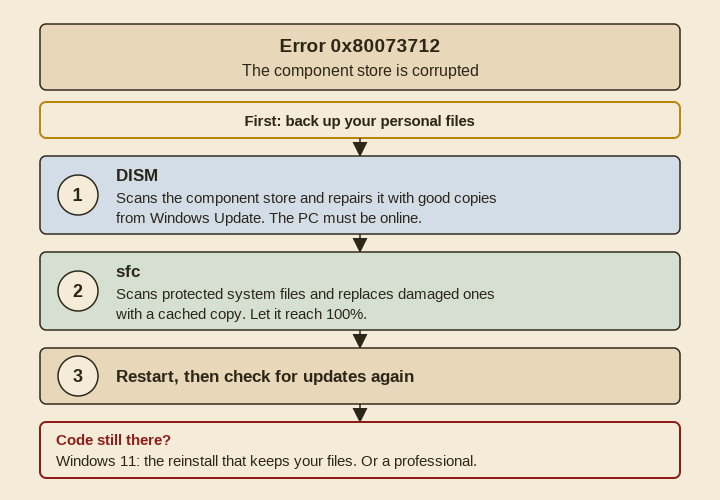 DISM repairs the store first, so that sfc has good copies to work from. That is why the order matters.
What to try, in order
Watch out
Microsoft's update troubleshooting page says to back up your personal files before trying any of its fixes. Copy what matters to another drive first. "Backups That Work: The 3-2-1 Rule" explains how.
-
Restart, then run the Windows Update troubleshooter. Microsoft lists the troubleshooter under this code. "Windows Update Error 0x80070002: What It Means and What to Try" has the full path for Windows 11 and Windows 10, plus the free space check, so those are not repeated here.
-
Open Command Prompt as an administrator. Microsoft's steps: in the search box on the taskbar, type
command prompt, then select Run as administrator from the list of options and select Yes. Command Prompt is a window where you type instructions to Windows as text. You need an administrator account, and the PC needs to be online for the next step. -
Run DISM. Type this and press Enter:
DISM.exe /Online /Cleanup-image /RestorehealthDISM is short for Deployment Image Servicing and Management. Microsoft's reference says this command scans for component store corruption and then performs repairs automatically. It gets good copies from Windows Update. It changes Windows' own files and records: the things Microsoft lists it checking sit in the Windows folder and in Windows' settings. It can take several minutes. Microsoft says a successful run ends with "The restore operation completed successfully" or "The operation completed successfully". If you see no such message, Microsoft's advice is to type the command again.
-
Run System File Checker. In the same window, type this and press Enter:
sfc /scannowMicrosoft says this scans all protected system files and replaces corrupted files with a cached copy. It also changes Windows' own files. Do not close the window until verification reaches 100%. Microsoft says to run DISM first, because DISM provides the files this step repairs with.
-
Read the result. The table below gives the four messages Microsoft lists.
-
Restart and update again. Close Command Prompt, restart the PC and check for updates.
| What sfc says | What Microsoft says it means |
|---|---|
| Windows Resource Protection did not find any integrity violations | No system files are missing or corrupted |
| Windows Resource Protection found corrupt files and successfully repaired them | The repair worked |
| Windows Resource Protection could not perform the requested operation | Run the scan again in safe mode |
| Windows Resource Protection found corrupt files but was unable to fix some of them | The files need replacing by hand from a known good copy |
If you would like to look before you repair, Microsoft's reference lists two checks. Dism /Online /Cleanup-Image /ScanHealth scans for component store corruption and takes several minutes. Dism /Online /Cleanup-Image /CheckHealth reports whether Windows is healthy, repairable or non-repairable. Microsoft describes repairs only for the RestoreHealth command in step 3.
If DISM cannot finish, or the code returns after both commands, Windows 11 has a gentler repair that reinstalls the current version and keeps your files. "Windows Update Error 0x800f081f: What It Means and What to Try" owns those steps.
Microsoft documents more, and I think it belongs to someone who does this work often:
- The last row of the table leads to commands that take ownership of a system file and copy a replacement over it. Microsoft's page gives them, and this article does not.
- Microsoft's page on update corruption has a manual repair that works from the DISM log. The page says it is intended for support agents and IT professionals.
- The advanced section of the update troubleshooting page includes
chkdsk /f C:, which checks the drive and repairs errors it finds. It changes what is on the drive, so it needs a backup first, and Microsoft recommends that section only for people comfortable in the command line.
When to stop and get help
Stop when both commands have run, the code is still there, and the next step would replace system files by hand. Microsoft's own page on System File Checker ends there too: if those steps do not work, it says, you may need to reinstall Windows.
Stop also if the PC belongs to an employer or a school. The fix is theirs to make.
Nothing on Microsoft's pages ties this code to a failing part. They treat it as damaged Windows files with a software repair. If the PC holds work or irreplaceable files and the steps have not helped, stop and take it to a repair professional.
What to remember
- 0x80073712 means the component store, Windows' stock of its own files, is damaged or inconsistent.
- Windows still runs and your files are not the problem, but updates fail until the store is repaired.
- Back up, then run DISM, then sfc, in that order, from an administrator Command Prompt.
- Both commands change Windows' own files. Let each one finish.
- If they do not clear it, the next step on Windows 11 is the reinstall that keeps your files.
- Replacing system files by hand is for someone who does it for a living.
Reinstalling Windows is the last resort here, and it goes far better with a full backup already made. "Backing Up Your Computer and Reimaging It: The Deep Guide" walks through that before you need it.
Sources (9)
- Microsoft Support, "Troubleshoot problems updating Windows"
- Microsoft Support, "Use the System File Checker tool to repair missing or corrupted system files"
- Microsoft Learn, "Fix Windows Update corruptions and installation failures", updated 12 February 2026
- Microsoft Learn, "System Error Codes (12000-15999)", updated 14 July 2025
- Microsoft Learn, "Manage the Component Store", updated 24 June 2022
- Microsoft Learn, "Repair a Windows Image", updated 15 December 2021
- Microsoft Learn, "DISM Operating System Package Servicing Command-Line Options", updated 10 September 2024
- Microsoft Support, "Get help with Windows upgrade and installation errors"
- Microsoft Support, "Windows Update Troubleshooter"