Articles & BlogBy Trapper W. Brown20 min read
For anyone who owns a computer and would hate to lose what is on it, and for anyone about to wipe one and start clean. By the end you will know what to copy, how to prove the copy works, and how to rebuild a machine from nothing without losing a file.
A backup is a second copy of your data kept somewhere the first copy's bad day cannot reach. Reimaging is the other half of the same skill: erasing a computer's disk and putting a fresh system on it, then bringing your data back. People reimage after malware, before selling a machine, or when a disk is replaced.
The two belong in one guide because the second is only safe when the first has been done properly. If you read only one sentence, make it this one: never wipe a disk until you have restored files from its backup and opened them.
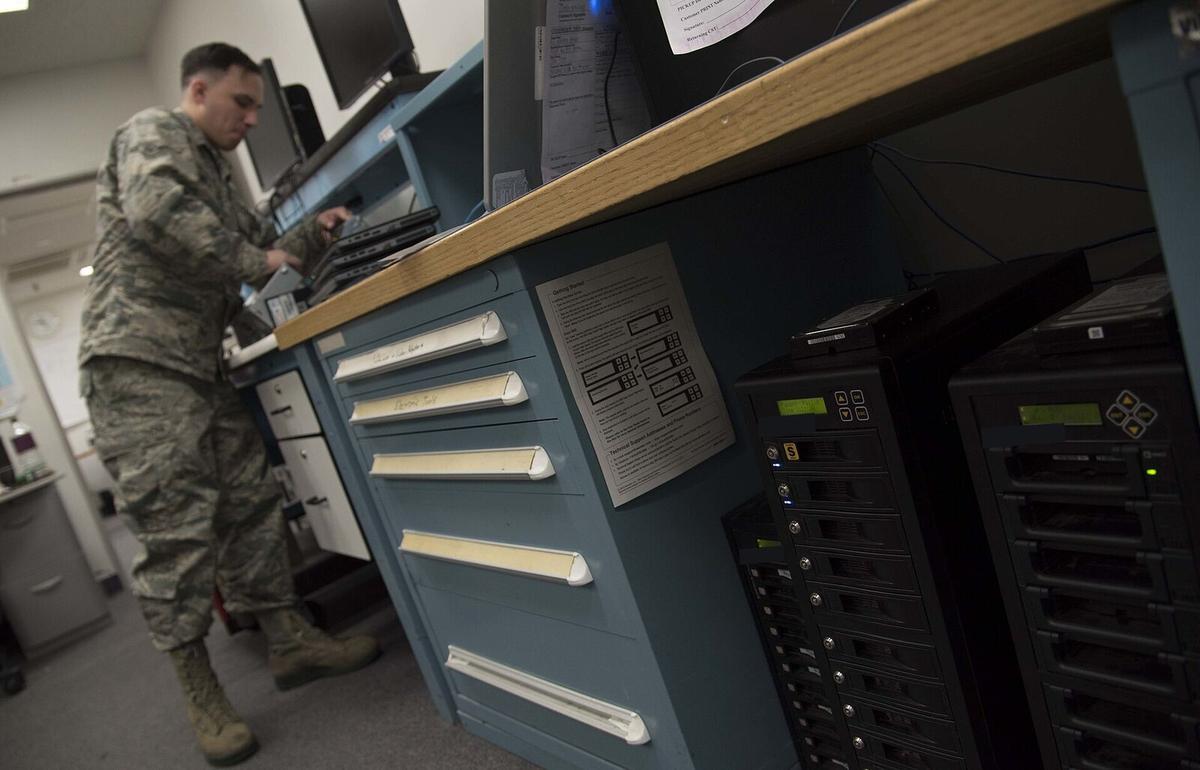 A client systems technician works on computers at Misawa Air Base, Japan, beside towers of removable drive bays. Photo by Airman 1st Class Jordyn Fetter, U.S. Air Force, public domain, via Wikimedia Commons.
What is worth backing up?
Start with a list, because a backup can only return what it was told to copy. Walk through the machine and write down anything you could not download again or rebuild in an afternoon.
- Things you made: documents, spreadsheets, photos, video, music projects, schoolwork, code.
- Things that are hard to get twice: scanned records, tax returns, old email kept on the computer, saved games that do not sync.
- Things that unlock other things: the export from your password manager, the recovery codes for two-step sign-in, license keys for paid software, and the recovery key for the disk's own encryption.
- Things you forget until they are gone: browser bookmarks, the folder of fonts or templates, the notes app that stores its data in an odd place.
The operating system and your apps are on the other side of the line. Both can be installed again from their makers. What cannot be downloaded is the hours spent setting them up, and that is the case for a disk image, which comes next.
For example, take a household with one Windows desktop and one Mac laptop. The desktop has 600 GB in use, but only 150 GB of that is personal files. The rest is Windows, games and apps. The laptop has 250 GB in use, 90 GB of it personal. That household has 240 GB it cannot replace and 610 GB it could reinstall, and the two piles deserve different treatment.
File backup, disk image or sync: which is which?
Three different things get called "a backup" in conversation. They are not interchangeable.
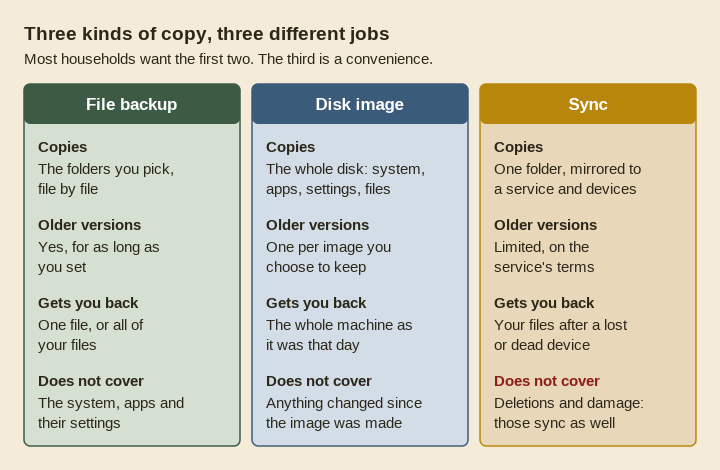 A file backup returns files, a disk image returns a whole machine, and sync keeps devices matching.
A file backup copies the folders you choose, one file at a time, and keeps going on a schedule. It is small, quick, and good at the most common request: "I need the version of this file from last Tuesday."
A disk image is a copy of an entire disk or partition (a section of a disk) saved as one large file or set of files: the system, the apps, the settings and your data together. Restoring it puts the whole machine back as it stood when the image was made. It is large and slow to make, so it is made a few times a year, not nightly.
Sync keeps one folder identical across your devices and an online service. That is useful, and it is not a backup, because a deletion or a ruined file is copied everywhere as faithfully as good work. "Backups That Work: The 3-2-1 Rule" explains that difference and the rule of three copies, and this guide does not repeat it. One detail is worth knowing here: Microsoft's own support page for the Windows Backup app says that backing up your folders syncs them to your OneDrive account. By Microsoft's own description the folder part works by syncing, so treat it as one layer and not the only one.
As a rule of thumb, the file backup is the one you cannot skip. The image is what turns a two-day rebuild into a two-hour restore.
How many versions should you keep?
Versioning means the backup holds older states of a file, not only the latest. It matters because damage is often noticed late. A spreadsheet overwritten three weeks ago, or files scrambled by ransomware (malware that encrypts your files and demands payment) days before anyone looked, can only be recovered from a copy older than the damage.
Apple's Time Machine gives a useful picture of a sensible pattern. Apple says it keeps hourly backups for the past 24 hours, daily backups for the past month, and weekly backups for all previous months, deleting the oldest when the backup disk fills. Recent time is kept in fine detail and older time in coarse detail, which is how one drive holds a year.
Whatever tool you use, look for two settings: how often it runs, and the retention rule, meaning how long old versions are kept. If the only choice is "keep the latest copy", you have a mirror, and a mirror repeats mistakes.
For the ransomware case specifically, "Ransomware: What It Is and What to Do in the First Hour" covers what to do before you touch a backup, including why the backup drive should not be plugged into a machine you think is infected.
Where do the copies live, and should they be encrypted?
The 3-2-1 article covers placement: more than one copy, more than one kind of storage, one copy away from home. Three practical points belong here.
First, size. Apple's guidance for Time Machine is a backup device with at least twice the storage capacity of the Mac, so a Mac with 1 TB wants a 2 TB drive. The same reasoning works anywhere: versions need room.
Second, connection. A backup drive that stays plugged in can be reached by whatever reaches the computer. The joint guide on ransomware from the U.S. Cybersecurity and Infrastructure Security Agency (CISA) and its partners tells organizations to keep backups offline and encrypted and to test them regularly, because many ransomware variants look for reachable backups and delete or encrypt them.
Third, encryption. Any copy that leaves the house, whether to an online service or to a drive in a desk at work, should be encrypted so that whoever holds it cannot read it. Time Machine offers this as Encrypt Backup when you set up the disk. Most of the tools later in this guide encrypt by default or on request. For a plain folder of files on a USB stick, an encrypted container does the job: VeraCrypt, described below, creates a single file that opens as a disk when you give it the password.
Encryption moves the risk from "someone reads my backup" to "I lose the password". The makers are blunt about that. The restic manual says that losing your password "means that your data is irrecoverably lost". Kopia's documentation says there is no way to recover a forgotten repository password. Microsoft says its support staff cannot retrieve, provide or recreate a lost BitLocker recovery key, the 48-digit number that unlocks an encrypted Windows drive. So the password or key for every backup goes in two places that are not the computer being backed up: a password manager you can reach from a phone, and a sheet of paper stored with your important documents.
How do you know a restore will work?
You restore something. Nothing else counts. A backup program that reports success has told you it wrote data, not that the data comes back.
Test at three sizes.
- One file, monthly. Restore a file you know to a different folder and open it. The 3-2-1 article shows how to compare the restored copy with the original using a file hash.
- One whole folder, a few times a year. Restore your documents folder to a spare drive and spot-check a dozen files from different years. This catches the folder that was never on the list.
- The whole plan, once. Before you ever need it, walk through a full recovery on paper or on a spare machine: where is the recovery USB, where is the key, how long does the download take?
Many tools also have a self-check that rereads the stored data and confirms it is intact. In restic, for example, the manual gives this command. It only reads the backup: it downloads every stored pack file and verifies it, and it does not change what is stored.
restic -r /srv/restic-repo check --read-data
The path after -r is the manual's example of where the backup is stored. A self-check proves the stored data is sound, not that the right folders were chosen, so the human test still matters.
What recovery media should you make before you need it?
Recovery media is a USB drive the computer can start from when its own disk cannot start it. The time to make one is while the computer works.
Watch out
Making recovery or installation media erases the USB drive you use. Microsoft, Apple and the Rescuezilla project all say so on their pages. Use an empty drive, and check twice which drive you have selected.
On Windows, Microsoft documents two kinds. The Recovery Drive tool (search for it from Start) builds a USB that can reinstall Windows on the device it was created for, including the PC maker's customizations. Microsoft notes that it does not include your personal files and suggests recreating it once a year so it carries recent updates. Installation media, made with Microsoft's Media Creation Tool, is a general Windows installer on a blank USB drive of at least 8 GB. Microsoft says a product key might be needed unless the device has a digital license, and that the edition you install must match the license, so Windows Home goes back on as Windows Home.
On a Mac, the recovery system is built in. Apple calls it macOS Recovery, and it holds the tools to reinstall macOS, erase or repair the startup disk, and restore from Time Machine. Apple describes a bootable USB installer as something you do not need for an ordinary reinstall and aims its instructions at administrators and experienced users.
For disk images, the imaging tools described below (Clonezilla and Rescuezilla) are themselves a small operating system on a USB drive. You start the computer from that drive to make an image and again to restore one.
Then gather what no USB drive contains: the sign-in for your Microsoft or Apple account, license keys, and the password to the backup itself. If the device is encrypted, Microsoft tells you to have the BitLocker recovery key in hand before a reset.
What do the built-in Windows and macOS tools do?
Both systems ship with enough to cover files and reinstallation. Whole-disk imaging is another matter: Windows has retired its tool, as described below, and the Apple pages read for this guide cover Time Machine and reinstalling, not imaging. The menu paths for turning on File History and Time Machine are in "Locking Down a Windows or Mac Computer". Here is what each tool is for, in the makers' words read on 15 November 2026.
Windows
- File History copies the folders in your libraries (Documents, Pictures, Videos, Music and any you add) to an external drive or network location, and keeps earlier versions you can restore.
- Windows Backup syncs chosen folders to OneDrive and remembers settings and your list of apps under a personal Microsoft account. Microsoft says a free account includes 5 GB of OneDrive storage.
- Reset this PC (Settings, then System, then Recovery) reinstalls Windows. Keep my files removes apps and settings and keeps personal files. Remove everything removes all of it. Either can reinstall from files on the PC or from a fresh download.
- System Image Backup, the older tool also labeled "Backup and Restore (Windows 7)", is on Microsoft's list of deprecated features, which means it is no longer being developed. Microsoft's entry tells readers who want full-disk backup to look for a product from another software publisher.
macOS
- Time Machine backs up your files, including apps, music, photos, email and documents, to an external drive or supported network device on the schedule described earlier.
- macOS Recovery reinstalls the system. Apple says reinstalling macOS this way does not remove your apps or personal data, though it still advises a backup first.
- Erase All Content and Settings (System Settings, then General, then Transfer or Reset) erases data, settings and apps and leaves the installed system in place. Apple says it needs macOS Monterey 12 or later and a Mac with Apple silicon or the T2 security chip.
- Migration Assistant brings a Time Machine backup back. Apple's full recovery instructions say you must reinstall macOS first, then choose to transfer from a Time Machine backup.
How do you reimage a computer, step by step?
"Reimaging" covers two routes to the same place. One is a clean reinstall: erase, install a fresh system, then restore your files. The other is restoring a disk image you made earlier. The order of work is the same either way.
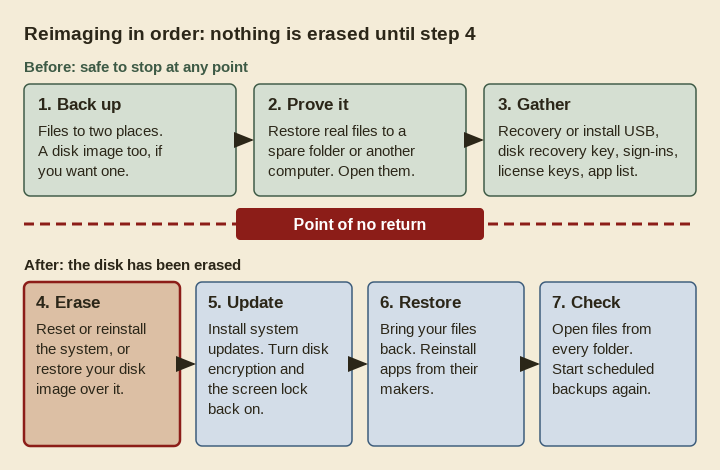 Three steps happen before anything is erased, and they are the ones that decide how the other four go.
Watch out
Step 4 destroys everything on the disk, and choosing the wrong disk in an imaging tool destroys that one instead. Do not start step 4 until a test restore from step 2 has worked. Unplug every drive that is not part of the job, including the backup drive if the reinstall does not need it.
- Back up. Run the file backup and confirm it finished today. Make a second copy on a different device. If you want the old setup preserved, make a disk image too.
- Prove it. Restore a sample of real files to another computer or a spare drive and open them. If you made an image, check that the imaging tool can see and verify it.
- Gather. Recovery or installation USB, disk encryption recovery key, account sign-ins, license keys, Wi-Fi password, and a list of installed apps. Sign out of software that limits how many computers may be activated.
- Erase and reinstall. On Windows, use Reset this PC with Remove everything, or start from the recovery or installation USB. On a Mac, use Erase All Content and Settings, or macOS Recovery if that is not available. To restore an image, start from the imaging tool's USB and follow its restore steps.
- Update first. Before restoring anything, install system updates. Then turn disk encryption and the screen lock back on.
- Restore files, then apps. Bring files back from the backup. Download apps fresh from their makers or the system's app store. After malware, do not restore programs from the old machine, and do not restore a disk image made while it was infected.
- Check and resume. Open files from each folder. Turn scheduled backups back on, because a fresh system does not remember them.
Two cautions. If the machine is leaving your hands, a reinstall is not the whole job: Microsoft notes that the data erasure in Reset this PC is aimed at consumers and does not meet government and industry erasure standards, and "Wiping Old Phones, Laptops and Drives Before You Let Them Go" covers what does. And a disk image belongs to the machine it was made on: Microsoft describes its own recovery drive as being for the device it was created on, and an image moved to a different model can fail to start. For a new computer, a fresh system plus a file restore is the safer route.
Which open source tools make this easier?
Open source means the program's code is published under a license that lets anyone read, use and change it. The nine projects below were each described from their own pages on 15 November 2026. They are listed by job, not ranked, and inclusion is not a recommendation. Read a project's own documentation before trusting it with your only copy of anything.
| Tool | What its project says it does | How you use it | License on its page |
|---|---|---|---|
| Clonezilla | Images and clones disks and partitions | Text menus, started from a USB drive | GNU GPL version 2 |
| Rescuezilla | Disk imaging that reads and writes Clonezilla images | Point and click, started from a USB drive | GNU GPL |
| restic | Encrypted file backup to local or online storage | Command line | BSD 2-Clause |
| BorgBackup | File backup with deduplication, compression and encryption | Command line | BSD 3-clause |
| Kopia | Encrypted, compressed file snapshots | Desktop app or command line | Apache 2.0 |
| Duplicati | Encrypted file backup to storage you choose | Pages in your web browser, or command line | MIT, with stated exceptions |
| UrBackup | File and image backups from many computers to one server | Web page on the server, small client on each PC | AGPL version 3 or later |
| FreeFileSync | Compares and mirrors folders | Desktop app | Called open source on its site; see below |
| VeraCrypt | Encrypted containers and drives | Desktop app | Apache 2.0 and TrueCrypt License 3.0 |
The imaging tools. Clonezilla saves only the used blocks of a disk and supports the file systems of Windows, Linux and Intel-based Macs. Its own page lists limits worth knowing: the destination must be the same size as the source or larger, it does not do incremental images, it cannot image a partition that is in use, and you cannot pull a single file out of an image without a workaround. Rescuezilla describes itself as a graphical front end that is compatible with Clonezilla's image format. Its page says it needs an Intel or AMD compatible PC with 1 GB of memory, and that browsing files inside an image is a beta feature. Neither project's page lists Macs with Apple silicon, so for those the route is Time Machine and macOS Recovery.
The file backup tools. restic, BorgBackup, Kopia and Duplicati all split files into pieces, store each piece once (deduplication), and encrypt before anything leaves the computer. restic says it runs on Linux, BSD, Mac and Windows as a single program. BorgBackup lists Linux, macOS and BSD, and calls its support for Windows through the Windows Subsystem for Linux experimental. Kopia offers a desktop app and a command line on Windows, macOS and Linux and says it does not allow unencrypted backups. Duplicati shows its interface in your browser on Windows, macOS and Linux. Its license file is the MIT License with exceptions for a proprietary directory and third-party parts, and the company behind it also sells paid plans for a monitoring console.
Command line tools look like this. These three lines are from the restic manual, with its example paths. The first two only read. The third writes files, so it carries a warning.
restic -r /srv/restic-repo snapshots
restic -r /srv/restic-repo check
restic -r /srv/restic-repo restore 79766175 --target /tmp/restore
The first lists the backups (restic calls them snapshots) stored in that location. The second checks the structure of the stored data. The third restores the snapshot with that ID into the folder named after --target. Warning: a restore writes into the target folder, so point it at a new, empty folder and never at the originals during a test.
The others. UrBackup is a client and server system: one always-on machine in the house collects backups from the rest. Its feature page says image backups work only for NTFS volumes with the Windows client, or certain Linux file systems with the Linux client. FreeFileSync is a sync tool, so treat it as a mirror unless you turn on its Versioning option, which moves deleted and overwritten files into a folder you name and stamps them with the date and time. Its site calls it open source and offers the source code, and its FAQ says the standard version is for personal use by private individuals, with a paid Business Edition required for commercial and government use. VeraCrypt is not a backup tool. It makes the encrypted container mentioned earlier. Its tutorial warns that choosing an existing file as the container overwrites that file, which is lost and not encrypted.
Paid programs do the same jobs with one company behind them. "Arq Backup: What It Is and How It Works" looks at one of them and at the questions to ask of any backup program.
What are the dos and do nots?
Do
- Restore before you trust. A test restore comes before every wipe.
- Automate the file backup, so it does not depend on memory.
- Keep one copy unplugged or off site.
- Encrypt copies that leave home, and store the key in two places away from the computer.
- Make recovery media while the computer is healthy.
- Label each drive, and keep a written page of recovery steps with it.
Do not
- Do not count sync as a backup.
- Do not keep the only backup in the same bag as the laptop.
- Do not plug a clean backup into a machine you believe is infected.
- Do not store the only copy of the backup password inside the backup.
- Do not restore old programs after malware. Restore files, and install programs fresh.
What schedule can a household keep?
The plan that gets followed is short. This one asks for about ten minutes a month once it is set up.
| When | What | Time it takes |
|---|---|---|
| Every day, automatic | File backup to an online service or a home server | None |
| Weekly | Plug in the external drive, let the file backup run, unplug it | 2 minutes of attention |
| Monthly | Restore one file and open it. Glance at the backup log for errors | 10 minutes |
| Every 3 or 4 months | Make a fresh disk image. Restore a whole folder as a test | An evening, mostly waiting |
| Yearly | Remake the recovery USB. Check that the keys and passwords on paper are still right | 30 minutes |
| Before any wipe or repair | Full backup, test restore, gather keys | 1 to 2 hours |
Take the example household. Both computers send their personal files, 240 GB in total, to an online backup each night. On Sundays each gets its external drive for File History or Time Machine, and the drive goes back in a drawer. Three times a year the desktop gets a disk image, about 600 GB before compression, on a drive kept at a relative's home.
What to remember
- A file backup returns files. A disk image returns a whole machine. Sync returns neither after a mistake.
- Versions are what let you go back to before the damage. Check the retention setting.
- Encrypt what leaves the house, and keep the password in two places that are not the computer.
- A backup is proven by a restore. Test one file a month and one folder a few times a year.
- Make recovery media and collect keys before anything goes wrong.
- When reimaging, three steps come before the erase: back up, prove it, gather.
Pick the one item on the schedule that is not happening in your house today and set it up this week. For most homes that is the monthly test restore, and it is also the one that tells you whether the rest is working.
Sources (35)
- Microsoft Support, "Backup and restore with File History", read 15 November 2026
- Microsoft Support, "Back up and restore with Windows Backup", read 15 November 2026
- Microsoft Support, "Recovery Drive", read 15 November 2026
- Microsoft Support, "Reset your PC", read 15 November 2026
- Microsoft Support, "Create installation media for Windows", read 15 November 2026
- Microsoft Support, "Reinstall Windows with the installation media", read 15 November 2026
- Microsoft Support, "Find your BitLocker recovery key", read 15 November 2026
- Microsoft Learn, "Deprecated features in the Windows client", read 15 November 2026
- Apple Support, "Back up your Mac with Time Machine", 16 October 2026
- Apple Support, "How to start up from macOS Recovery", 5 June 2026
- Apple Support, "How to reinstall macOS", 14 September 2026
- Apple Support, "Erase your Mac and reset it to factory settings", 14 September 2026
- Apple Support, "Create a bootable installer for macOS", 14 September 2026
- Apple Support, "Recover all your files from a Time Machine backup", read 15 November 2026
- CISA and partners, "#StopRansomware Guide", September 2023
- Clonezilla, "What is Clonezilla?", read 15 November 2026
- Rescuezilla, "Download", read 15 November 2026
- Rescuezilla, "Features", read 15 November 2026
- restic, "Backups done right!", read 15 November 2026
- restic manual, "Preparing a new repository", read 15 November 2026
- restic manual, "Working with repositories", read 15 November 2026
- restic manual, "Restoring from backup", read 15 November 2026
- BorgBackup, "Borg Documentation", version 1.4.5, read 15 November 2026
- Kopia, "Features", read 15 November 2026
- Kopia, source repository and license, read 15 November 2026
- Duplicati, "Installation", read 15 November 2026
- Duplicati, license file in the source repository, read 15 November 2026
- Duplicati, "Pricing plans", read 15 November 2026
- UrBackup, "What is UrBackup?", read 15 November 2026
- UrBackup, "Full feature list", read 15 November 2026
- FreeFileSync, "Frequently Asked Questions", read 15 November 2026
- FreeFileSync manual, "File Versioning", read 15 November 2026
- VeraCrypt, "Home", read 15 November 2026
- VeraCrypt, "VeraCrypt License", read 15 November 2026
- VeraCrypt, "Beginner's Tutorial", read 15 November 2026