Articles & BlogBy Trapper W. Brown7 min read
DPC_WATCHDOG_VIOLATION is a blue screen stop code that means a piece of driver software held on to the processor for far too long, and a timer inside Windows stopped the PC because of it. It is usually a software fault in a driver and not a sign of a dying part. One appearance is nothing to act on. A repeat is worth tracking down.
 Every card and device in a PC has a driver, and this stop code points at one of them. Photo by Mass Communication Specialist 3rd Class Josue L. Escobosa, U.S. Navy, public domain, via Wikimedia Commons.
What does this message mean?
Microsoft's reference page gives this code the number 0x00000133. It says the code appears when the DPC watchdog detects either a single long-running deferred procedure call, or a prolonged time spent by the whole system on work of that urgent kind.
A driver is the software that lets Windows talk to a piece of hardware. When a device needs attention (a key is pressed, a network packet arrives, a drive finishes reading), it interrupts the processor. Microsoft's driver documentation says the code that answers an interrupt must run as quickly as possible, so the driver does the bare minimum at once and postpones the rest. The postponed part is a deferred procedure call, or DPC.
A DPC still runs at a higher priority than ordinary program work, so that work waits while a DPC is running. The watchdog is a timer that keeps count of how long that goes on. If a driver's deferred work does not finish inside its allowance, the watchdog fires and Windows stops.
| Term | Plain meaning |
|---|---|
| Interrupt | A device signaling that it needs attention now |
| DPC | The part of a driver's reply that is put off for a moment |
| Watchdog | A timer that checks the driver finished in time |
| Violation | The driver ran past its allowance |
Microsoft's page gives the scale involved. A deferred call should not run longer than 100 microseconds, and the first quick reply to an interrupt no longer than 25 microseconds. A microsecond is a millionth of a second. Microsoft adds that the actual limits on a PC are set much higher than those targets, so a driver that trips the watchdog has overrun by a wide margin.
Microsoft has no page for home users on this one code. Its reference page says it is written for programmers and sends everyone else to its general blue screen steps.
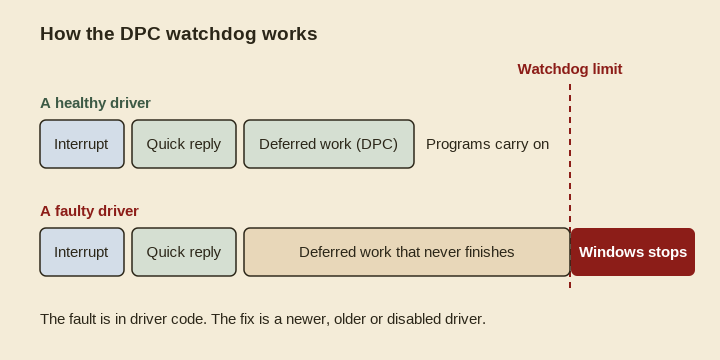 The watchdog only bites when a driver's deferred work runs far past its allowance.
What usually causes it?
Microsoft's own words: "In general this stop code is caused by faulty driver code that under certain conditions, does not complete its work within the allotted time frame."
Two parts of that are useful. "Faulty driver code" tells you where to look. "Under certain conditions" explains why the crash can seem random: the driver works most of the time and only overruns in a particular situation, such as waking from sleep or a device being plugged in. Those two examples are mine.
The page names one other thing to check: that any new hardware is compatible with your version of Windows. It does not list failing memory, a failing drive or heat as causes.
What to try, in order
"How to Read Any Blue Screen and Find the Stop Code" has the general steps for every stop code: how to find the code after a restart, safe mode, free drive space and the system file repair commands. The steps below are the ones Microsoft's page for this code points to. Menu paths come from Microsoft's support pages for Windows 11 and Windows 10, which note that support for Windows 10 ended on October 14, 2025.
- Restart and write down what you saw. Copy the stop code and, above all, any file name shown with it. A name ending in
.sysis the lead for this code. In Microsoft's worked example the file named isBthA2DP.sys. - Unplug what is new. If you added a device shortly before the crashes began, shut down, remove it and restart. Microsoft's page says to confirm that new hardware is compatible with the installed version of Windows.
- Install Windows updates. Microsoft says the best way to get driver updates is automatically through Windows Update. On Windows 11: Start > Settings > Windows Update, then Check for updates. On Windows 10: Start > Settings > Update & Security > Windows Update, then Check for Windows updates.
- Update the driver for the suspect device. Right-click the Start button and select Device Manager. Find the device, right-click it and select Update driver, then Search automatically for updated driver software. Microsoft's page for this code also says to check with the manufacturer for driver updates. Get those only from the maker's own site.
- Roll back a driver that was just updated. If the crashes began after a driver update, open the device's Properties, select the Driver tab, then Roll Back Driver. You must be signed in with administrator permissions.
- Disable the device as a test. Microsoft's tip for this code is that if a driver is identified in the message, disabling it isolates the issue, and its support page gives disabling or uninstalling the device in Device Manager as the way. I think this is only sensible for a device the PC can run without for a day, such as a Bluetooth adapter, a webcam or an add-on card. If the crashes stop, you have found the driver.
- Read the System log. Microsoft says to check the System log in the built-in Event Viewer tool for other error messages that might identify the device or driver. This only reads.
Watch out
Back up your files before going further. "Backups That Work: The 3-2-1 Rule" covers how. Microsoft's own advice before any recovery process is to back up important files, because some recovery options can result in data loss.
The last step: restore Windows. If nothing above helps, Microsoft's general steps end with System Restore or another choice from its "Recovery options in Windows" page. System Restore reverts system files, settings and installed programs to an earlier date, which includes drivers, and leaves personal files alone.
When to stop and get help
Microsoft says that finding the specific cause of this code requires the Windows debugger, programming experience and access to the source code of the faulting driver. Only the driver's author can repair it. Your part is to find which driver it is and change its version.
Stop and get help if no file name is ever shown and the log names nothing, if the crashes continue with every optional device disabled, or if Windows will no longer start and you have no backup. A work PC goes to your IT department.
What to remember
- The code means a driver's deferred work ran far past its time limit and a timer in Windows stopped the PC.
- Microsoft says the general cause is faulty driver code.
- The file name on the screen, if there is one, is your best lead.
- Try a newer driver, then the older one, then disabling the device.
- Microsoft's page for this code does not name failing memory or drives as a cause.
- Back up before System Restore or any other recovery option.
Reading the crash record with a debugger is the next level down, and Microsoft's page is written for people who do that for a living. If the PC holds work or irreplaceable files and the steps here have not helped, stop and take it to a repair professional.
Sources (7)
- Microsoft Learn, "Bug Check 0x133: DPC_WATCHDOG_VIOLATION", read 15 November 2026
- Microsoft Learn, "Introduction to DPC objects", read 15 November 2026
- Microsoft Learn, "Managing hardware priorities", read 15 November 2026
- Microsoft Support, "Troubleshooting Windows unexpected restarts and stop code errors", read 15 November 2026
- Microsoft Support, "Update drivers through Device Manager in Windows", read 15 November 2026
- Microsoft Support, "System Restore", read 15 November 2026
- Microsoft Support, "Recovery options in Windows", read 15 November 2026