Articles & BlogBy Trapper W. Brown7 min read
KERNEL_SECURITY_CHECK_FAILURE is a blue screen stop code that means Windows caught damage inside one of its own internal records and shut itself down before the damage could spread. One appearance followed by a normal restart is not an emergency. The same code coming back is a fault to track down, and Microsoft's page for it points mostly at drivers.
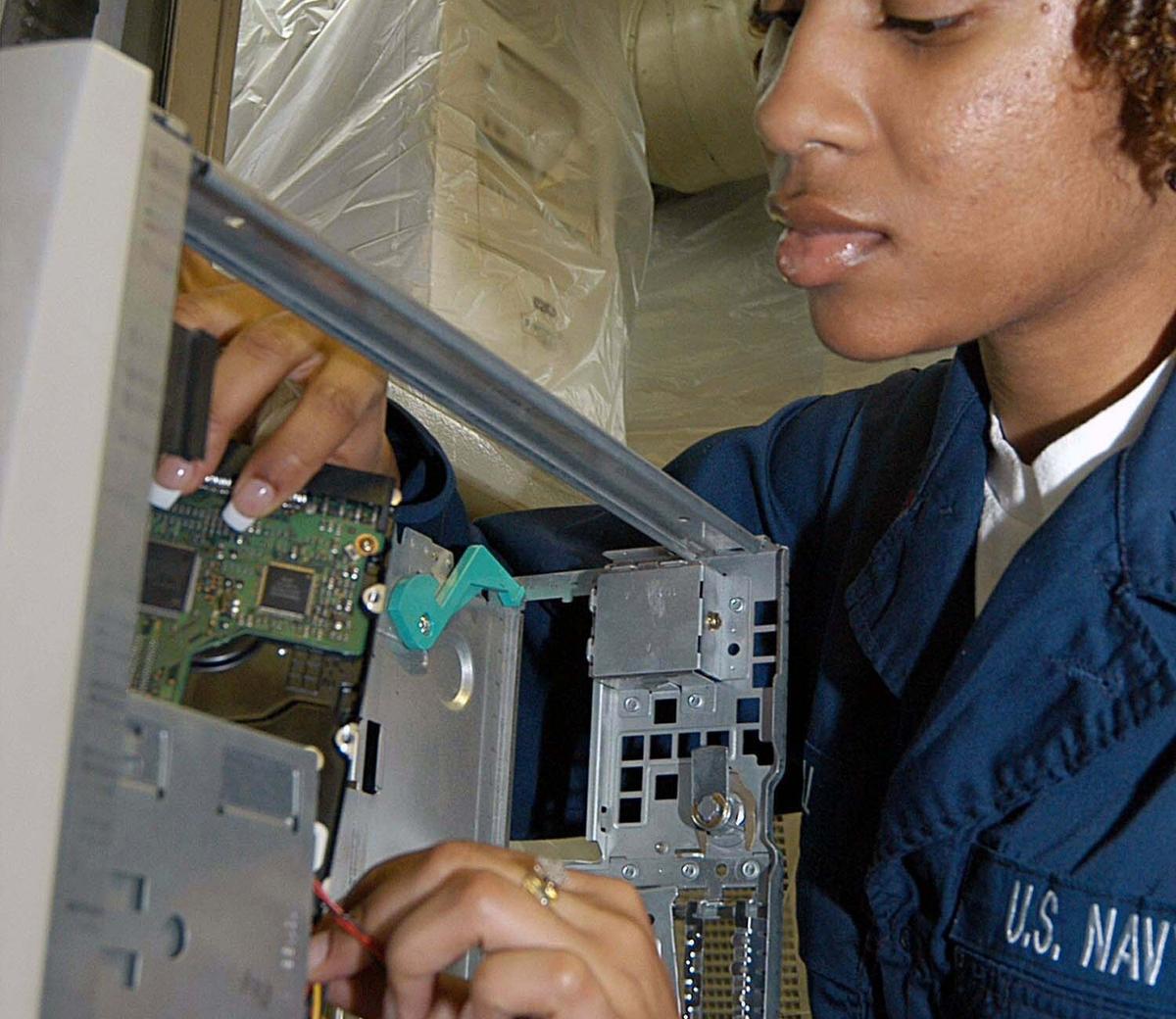 The useful question after this stop code is what was added or changed just before it began. Photo by Photographer's Mate Airman Kenny Swartout, U.S. Navy, public domain, via Wikimedia Commons.
What does this message mean?
Microsoft's reference page gives this code the number 0x00000139 and says it "indicates that the kernel detects the corruption of a critical data structure." The kernel is the core of Windows, the part that manages memory and hardware for everything else. A data structure is an organized record the kernel keeps, such as a list of tasks waiting their turn.
Windows and the drivers that run inside it carry built-in checks that watch those records. A driver is the software that lets Windows talk to a piece of hardware. When a check finds a record that no longer adds up, for example a list whose links no longer match in both directions, Windows cannot trust anything that depends on it. It stops, shows the code and restarts.
The word "security" in the name describes those checks. It does not mean Windows found a virus or a break-in. Microsoft's page does list a virus scan among its general tips, and it sits at the end of that list.
Microsoft has no page for home users that covers this one code. Its reference page says it is written for programmers and sends everyone else to its general blue screen steps.
What usually causes it?
The reference page gives a list of common causes, and every item on it begins with the same two words: "A driver." A driver damaged a timer, freed a piece of memory that was still in use, or handled a shared list carelessly. Microsoft adds that the damage is often found some time after it was done, so the program running when the screen appeared is not always the one at fault.
Microsoft's page does not list a failing part as a common cause of this code. Its tips do include removing or replacing recently added hardware, and its guide for IT staff tells them to run hardware and memory tests for any stop code. So treat this as a driver problem first, and keep hardware in mind if the driver steps change nothing.
Microsoft's advice is to work out what changed on the PC before the code first appeared. This table matches each kind of change to the step Microsoft gives for it.
| What changed shortly before | Where to start |
|---|---|
| You added a device or a part | Remove it, and check with its maker for updates |
| A driver was installed or updated | Update it again or roll it back in Device Manager |
| Windows installed updates | Install any newer updates that are waiting |
| Nothing you know of | Read the System log, then run a virus scan |
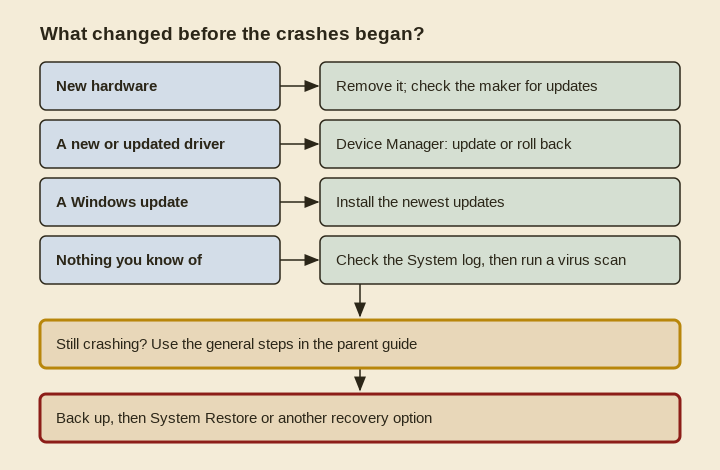 Start from what changed, and keep recovery for last.
What to try, in order
"How to Read Any Blue Screen and Find the Stop Code" has the general steps for every stop code: how to find the code after a restart, safe mode, free drive space, the two system file repair commands and the memory test. The steps below are the ones Microsoft's page for this code calls out. The menu paths come from Microsoft's support pages for Windows 11 and Windows 10. Those pages note that support for Windows 10 ended on October 14, 2025.
- Restart and write down what you saw. Copy the stop code and any file name shown with it. If the PC then runs normally, keep the note and carry on.
- Remove recently added hardware. Microsoft's tip is to remove or replace it, or to check with the manufacturer for any patches. Shut the PC down first.
- Look in Device Manager. Right-click the Start button and select Device Manager. Microsoft says to look for any device marked with an exclamation point. Right-click it and select Update driver. Microsoft says the best source of drivers is Windows Update.
- Roll back a driver that was just updated. If the crashes began after a driver update, open the device's Properties, select the Driver tab, then Roll Back Driver. Microsoft notes you must be signed in with administrator permissions. This puts the earlier driver back and touches nothing else.
- Remove or update anything else that is new. Microsoft's wording is that if new device drivers or system services have been added recently, try removing or updating them. A system service is a program that runs in the background.
- Install Windows updates. On Windows 11: Start > Settings > Windows Update, then Check for updates. On Windows 10: Start > Settings > Update & Security > Windows Update, then Check for Windows updates.
- Read the System log. Microsoft says to check the System log in the built-in Event Viewer tool for critical errors in the same time window as the blue screen. They may name the device or driver. This only reads.
- Run a virus scan. Microsoft's reason is that an infection can corrupt a disk, and disk corruption can produce stop codes. In the Windows Security app, select Virus & threat protection > Quick scan.
Watch out
Back up your files before going further. "Backups That Work: The 3-2-1 Rule" covers how. Microsoft's own advice before any recovery process is to back up important files, because some recovery options can result in data loss.
The last step: restore Windows. If the code keeps coming back, Microsoft's general steps end with System Restore or another choice from its "Recovery options in Windows" page. System Restore undoes recent system changes, such as a driver or a program, and leaves personal files alone. That page also lists uninstalling a recent Windows update. I have left those steps out, because removing a security update takes away protection, and Microsoft's own page warns you to understand the risks first.
When to stop and get help
Microsoft is direct about the limit of home troubleshooting here. Finding the exact cause of this code typically requires a debugger, a tool programmers use to read the record of a crash, and often more than one crash record. If the steps above have not stopped the crashes, the next stage is that kind of work.
Stop as well if a memory test reports errors, if the crashes started after you fitted a part, or if Windows no longer starts and you have no backup. A work PC goes to your IT department.
What to remember
- The code means Windows found damage in one of its own internal records and stopped on purpose.
- "Security" refers to Windows' internal checks. It is not a virus alert.
- Every common cause on Microsoft's list is a driver.
- Ask what changed: a device, a driver, an update or new software.
- Update or roll back the driver before anything bigger.
- Back up before System Restore or any other recovery option.
I think the name of this code sends many people looking for malware when the better lead is the last thing installed. If the PC holds work or irreplaceable files and the steps here have not helped, stop and take it to a repair professional.
Sources (8)
- Microsoft Learn, "Bug Check 0x139: KERNEL_SECURITY_CHECK_FAILURE", read 15 November 2026
- Microsoft Support, "Troubleshooting Windows unexpected restarts and stop code errors", read 15 November 2026
- Microsoft Learn, "Advanced troubleshooting for stop code errors", read 15 November 2026
- Microsoft Support, "Update drivers through Device Manager in Windows", read 15 November 2026
- Microsoft Support, "Stay protected with the Windows Security app", read 15 November 2026
- Microsoft Support, "System Restore", read 15 November 2026
- Microsoft Support, "Recovery options in Windows", read 15 November 2026
- Microsoft Support, "How to uninstall a Windows Update", read 15 November 2026