Articles & BlogBy Trapper W. Brown8 min read
For anyone with a smartphone and twenty spare minutes. By the end your phone will lock properly, update itself, back itself up, and be findable and erasable if it ever goes missing.
Your phone holds more of your life than your wallet and your filing cabinet together: your messages, your photos, your bank app, and the codes that let you into everything else. Most of what protects it is already built in. It only has to be switched on.
This article walks through seven settings in about twenty minutes. Set a timer if you like. Nothing here costs money, and nothing needs a new app.
 Everything on that screen sits behind a handful of settings. Photo by Rodion Kutsaev, CC0, via Wikimedia Commons.
Menus move around between phone models and software versions. Where this article gives exact wording, it comes from Apple's or Google's own support pages as they read on 12 November 2026, and Google adds that steps may vary by device. If your phone looks different, use the search box at the top of the Settings app and type the word in bold.
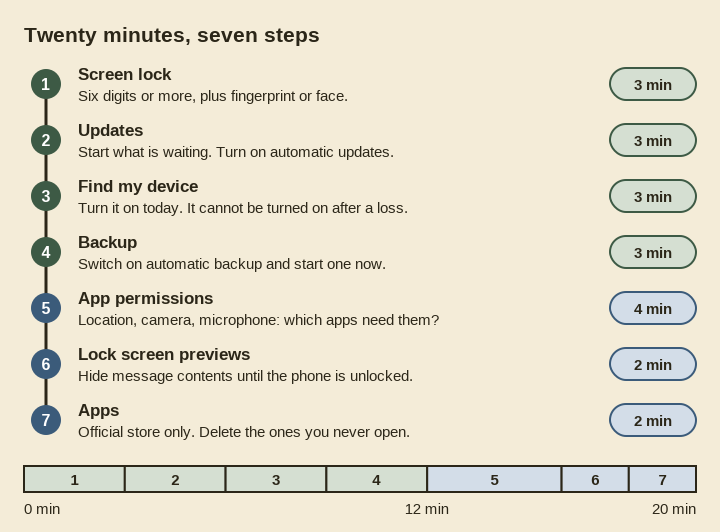 The first four steps matter most. If you only have twelve minutes, stop there.
Minutes 0 to 3: the screen lock
The screen lock is the code, pattern, fingerprint or face check that stands between a stranger and everything else. Every later step leans on it.
Use a code of at least six digits, which is the Federal Trade Commission's advice in its 2022 guide to protecting your phone. Avoid birthdays and repeated digits. Then add fingerprint or face unlock on top, so the longer code costs you nothing day to day.
On an iPhone, Apple's page says to open Settings, tap Face ID & Passcode (Touch ID & Passcode on older models) and choose Turn Passcode On. On Android, Google's page gives Settings, then Security, then Screen lock, and warns that the "None" and "Swipe" choices give no protection at all.
iPhone owners have one more switch in the same menu: Stolen Device Protection. Apple explains that when the phone is away from familiar places such as home or work, sensitive actions need your face or fingerprint with no passcode fallback, and changes to critical security settings need an hour's wait. It is aimed at the thief who watched you type your code.
Minutes 3 to 6: updates
An update is new software from the phone's maker, and many of them close security holes that criminals already know about. Install what is waiting, then switch on automatic updates so you never have to think about it again. CISA, the US cybersecurity agency, advises checking weekly and enabling auto-update.
| iPhone (Apple's wording) | Android (Google's wording) | |
|---|---|---|
| Screen lock | Settings > Face ID & Passcode | Settings > Security > Screen lock |
| Updates | Settings > General > Software Update | Settings > System > Software updates |
| Find my device | Settings > your name > Find My | Find Hub: "Allow device to be located" |
| Backup | Settings > your name > iCloud > iCloud Backup | Settings > Google > All services > Backup |
| App permissions | Settings > Privacy & Security | Settings > Security & Privacy > Privacy > Permission manager |
Tap the update and carry on with the next step while it downloads. It will ask to restart later.
Watch out
A phone that no longer receives updates cannot be made safe by settings alone. On Android, the About phone screen shows the date of the last security update. If that date is many months old and no update is offered, the maker has probably stopped supporting the phone, and it is time to plan a replacement. When you buy, CISA suggests choosing a model whose maker promises security updates for at least five years.
Minutes 6 to 12: find my device, then a backup
These two belong together. One lets you find or erase a lost phone. The other means erasing it costs you nothing.
Find my device has to be on before the phone goes missing. On an iPhone it is called Find My, under your name at the top of Settings. Apple suggests also turning on Find My network, which locates the phone when it is offline, and Send Last Location, which reports its position when the battery runs low. On Android the service is called Find Hub. Google's checklist is short: be signed in to a Google Account, have Location on, and have "Allow device to be located" switched on. Then prove it works by signing in at android.com/find from another device.
A backup is a second copy of what is on the phone, kept somewhere else. On an iPhone, turn on "Back Up This iPhone" under iCloud Backup and tap Back Up Now. Apple says later backups run on their own when the phone is charging, on Wi-Fi and locked. On Android, turn on Backup under Google's services and tap "Back up now." Google's page lists apps, contacts, call history, settings and text messages, with photos and videos handled through Google Photos.
Both makers give you a small amount of storage and sell more. Whether to pay is your call. Copying photos to a computer now and then also counts.
Minutes 12 to 18: permissions and previews
A permission is an app's access to a part of your phone: your location, camera, microphone, contacts or photos. Apps ask once and most people tap yes without reading.
Open the permissions screen from the table above and look at three lists: location, camera and microphone. For each app, ask one question. Does this app need this to do its job? A map needs your location. A flashlight does not. On Android, Google's choices include "Allow only while using the app" and "Don't allow," and a "Pause app activity if unused" switch that strips permissions from apps you have stopped opening.
Lock screen previews are the snippets of messages that appear while the phone is locked. They are handy, and they also show login codes and private messages to anyone who picks the phone up. Look in the Notifications section of Settings for the preview or lock screen option, and set it to show content only when the phone is unlocked. On Android, Google's page describes turning off "Sensitive notifications," or choosing "Don't show notifications" for the lock screen.
Tip
Do the permissions check again whenever you are bored in a waiting room. It takes two minutes, and apps collect new permissions over time the way a kitchen drawer collects takeout menus.
Minutes 18 to 20: apps from the store only
Install apps only from the store that came with the phone: the App Store on an iPhone, Google Play on Android. Both check apps before listing them. Apps offered through a link in a text, an email or a pop-up skip those checks, and CISA advises caution with other stores and with "sideloading," which means installing an app file directly.
Android has a built-in scanner called Google Play Protect. Google says it is on by default. To confirm, open the Play Store app, tap your profile picture, then Play Protect.
Spend the last minute deleting apps you no longer use. An app that is gone cannot leak anything.
If the phone is lost or stolen
Stay calm and use another device.
| Action | iPhone | Android |
|---|---|---|
| Where to go | iCloud.com/find | android.com/find |
| Make it ring | Play a sound | Play sound: full volume for 5 minutes, even on silent |
| Lock it | Lost Mode: locks the phone and suspends payment cards | Mark as lost: locks it and can show a message |
| Erase it | Remote erase | Factory reset |
Lock it first. Erase only when you are sure it is not coming back, because both makers say erasing cannot be undone. Apple adds two cautions worth repeating. Do not remove the phone from your account afterward, since that switches off the lock that makes it useless to a thief. And Apple will never contact you to say the phone was found, so ignore any message that asks for your passcode or a verification code. Then tell your carrier, and file a police report if it was stolen.
Here is the whole list.
- Set a screen lock of six digits or more, plus fingerprint or face
- On iPhone, turn on Stolen Device Protection
- Install waiting updates and turn on automatic updates
- Turn on Find My or Find Hub, and test it from another device
- Turn on automatic backup and run one now
- Review which apps can use location, camera and microphone
- Hide message previews on the lock screen
- Delete apps you no longer use, and install only from the official store
What to remember
- The screen lock is the foundation. Six digits or more, with fingerprint or face on top.
- Automatic updates close holes without any effort from you. A phone that gets no updates needs replacing.
- Find my device must be switched on before the phone is lost.
- A backup turns "erase my lost phone" from a disaster into an inconvenience.
- Apps should hold only the permissions their job requires.
- Official stores only, and fewer apps is safer.
Twenty minutes, once, covers most of what can go wrong with a phone. For a deeper look at keeping copies of what matters, on the phone and everywhere else, read Backups That Work: The 3-2-1 Rule.