Articles & BlogBy Trapper W. Brown6 min read
"The application was unable to start correctly (0xc000007b)" means a program asked Windows to load one of its files and Windows refused, because the file was not in a form it could run. It is usually not serious. One program is stopped, your documents are untouched, and the cause is nearly always a single file that is the wrong kind or is damaged.
The danger is in the websites that offer a "fixed" DLL or a repair tool for this code. Do not use them. Every step below goes through the program's maker or Microsoft.
 A part has to match the place it is going into, and a program's files are checked the same way before they are allowed to load. Photo by Mass Communication Specialist 3rd Class Christopher K. Hwang, U.S. Navy, public domain, via Wikimedia Commons.
What does this message mean?
Microsoft's list of Windows status codes gives 0xC000007B the name STATUS_INVALID_IMAGE_FORMAT. "Image" here does not mean a picture. It is the word Windows uses for a file that holds a program or part of one: a file ending in .exe, or a DLL (dynamic link library), which is a file of shared code that programs load when they run.
The text Microsoft attaches to the code reads as a "Bad Image" notice: the named file is either not designed to run on Windows or it contains an error, and you should try installing the program again from the original installation media, or contact your administrator or the software vendor.
Microsoft has no support page for home users that quotes the message on your screen word for word. The fullest account is an archived post from Microsoft's developer support team, written for programmers, titled "Diagnosing STATUS_INVALID_IMAGE_FORMAT (C000007B) Errors". It says there are more than 100 places in Windows where loading a program file can fail with this code, which is why a search turns up so many different fixes.
What usually causes it?
The Microsoft post gives two causes.
- The file is the wrong kind for the program. Programs and their files are built for one type of processor. A 32-bit build (also written x86) and a 64-bit build (x64) of the same file are not interchangeable. The post's example: a 64-bit program is told to load a DLL, the copy Windows finds is the 32-bit one, and Windows reports an invalid format. It adds that a 64-bit program cannot run on 32-bit Windows at all. The author says this kind of mismatch is behind the large majority of the cases.
- The file really is damaged. The post says the file may have been corrupted, or may be some other type of file that was renamed to look like a program file.
A program loads many files, and the post notes that Windows often does not name the one it rejected.
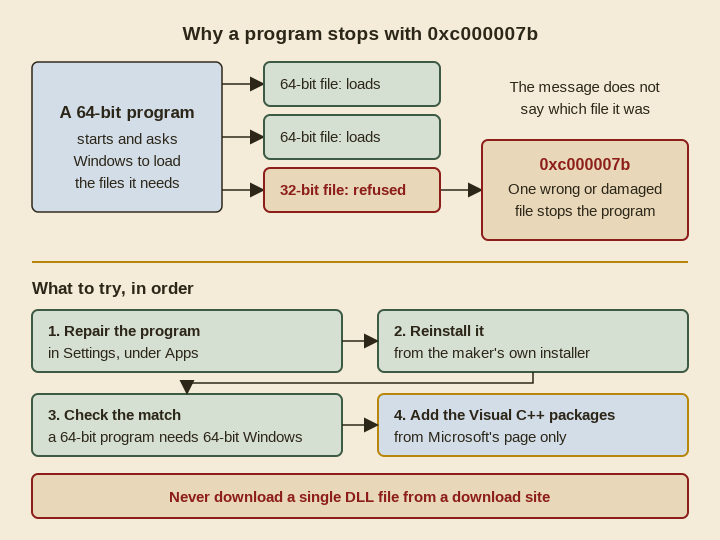 One file of the wrong kind is enough to stop the whole program, and the fix is to put the right set of files back.
What to try, in order
- Repair the program. Microsoft's page "Repair apps and programs in Windows" gives two routes. On Windows 11, select Start, Settings, Apps, Installed apps, select the More icon next to the app, then Advanced options, then Repair if it is offered. On Windows 10 the list is under Apps & features. The other route on both versions is Control Panel: Programs, Programs and Features, right-click the program and select Repair, or Change if Repair is not there. Microsoft notes that not every app has these options.
- Reinstall the program from its maker. This is the fix Microsoft's own text for the code names, and the developer post agrees: replace the bad file with a good copy, which could mean reinstalling the software that should have put it there. Get the installer again from the maker's site or the store you bought it from. A program's saved files may live in its own folder, so copy anything you cannot replace before you uninstall.
- Check that the program matches your Windows. On Windows 11 or Windows 10, select Start, Settings, System, About and read System type under Device specifications. Microsoft's page says Windows 11 is 64-bit only. If System type shows a 32-bit operating system and the program is a 64-bit one, it cannot run there. Look on the maker's download page for a 32-bit version.
- Add the Visual C++ packages from Microsoft, if the program uses them. Many Windows programs rely on a set of shared Microsoft files that arrive in a package called the Visual C++ Redistributable. Microsoft's download page says the package's architecture must match the program's. The file in the developer post's example was one of these Visual C++ files, in the 32-bit build where the 64-bit build belonged. No Microsoft page read for this article says that installing the packages cures 0xc000007b, so treat this step as my reading of those two pages. "VCRUNTIME140.dll was not found: What It Means and the Safe Fix" has the page, the rows to pick and what to do if the installer fails.
For a damaged file, the post also suggests checking the drive for errors. No Microsoft page read for this article ties a disk repair to 0xc000007b, so no command is given here. If a reinstall fails and you suspect the drive, back up your files first and take the PC to a repair professional.
What not to do
Do not download a single DLL from a download site, and do not install a pack of runtime files from anyone but Microsoft. Do not copy DLL files from one folder to another. The example in Microsoft's post is that mistake: a 32-bit file copied into the place where the 64-bit file belonged.
When to stop and get help
Stop when the program has been repaired and reinstalled, it matches your Windows, and it still shows the code. Microsoft's post ends the same way: contact the vendor of the application for support. The maker knows which files the program loads.
Stop also if many unrelated programs start failing with this code at about the same time. I think that points toward Windows or the drive, and Microsoft's page "Use the System File Checker tool to repair missing or corrupted system files" covers repairs to Windows' own files. A drive that keeps damaging files may be failing, and no software step fixes a failing part.
If the PC holds work or irreplaceable files and the steps have not helped, stop and take it to a repair professional.
What to remember
- 0xc000007b means Windows refused one of the program's files as not valid to run.
- The usual cause is a mismatch: a 32-bit file where a 64-bit one belongs, or the reverse.
- Repair the program first, then reinstall it from its maker.
- Shared Microsoft files come only from Microsoft's own Visual C++ Redistributable page.
- Never download a lone DLL or copy DLL files between folders.
- Back up before any command that repairs the drive.
The message looks alarming because it gives a code and no file name. A clean reinstall from the maker is the fix that Microsoft's own text for the code points to.
Sources (7)
- Microsoft Learn, "[MS-ERREF]: NTSTATUS Values", updated 16 November 2021
- Microsoft Learn (archived developer support blog), "Diagnosing STATUS_INVALID_IMAGE_FORMAT (C000007B) Errors", 20 September 2017
- Microsoft Support, "Repair apps and programs in Windows", read 15 November 2026
- Microsoft Support, "32-bit and 64-bit Windows: Frequently asked questions", read 15 November 2026
- Microsoft Learn, "Microsoft Visual C++ Redistributable latest supported downloads", updated 9 March 2026
- Microsoft Support, "Troubleshoot problems updating Windows", read 15 November 2026
- Microsoft Support, "Use the System File Checker tool to repair missing or corrupted system files", read 15 November 2026