Articles & BlogBy Trapper W. Brown7 min read
"USB device not recognized" means Windows noticed that something was plugged in but could not work out what it is or how to talk to it. It is usually a small problem with a cable, a port or power. It is serious in one case: when the device is a drive holding the only copy of your files.
Watch out
If the device is a drive with files you have nowhere else, do not format it, even if Windows offers to. Formatting erases the drive. Try the first three steps, which change nothing, and if the drive still does not appear, stop and take it to a data recovery or repair professional.
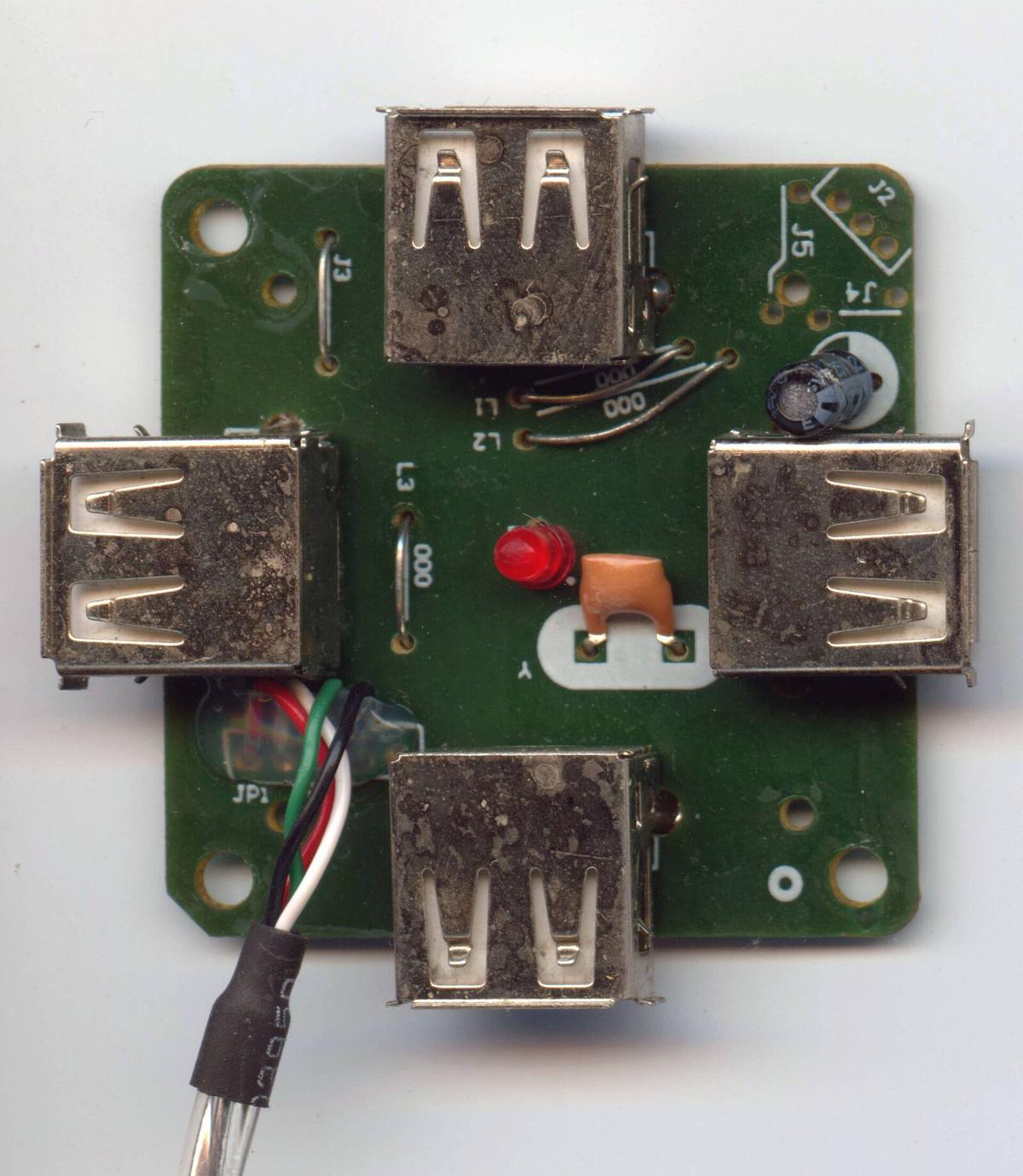 Inside a simple four-port hub, every socket shares what arrives on one cable. Microsoft's advice for a device that is not recognized starts with taking the hub out of the path. Photo by Alexander Jones, public domain, via Wikimedia Commons.
What does this message mean?
Microsoft's USB troubleshooting page for Windows 11 and Windows 10 gives the full text of the notification: "The last USB device you connected to this computer malfunctioned, and Windows does not recognize it." Its stated cause is short: "The USB device that you connected to reported a problem, or there's a problem with the device driver."
A driver is the software that lets Windows talk to a piece of hardware. When you plug in a USB device, it first has to tell Windows what it is. If that exchange fails, or Windows has no working driver for the answer, you get this message.
What usually causes it?
There are five links between the device and Windows, and any one can break.
- The device itself has failed or is failing.
- The cable is damaged or is the wrong kind for the device.
- A hub or dock sits in between. Microsoft notes that an external drive in a hub without its own power supply can get too little power to run.
- The port cannot give the device enough power or does not support what it needs.
- The driver in Windows is damaged or out of date.
Windows has two related notifications that point at power and ports more directly:
| Notification | What Microsoft says it means |
|---|---|
| USB device not recognized | The device reported a problem, or there is a problem with its driver |
| Use different USB port | The device "might have limited functionality when connected to this port" |
| USB device might need more power | "Your PC might not provide enough power to the USB device" |
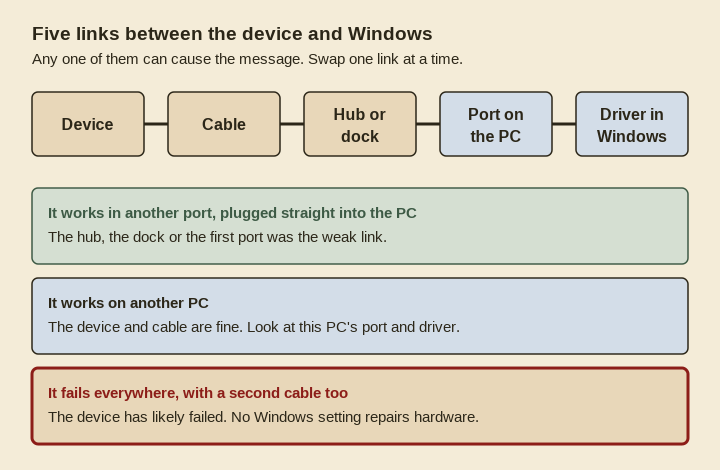 Change one link at a time and the faulty one shows itself.
What to try, in order
Steps 1 to 4 change nothing on the PC. Paths are the ones Microsoft gives for Windows 11 and Windows 10.
- Unplug it, wait, and plug it straight into the PC. Take any hub, dock or extension out of the path. Microsoft's first fix for a port problem is to "make sure the device or dongle is connected directly to your PC." Then try a different port.
- Give it more power. Microsoft's list for a device that needs more power: plug the PC into the wall so it is not running on battery, "disconnect any unused USB devices," and if the device has its own power adapter, use it.
- Try another cable and another PC. Microsoft suggests trying "a different PC" when power is in doubt, and it tells you which side the fault is on. If the device fails on two computers with two cables, the device is the likely cause.
- Restart the PC. Save your work, then select Start, then Power, then Restart, and plug the device in again once Windows is up.
- Find the error code. This is the step Microsoft's page gives for this exact notification. Select Start, type
device manager, and open Device Manager. Find the device, which "should be marked with a yellow exclamation point symbol." Right-click it and select Properties. The code is under Device status. Microsoft's page "Error codes in Device Manager in Windows" lists what to do for each one. - If the code is 43, the text will read "Windows has stopped this device because it has reported problems." Microsoft explains that a driver told Windows "the device failed in some manner." Its advice is to check the device's documentation or contact its maker, and to reinstall the driver, which is step 8.
- Install Windows updates. Select Start, then Settings, then Windows Update, then Check for updates. Then look under Advanced options, then Optional updates, where driver updates appear. Microsoft says the best way to get driver updates is through Windows Update.
- Reinstall the device's driver. In Device Manager, right-click the device and select Uninstall device. Then open the Action menu and select "Scan for hardware changes," or restart the PC. Windows will try to install the driver again. Microsoft's older page for external hard drives gives the same idea a different way: uninstall the drive under Disk drives, unplug it, "wait for 1 minute," and plug it back in.
- Get drivers from the PC maker. Microsoft's older page ends with the chipset driver, the software for the main board that the USB ports are part of. It comes from your PC maker's own support site, found by your exact model. Do not use a driver updater program from anyone else.
What I left out, and why
Microsoft's older page has two more steps, and I am not walking through either.
One is to uninstall every entry under "Universal Serial Bus controllers" in Device Manager and restart. That page was written for Windows 10 version 1709 and Windows 7, and it does not say what happens to a USB keyboard and mouse while the controllers they depend on are removed. I think that is a step for a professional, or at least for a laptop with a built-in keyboard.
The other is to turn off a power-saving feature called USB selective suspend, which lets Windows put an idle USB port to sleep. The same older page gives it as a fix. Microsoft's current page on the feature says the opposite: "Microsoft strongly recommends not disabling selective suspend." When two Microsoft pages disagree, I go with the current one.
When to stop and get help
The device has probably failed if it is not recognized on a second PC with a second cable. Windows cannot repair hardware.
The PC's port has probably failed if nothing works in that one port and everything works in the others.
For a drive with files you need, stop as soon as the no-change steps are done. If the PC holds work or irreplaceable files and the steps have not helped, stop and take it to a repair professional.
To avoid one cause of trouble next time, eject drives before you pull them out. Microsoft's words: "To avoid losing data, always safely remove hardware devices like USB flash drives or external hard drives before disconnecting them."
What to remember
- The message means Windows could not identify the device or load a working driver for it.
- Five links can fail: device, cable, hub, port, driver. Swap one at a time.
- Plug the device straight into the PC, and give it enough power, before you change any setting.
- Device Manager shows an error code. Code 43 means a driver reported that the device failed.
- Never format a drive to make this message go away if the files on it matter.
- Drivers come from Windows Update or the PC maker's site, and nowhere else.
A drive that drops out like this is a reminder that one copy of a file is not enough. "Backups That Work: The 3-2-1 Rule" explains how many copies to keep and where.
Sources (8)
- Microsoft Support, "Fix USB-C problems in Windows", applies to Windows 11 and Windows 10, read 15 November 2026
- Microsoft Support, "Error codes in Device Manager in Windows", applies to Windows 11 and Windows 10, read 15 November 2026
- Microsoft Support, "Update drivers through Device Manager in Windows", applies to Windows 11 and Windows 10, read 15 November 2026
- Microsoft Learn, "USB Device not recognized error when you try to access a USB external hard drive", applies to Windows 10 version 1709 and Windows 7, kept under previous versions, read 15 November 2026
- Microsoft Learn, "USB selective suspend", written for driver developers, read 15 November 2026
- Microsoft Learn, "Code 43 - CM_PROB_FAILED_POST_START", read 15 November 2026
- Microsoft Support, "Safely remove hardware in Windows", applies to Windows 11 and Windows 10, read 15 November 2026
- Microsoft Support, "Tips to improve PC performance in Windows", applies to Windows 11 and Windows 10, read 15 November 2026