Articles & BlogBy Trapper W. Brown9 min read
For anyone who has heard that data travels in "packets" and wants to see one. By the end you will be able to capture your own traffic, find a DNS lookup and a TCP handshake in it, and say what an eavesdropper could and could not learn.
Everything your computer sends or receives is chopped into small pieces called packets. A web page is hundreds of them. Each one carries a little data plus the addresses and numbers needed to deliver it. Normally you never see them.
Wireshark shows them to you. It is a free, open source packet analyzer: it records the packets passing through your network card and lays each one open so you can read it. That recording is called a capture. Wireshark only listens. Its own documentation says it does not manipulate things on the network and is not an intrusion detection system, so it will not warn you about anything. It shows you what happened and leaves the reading to you.
Watch out
Capture only your own traffic, on a network you own or have written permission to monitor. Recording other people's traffic without permission is wiretapping, and it is a crime in most places. Accessing someone else's systems is also illegal under laws such as the US Computer Fraud and Abuse Act. A capture file can hold private data, yours included, so do not post one publicly or send it to strangers.
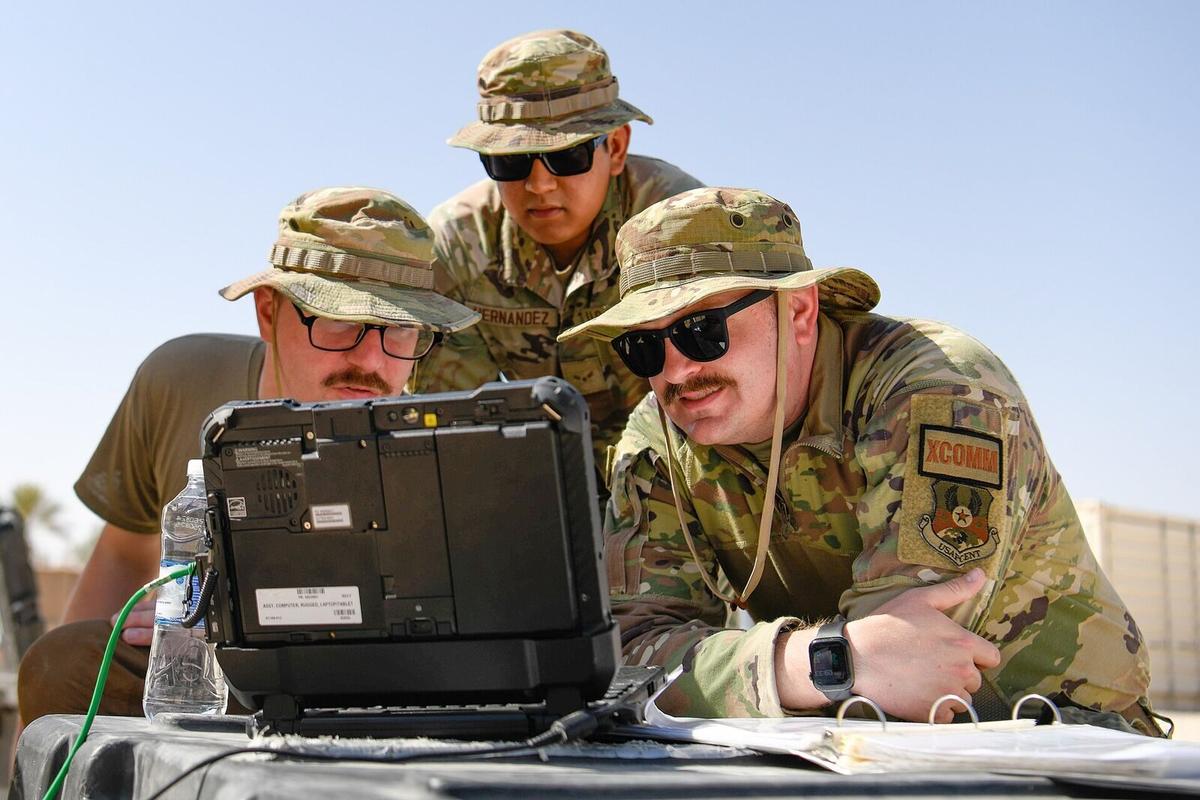 Reading what a network is doing takes a screen, some patience and usually a second opinion. Photo by Staff Sgt. Shaei Rodriguez, U.S. Air Force, public domain, via Wikimedia Commons.
What is inside a packet?
A packet is built in layers, like a letter sealed inside several envelopes. Each layer is added by a different part of the system and answers a different question.
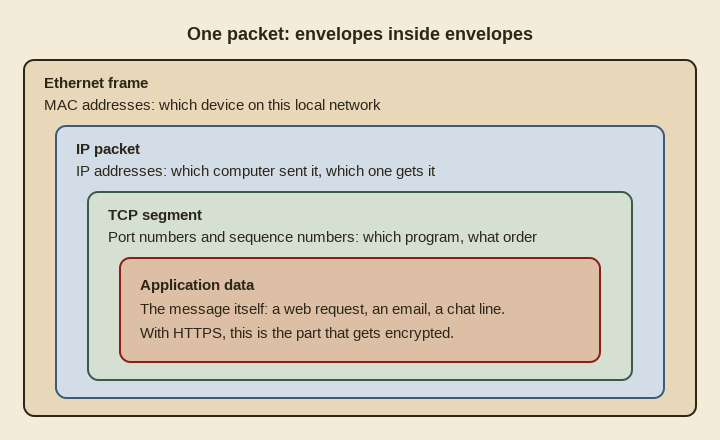 Each layer wraps the one inside it, and Wireshark opens them one at a time.
Hold on to that picture, because Wireshark's screen is arranged the same way. It also explains what encryption protects. HTTPS scrambles the innermost envelope. The outer ones have to stay readable, or the packet could not be delivered.
Installing it and picking an interface
Download Wireshark from wireshark.org. On Windows, the installer includes Npcap, the driver that does the capturing, and you need it: without Npcap you can open saved captures but cannot record new ones. On Linux, install it from your distribution's packages:
sudo apt install wireshark
This installs Wireshark on Debian, Ubuntu and systems built on them.
When Wireshark opens, the welcome screen lists your network interfaces: Wi-Fi, Ethernet and several virtual ones. Next to each is a tiny moving graph of its activity. Pick the one whose graph is moving, which is the one you are online with, and double-click it. Capturing starts at once and packets scroll past. Press the red square in the toolbar to stop.
The three panes
The main window stacks three views of the same data.
| Pane | What it shows | How you use it |
|---|---|---|
| Packet list (top) | One line per packet: number, time, source, destination, protocol, a summary | Scroll and click to choose a packet |
| Packet details (middle) | The chosen packet, layer by layer, each one expandable | Open a layer to read its fields |
| Packet bytes (bottom) | The raw bytes of the same packet | Click a field above and its bytes light up |
Click any packet and look at the middle pane. You will see lines for Ethernet, Internet Protocol, and TCP or UDP, then the application on top of them. Those are the envelopes from the diagram, in the same order.
Two kinds of filter
A minute of capture on a quiet home network can hold thousands of packets. Filters are how you find the few you care about. Wireshark has two kinds, they use different languages, and mixing them up is the most common early frustration.
A capture filter is set before you start and decides what gets recorded at all. It is typed into the capture options and uses a short syntax such as port 53 or host 192.168.1.23. Anything it leaves out is gone for good.
A display filter is typed into the bar above the packet list and only hides packets from view. Everything is still in the capture, and clearing the filter brings it back. As a beginner, capture everything and use display filters.
| Display filter | Shows |
|---|---|
ip.addr == 192.168.1.23 | Packets to or from that address |
tcp.port == 443 | TCP packets with that port as source or destination |
dns | DNS lookups and their answers |
http | Unencrypted web traffic |
tls | Encrypted sessions, including HTTPS |
tcp.flags.syn == 1 | Packets that open a TCP connection |
dns.qry.name contains "example" | DNS lookups for names containing that text |
dns and ip.addr == 192.168.1.23 | Two conditions joined: both must be true |
Join conditions with and, or and not. The filter bar turns green when the filter is valid and red when it is not.
Tip
You do not have to memorize field names. Right-click any field in the packet details pane and choose to apply it as a filter. Wireshark writes the filter for you, and you learn the names by reading what it wrote.
To read a whole conversation at once, right-click one of its packets and choose Follow, then TCP Stream. Wireshark gathers every packet in that connection and shows the data in order, with what your side sent in one color and what the server sent in another.
An exercise: find your own DNS lookup and handshake
This takes five minutes and uses only your own traffic.
Start a capture on your active interface. Then open a terminal and run:
nslookup example.com
This asks your DNS server for the address of example.com and prints the answer. (DNS is the system that turns names into addresses. "DNS: The Internet's Phone Book" in this set covers it.)
Next, load https://example.com in your browser. Then stop the capture.
Find the lookup. Type dns in the display filter bar and press Enter. Look for a pair like this in the packet list:
Source         Destination    Protocol  Info
192.168.1.23   192.168.1.1    DNS       Standard query 0x3a1c A example.com
192.168.1.1    192.168.1.23   DNS       Standard query response 0x3a1c A example.com A 198.51.100.7
Your computer asked your router a question, and the router answered with an address. (The address here is a placeholder. Yours will be the real one.) Click the response and expand the Domain Name System layer in the middle pane to see the answer as its own field. I use nslookup for this because many browsers now send their own lookups encrypted, and those will not show up under dns.
Find the handshake. Before any data moves over TCP, the two sides exchange three packets to agree that a connection exists. Clear the filter and type the address from the DNS answer:
ip.addr == 198.51.100.7
This shows only the packets between you and that server. The first three are the handshake.
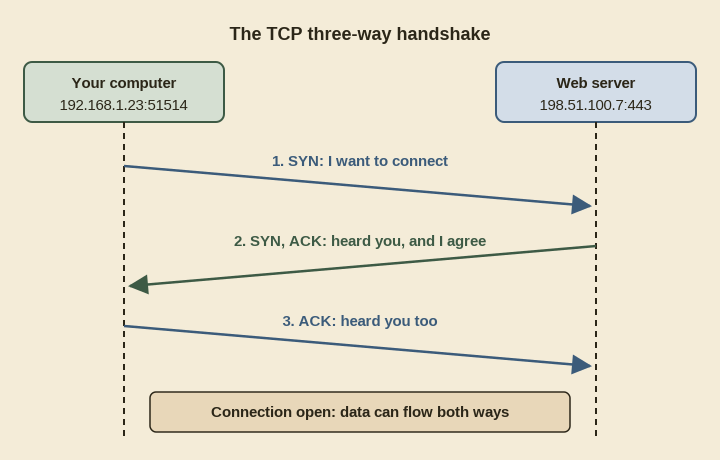 Three packets, always in this order, open every TCP connection.
In the Info column they are marked [SYN], then [SYN, ACK], then [ACK]. SYN is short for synchronize and ACK for acknowledge. Right after them you will see a packet labeled Client Hello: that is your browser starting the encryption. Shortly after it, the conversation turns into data you cannot read.
If you found those five packets, you have just read a network conversation from the wire.
What encryption hides, and what defenders do with the rest
Look again at the packets after the handshake. You can see who talked to whom, when, on which port, and how much data moved. You cannot see what was said.
| An observer can see | An observer cannot see |
|---|---|
| Your address and the server's address | The page you asked for |
| The port, and so the kind of service | Passwords and form entries |
| The time and size of every packet | The content that came back |
| The name you looked up, if the lookup was not encrypted | Cookies and login tokens |
| Often the site's name in the Client Hello |
That left column is called metadata, and it tells a story by itself. A connection to a bank's address at 2 a.m. says something even when every byte is scrambled.
Now picture the same capture on a site that still uses plain http. Follow that stream and you would read everything, in clear text, including anything typed into a form. Seeing that once in your own capture teaches the lesson better than any warning. It is why you do not log in to anything over plain HTTP, and why open Wi-Fi is a risk for any traffic that is not encrypted.
Defenders use the readable part every day. Wireshark is a working tool in security and network teams. The questions it answers are practical ones:
- What is this device talking to? Capture while a new smart TV or camera starts up and read the list of names it looks up.
- Is this really encrypted? Filter for the application and check whether you can read its data.
- Why is this slow? Lost and resent packets show up in a capture long before anyone can guess the cause.
- What happened? After an incident, a saved capture is evidence. It shows which machine contacted which address, and when.
Captures save to a file you can reopen later, which makes them easy to study and easy to leak. Keep them the way you would keep a password list.
What to remember
- A packet is data wrapped in layers: Ethernet, IP, TCP or UDP, then the application.
- Capture only your own traffic on your own network. A capture file is private data.
- The three panes show the list of packets, the layers of one packet, and its raw bytes.
- Capture filters decide what is recorded. Display filters decide what you see. Start with display filters.
dns,ip.addr,tcp.port,httpandtlscover most of what a beginner needs.- Every TCP connection opens with SYN, then SYN and ACK together, then ACK.
- Encryption hides the content. It does not hide who talked to whom, when, or how much.
Do the exercise tonight, then capture for one minute while your phone or TV starts up and see what it asks for. To understand the encrypted part you could not read, "HTTPS and Certificates: What the Padlock Means" in this set picks up where the Client Hello leaves off.