Articles & BlogBy Trapper W. Brown7 min read
Disk at 100% in Task Manager means your drive has more reading and writing to do than it can keep up with, so everything else waits in line. Most of the time it passes. Sometimes it is the first sign of a drive that is wearing out, which is why the first step below is a backup and not a fix.
Microsoft has no support page that quotes this reading word for word. The steps below come from the pages it does publish on slow PCs, drive warnings and each tool involved, read on 15 November 2026.
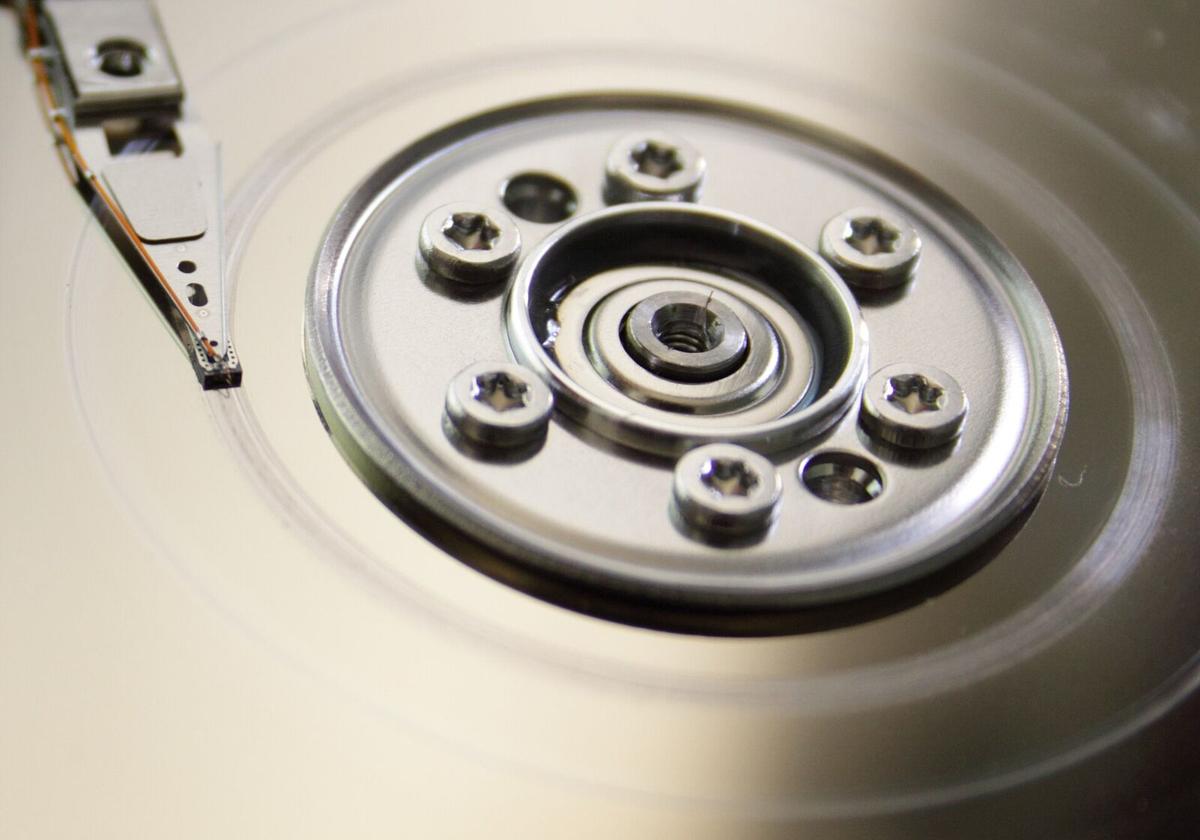 Inside a hard disk drive, one small head on the end of an arm does all the reading and writing. The photographer notes that the rings on this platter were left by a head crash. Photo by Jeepika, CC0, via Wikimedia Commons.
What does this message mean?
Task Manager is the Windows tool that lists what is running and how much of the PC each thing is using. Microsoft's performance guide for Windows 11 and Windows 10 says that "monitoring CPU, memory, and disk usage can help identify processes that may be slowing your PC." It does not define the percentage. I read 100% as the drive being busy the whole time, with no gaps left to serve the next request.
A full drive is a different thing: a nearly empty drive can still be 100% busy. Low free space does slow a PC, though, so it is on the list below.
What usually causes it?
- Background work that will finish. Microsoft says search indexing "can take up to a couple hours to complete" the first time and then keeps running in the background. Its antivirus pages say a full scan "can take a few hours or days." Windows also optimizes each drive once a week on its own.
- One app asking for too much, or too many apps starting with Windows.
- Malware. Microsoft's guide says it "can consume CPU and disk resources."
- Too little free space.
- Hardware that is past its time. Microsoft notes that older PCs "may not see significant improvements" from any of its steps.
- A failing drive. Microsoft's page on drive warnings opens by asking whether you are seeing "device slowness or freezing" or "a longer computer startup time."
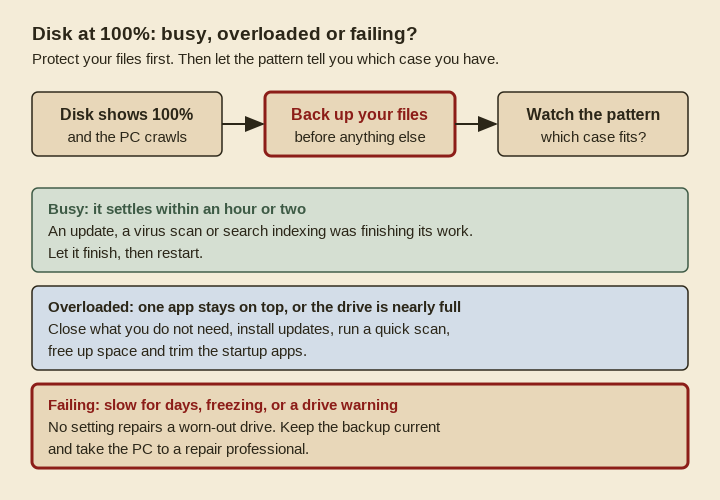 The reading is the same in all three cases. How long it lasts, and what else you see, tells them apart.
What to try, in order
Menu paths are the ones Microsoft gives for Windows 11. Where Windows 10 differs, the same pages give its path.
- Back up your files now. Microsoft documents two built-in tools. For Windows Backup, select Start, type
backup, and choose Windows Backup; it copies the folders you pick to OneDrive. For File History, connect an external drive, open Control Panel, and under System and Security select "Save backup copies of your files with File History." Start with what you cannot replace. "Backing Up Your Computer and Reimaging It: The Deep Guide" covers the choices in full. - Wait, then restart. If the PC was just updated, or has been off for weeks, give it an hour or two plugged in. Then save your work and select Start, then Power, then Restart.
- See what is using the disk. Press Ctrl + Shift + Esc to open Task Manager. On the Processes tab, Microsoft's advice is to "right-click and close the apps you are not using." Close only apps you recognize.
- Install updates. Select Start, then Settings, then Windows Update, then Check for updates. Then open Advanced options and Optional updates, where newer drivers (the software that lets Windows talk to hardware) appear. On Windows 10, Microsoft's page states that support "has ended on October 14, 2025," so free updates have stopped.
- Run a quick scan. Select Start, then Settings, then Privacy & security, then Windows Security, then Virus & threat protection, then Quick scan.
- Free up space. Select Start, then Settings, then System, then Storage. Choose Storage Sense and then "Run Storage sense now," or open Temporary files, check what you want gone, and select Remove files.
- Trim what starts with Windows. In Task Manager, select Startup apps, right-click an app you do not need at startup, and select Disable. The app still works when you open it yourself.
- Optimize the drive. Select Start, type
Defragment and Optimize Drives, open it, select the drive, and select Optimize. Windows does this weekly on its own: a hard disk has its files put back in order, and a solid-state drive (SSD) is told which space it can clean up. - Look at the drive's health. In Settings, select System, then Storage, then Advanced storage settings, then Disks & volumes, then Properties for the drive. Microsoft lists three critical warnings: "Spare capacity is low," "Reliability is degraded," and "Drive is set to read-only." This check has a limit: Windows watches only the newer NVMe type of SSD, "and not SATA SSD or hard disk drives." No warning does not prove an older drive is healthy.
- Check the file system, looking only. Right-click Command Prompt in the Start menu and select Run as administrator. Type
chkdskand press Enter. Microsoft's page says that without added switches it "displays only the status of the volume and doesn't fix any errors."
Watch out
Microsoft's example for repairs is chkdsk d: /f, which checks drive D and has Windows fix what it finds. That changes the drive. Finish the backup in step 1 before you run it on any drive, and do not run it at all on a drive you suspect is failing until your files are safe somewhere else.
I left out two things you will see elsewhere. Advice to switch off Windows services, such as the search service or one named SysMain, is not on any Microsoft page for home users that I could find. And a registry change for one kind of storage controller is tied to a Microsoft article that no longer loads.
When to stop and get help
Stop the software steps if the PC freezes for long stretches, if files will not open or copy, or if step 9 shows a warning. Those point to hardware. A worn drive has to be replaced, and no setting or command repairs it. Microsoft's own advice on a drive warning is "Back up your data."
If the disk is still pinned after every step, the PC may be short of what current Windows asks of it. Microsoft says that on older hardware, "upgrading the device may be the best long-term solution."
If the PC holds work or irreplaceable files and the steps have not helped, stop and take it to a repair professional.
What to remember
- 100% is how busy the drive is. It says nothing about how full it is.
- Back up before you troubleshoot. A slow drive can be a dying drive.
- An hour or two of heavy disk use after an update or a long break is normal.
- Task Manager shows which app is asking for the most. Close only what you recognize.
- Windows reports health only for NVMe drives, so a clean report on an older drive settles nothing.
chkdskalone only looks. With/fit repairs, and that waits for a backup.
If your backup is not in place yet, make that today's job and leave the rest for tomorrow. "Backups That Work: The 3-2-1 Rule" is the short version of how to set one up.
Sources (8)
- Microsoft Support, "Tips to improve PC performance in Windows", applies to Windows 11 and Windows 10, read 15 November 2026
- Microsoft Support, "What to do about a critical warning for a storage device", applies to Windows 11 and Windows 10, read 15 November 2026
- Microsoft Support, "Search indexing in Windows", read 15 November 2026
- Microsoft Support, "Defragment / optimize your data drives in Windows", applies to Windows 11 and Windows 10, read 15 November 2026
- Microsoft Support, "Back up and restore with Windows Backup", applies to Windows 11 and Windows 10, read 15 November 2026
- Microsoft Support, "Backup and restore with File History", applies to Windows 11 and Windows 10, read 15 November 2026
- Microsoft Learn, "chkdsk", applies to Windows 11, Windows 10 and Windows Server, read 15 November 2026
- Microsoft Learn, "About regular quick and full scans with Microsoft Defender Antivirus", read 15 November 2026