Articles & BlogBy Trapper W. Brown7 min read
Error 0x80070057, "The parameter is incorrect", means one piece of software handed another a value it would not accept, so the job was refused before it started. It is usually not a sign of a dying PC. The same code appears in several unrelated places, so where you saw it is the most useful fact you have.
This article covers the cases Microsoft documents on its own pages: Windows Update, upgrading Windows, and installing Microsoft Edge, plus two cases that belong to specialists. It does not cover every place the code can appear.
 A request is like a line on a log sheet: every entry has to be one the reader will accept, or the whole line is rejected. Photo by Mass Communication Specialist 2nd Class Tony D. Curtis, U.S. Navy, public domain, via Wikimedia Commons.
What does this message mean?
Programs get work done by asking Windows to do things: open this file, write to that drive, install this package. Each request carries values that say what, where and how. Programmers call those values parameters or arguments.
Microsoft's reference for Windows error numbers gives number 87 the name ERROR_INVALID_PARAMETER and the text "The parameter is incorrect." A second Microsoft reference lists 0x80070057 under the name E_INVALIDARG: "One or more arguments are not valid". The long code is the same refusal in the format that Windows Update and installers report.
So Windows looked at a request, found a value it could not use, and said no. The message does not say which value, or which program sent it. In the cases covered here the value came from Windows or an installer, not from anything you typed.
What usually causes it?
Each Microsoft page that lists the code gives its own cause. They should not be blended.
| Where you saw it | What Microsoft's page for that case says |
|---|---|
| Windows Update, Windows 11 | Corrupted files, permission issues or incorrect system configurations |
| Windows Update, Windows 10 | Update failed to install |
| Upgrading or installing Windows | "The parameter is incorrect", with three things to try |
| Installing or updating Microsoft Edge | Invalid parameters during installation or update |
Microsoft's page for support staff on repairing Windows Update also lists the code, in a table of errors that can mean the update files on the PC are corrupted.
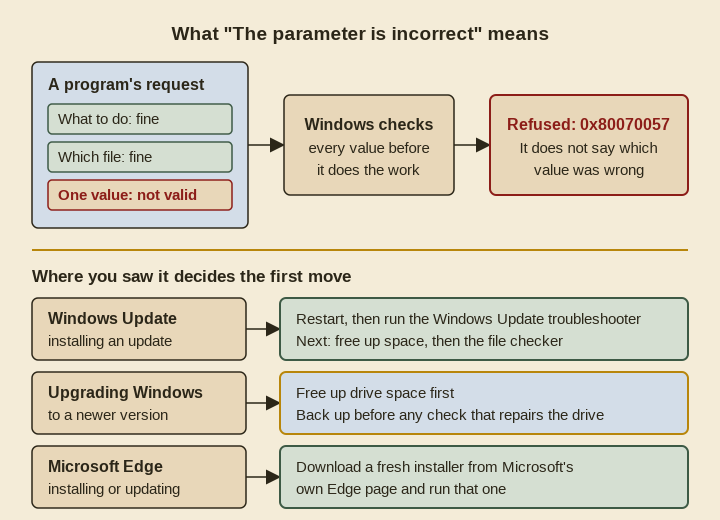 One bad value is enough for Windows to refuse the whole request, and the code does not say which value it was.
What to try, in order
Write down where the message appeared, then use the steps for that case.
Watch out
Microsoft's Windows Update page says to back up your personal files before trying its fixes. Copy what matters to another drive first. "Backups That Work: The 3-2-1 Rule" explains how.
If you saw it in Windows Update. These come from Microsoft's page "Troubleshoot problems updating Windows". Its Windows 11 tab and its Windows 10 tab give different lists for this code, so each step says which tab it is from.
- Restart the PC. The Windows 10 tab starts here, to make sure no other application is blocking the update.
- Run the Windows Update troubleshooter, a built-in tool that tests for known faults and repairs what it can. Both tabs list it. On Windows 11: Start, Settings, System, Troubleshoot, Other troubleshooters, then Run next to Windows Update. On Windows 10: Start, Settings, Update & Security, Troubleshoot, Additional troubleshooters, Windows Update, Run the troubleshooter.
- Check free space. The Windows 10 tab says a device needs at least 16 GB free to upgrade a 32-bit system, or 20 GB for a 64-bit one. Microsoft's page "Free up drive space in Windows" gives the Windows 11 path: Start, Settings, System, Storage, Cleanup recommendations. Read each item before you remove it.
- Run the System File Checker. The Windows 11 tab lists this first. Microsoft's page on the tool says to type
cmdin the search box, right-click Command Prompt, select Run as administrator, and run two commands, one at a time.DISM.exe /Online /Cleanup-image /Restorehealthprovides the files needed for the repair, using Windows Update as the source, and it can take several minutes.sfc /scannowthen scans all protected system files and replaces corrupted ones with a cached copy. Both commands change Windows' own files and leave your documents alone. Microsoft warns you not to close the window until the scan reaches 100 percent. - Check for updates again, and restart when Windows asks.
Microsoft's Windows 10 tab groups this code with two others, and "Windows Update Error 0x80070002: What It Means and What to Try" covers one of them.
If you saw it while upgrading or installing Windows. Microsoft's page "Get help with Windows upgrade and installation errors" lists three things on its Windows 11 tab. The same page notes that support for Windows 10 ended on October 14, 2025.
- Clear space. The page names the Disk Cleanup tool. Microsoft's old page for that tool now leads to "Free up drive space in Windows", so use the path in step 3 above.
- Check the hard drive. Back up first: a drive repair can change or remove damaged data. Microsoft's command for this, on its update troubleshooting page, is
chkdsk /f C:, typed into a Command Prompt opened with Run as administrator. Microsoft's reference says thatchkdskon its own only reports, and that with/fit fixes errors on the disk. Windows will ask to run it at the next restart. - Reset Windows Update components. Microsoft documents this as a set of commands that stop Windows services and rename folders inside the Windows folder. I think that belongs to someone at ease in an administrator command window. The page is linked under Sources and the commands are not printed here.
If you saw it while installing or updating Microsoft Edge. Microsoft's Edge support page gives two steps. The one to do first is to download a fresh installer from Microsoft's own Edge page, the address the support page gives, and run that. The other is to clear temporary files. The page does it by opening the temporary folder by hand and deleting everything in it. I would use Cleanup recommendations instead, which shows a list you can review.
Two other cases exist on Microsoft's pages, and neither is for a home user. One is an old BitLocker case on Windows 7 and Windows Server, where the fix is a change to the drive's partitions (the sections a drive is divided into). The other is for developers who package apps. Both pages are under Sources.
When to stop and get help
Stop when the safe steps for your case have not worked and the next one is a reset of Windows Update components, a change to partitions, or a reset of the PC. Stop if chkdsk reports errors again after a repair: a drive that keeps producing errors may be failing, and no software step fixes a failing part. Copy your files off it first.
Stop also if the code appeared somewhere this article does not cover, such as a backup program or a drive format. No Microsoft page read for this article documents those cases for current Windows, and steps borrowed from Windows Update will not fit them.
If the PC holds work or irreplaceable files and the steps have not helped, stop and take it to a repair professional.
What to remember
- 0x80070057 means a request was refused because one of its values was not acceptable.
- The code does not say which value. Where you saw it tells you which fix applies.
- For Windows Update: back up, restart, run the troubleshooter, free up space, then the System File Checker.
- For a Windows upgrade: free up space first, and back up before any drive repair.
- For Edge: a fresh installer from Microsoft's own page.
- Resetting update components and changing partitions are for someone who can undo them.
The order matters as much as any single step, because each one risks less than the one after it.
Sources (12)
- Microsoft Learn, "System Error Codes (0-499)", updated 14 July 2025
- Microsoft Learn, "Common HRESULT values", updated 10 July 2025
- Microsoft Support, "Troubleshoot problems updating Windows", read 15 November 2026
- Microsoft Support, "Use the System File Checker tool to repair missing or corrupted system files", read 15 November 2026
- Microsoft Support, "Free up drive space in Windows", read 15 November 2026
- Microsoft Support, "Get help with Windows upgrade and installation errors", read 15 November 2026
- Microsoft Learn, "chkdsk", updated 26 May 2025
- Microsoft Learn, "Windows Update - additional resources", updated 12 February 2026
- Microsoft Learn, "Fix Windows Update corruptions and installation failures", updated 12 February 2026
- Microsoft Support, "Troubleshooting tips for downloading, installing, and updating Microsoft Edge", read 15 November 2026
- Microsoft Learn, "Parameter is incorrect error message when you try to enable BitLocker if you don't have a separate active partition in Windows Server 2008 Core and Windows 2008 R2 Core Edition", updated 12 February 2026
- Microsoft Learn, "Troubleshooting packaging, deployment, and query of Windows apps", updated 14 July 2025