Articles & BlogBy Trapper W. Brown7 min read
MEMORY_MANAGEMENT means Windows found a serious fault in the way the PC's memory was being tracked or used, and stopped on purpose before the fault could damage anything else. Take it seriously if it repeats. It is one of the stop codes that can point to a failing part, and Windows includes a test that helps you find out.
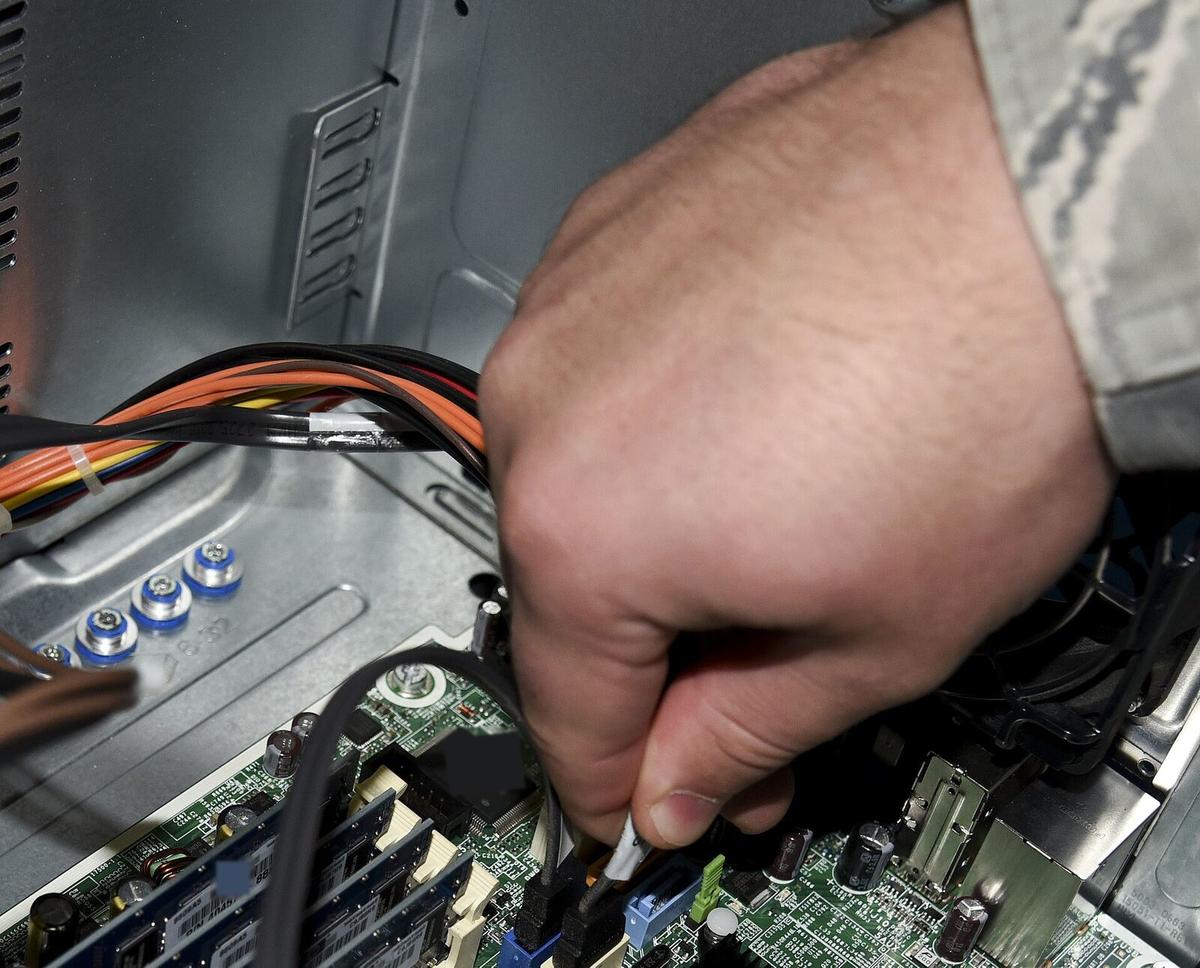 The memory modules, lower left, are among the parts this stop code can point to. Photo by Airman 1st Class Janelle Patiño, U.S. Air Force, public domain, via Wikimedia Commons.
What does this message mean?
Memory, or RAM, is the fast working space where Windows keeps whatever is in use right now. It usually sits on small circuit boards called memory modules. Windows shares that space among every running program and keeps detailed records of which piece belongs to whom. The part of Windows that does this work is the memory manager.
Microsoft's reference page for this stop code, number 0x0000001A, describes it in one sentence: the bug check indicates that a severe memory management error occurred. That is all the name tells you. It is a family of faults, and Microsoft's page lists dozens of them.
What separates one from another is a second number that Windows records with the crash, called parameter 1. Microsoft's page says parameter 1 identifies the exact violation. Microsoft's documentation says the event for the crash in the System log, shown by the built-in Event Viewer tool, lists the parameters. If someone is helping you, that number is worth passing along.
What usually causes it?
Reading down Microsoft's table, the entries fall into two groups.
| What Microsoft's table says | What it suggests |
|---|---|
| "The error probably is a hardware error" (parameter 1 values 0x31 and 0x403) | A failing part, memory above all |
| A page table entry, one of the records Windows keeps about memory, "has been corrupted" (0x411, 0x41792 and others) | Damage that hardware or software could have done |
| "A driver tried to" map or write memory it had no right to (0x1233, 0x4477) | A faulty driver, the software that lets Windows talk to a device |
So this code does not settle the question by itself. Roughly, it is either a part that is failing or a driver that is misbehaving, and the steps below are ordered to tell the two apart.
The page's "Resolution" section is short. Apart from the programmer's debugger, it suggests one thing: run the Windows Memory Diagnostic tool to check for problems that affect physical memory modules.
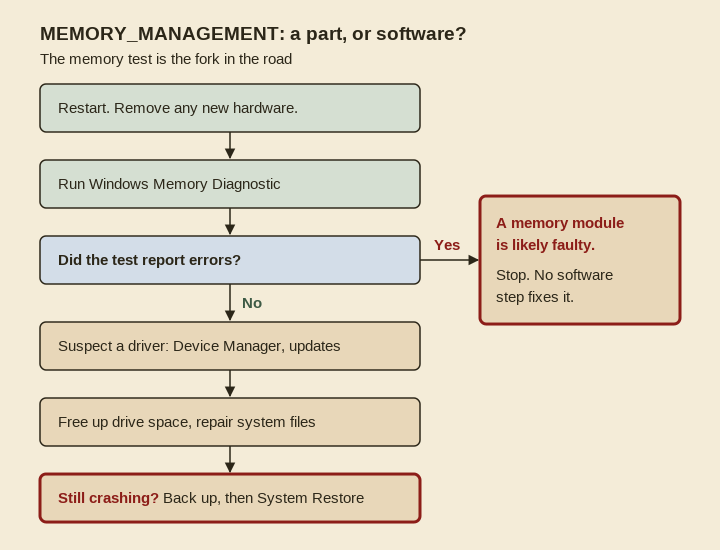 The memory test is the fork in the road: one branch is a part, the other is software.
What to try, in order
For reading the screen, finding the code after a restart and starting in safe mode, see "How to Read Any Blue Screen and Find the Stop Code". The steps here are the ones that fit this code. Several of Microsoft's support pages now carry a notice that support for Windows 10 ended on October 14, 2025.
- Restart, and copy your important files somewhere else. If the PC runs normally afterward, one crash needs nothing more. Because this code can mean a part is failing, make the copy now, while Windows runs. "Backups That Work: The 3-2-1 Rule" explains how.
- Remove any new hardware. Microsoft's general stop code page says that if you added hardware before the error, shut down the PC, remove it and try restarting. That includes a memory module you added or replaced.
- Run Windows Memory Diagnostic. Microsoft's instructions, on its page for a related memory stop code, are to select the Start button, open Control Panel, type Memory in the search box and select Diagnose your computer's memory problems. That page is written for programmers and names no Windows version. After the test, Microsoft says to open Event Viewer and look in the System log for an entry named MemoryDiagnostics-Results. The page does not describe what the PC does while the test runs, so save your work and close your apps before you start it.
- Check Device Manager. Right-click the Start button and select Device Manager. Look for a device marked with an exclamation point, right-click it and select Update driver. If the crashes began after a driver update, open the device's Properties, select the Driver tab, then Roll Back Driver.
- Install Windows updates. On Windows 11: Start > Settings > Windows Update, then Check for updates. On Windows 10: Start > Settings > Update & Security > Windows Update, then Check for Windows updates.
- Free up drive space. Microsoft's general page says Windows and some applications need enough free space to create swap files, which are files on the drive that Windows uses alongside memory, and that keeping 10% to 15% of the drive free is a good idea.
- Repair Windows system files. Type
cmdin the search box, right-click Command Prompt and select Run as administrator. Microsoft's support page says to runDISM.exe /Online /Cleanup-image /Restorehealthfirst, which downloads the files needed for a repair from Windows Update. Then runsfc /scannow, which scans protected system files and replaces corrupted ones with a stored copy. Both change Windows system files and leave your documents alone. Do not close the window until the scan reaches 100%.
Watch out
Back up your files before the next step if you have not already. Microsoft's advice before any recovery process is to back up important files, because some recovery options remove apps, settings or everything on the drive.
Last: restore Windows. If the memory test is clean and the crashes go on, Microsoft's last basic step is a system restore point, or another choice from its "Recovery options in Windows" page. System Restore returns system files, settings and installed programs to an earlier date and leaves personal files alone. Press the Windows key and R, type rstrui.exe and press Enter. "Backing Up Your Computer and Reimaging It: The Deep Guide" covers what the heavier options on that page involve.
When it is hardware
If the memory test reports errors, stop there. A faulty memory module cannot be repaired by an update, a driver, a restore or a reinstall. No software step fixes a failing part. The module has to be replaced. If the PC is under warranty, contact its maker first.
A clean test does not fully clear the hardware either. Microsoft's guide for IT staff says hardware problems are especially difficult to diagnose because they cause erratic and unpredictable behavior. If the crashes continue after a restore, or come at random with different stop codes each time, I think the sensible reading is hardware until a technician shows otherwise.
When to stop and get help
Stop when the memory test reports errors, when the crashes survive a System Restore, or when the PC cannot start and you have no backup. A work computer goes to your IT department. "PAGE_FAULT_IN_NONPAGED_AREA: What the Blue Screen Means and What to Try" covers a related code with the same hardware warning.
What to remember
- MEMORY_MANAGEMENT is a family of faults. Microsoft's page lists dozens under the one name.
- The cause is either a failing part, memory above all, or a faulty driver.
- Apart from the debugger, Windows Memory Diagnostic is the one tool Microsoft's page for this code suggests.
- If the test reports errors, stop. No software step fixes a failing part.
- Copy your files off the PC early, while Windows still runs.
Microsoft's page for this code is written for programmers, and most of it is a table only a debugger can make use of. I think that work belongs with someone who does it for a living. If the PC holds work or irreplaceable files and the steps here have not helped, stop and take it to a repair professional.
Sources (9)
- Microsoft Learn, "Bug Check 0x1A: MEMORY_MANAGEMENT", read 15 November 2026
- Microsoft Learn, "Bug Check 0x50: PAGE_FAULT_IN_NONPAGED_AREA", read 15 November 2026
- Microsoft Learn, "Analyze bug check (stop code error) data", read 15 November 2026
- Microsoft Support, "Troubleshooting Windows unexpected restarts and stop code errors", read 15 November 2026
- Microsoft Learn, "Advanced troubleshooting for stop code errors", read 15 November 2026
- Microsoft Support, "Update drivers through Device Manager in Windows", read 15 November 2026
- Microsoft Support, "Use the System File Checker tool to repair missing or corrupted system files", read 15 November 2026
- Microsoft Support, "System Restore", read 15 November 2026
- Microsoft Support, "Recovery options in Windows", read 15 November 2026