Articles & BlogBy Trapper W. Brown8 min read
For anyone who knows their home network's address range and wants to know what is really on it. By the end you will be able to list every device, see which ports are open on your own machines, and read an Nmap report line by line.
How many devices are on your home network right now? Most people guess low. Phones, consoles, a TV, a printer, a doorbell, a few smart plugs: the number is usually past a dozen before anyone counts.
Nmap counts for you. Its own site calls it a free, open source tool for discovering what is on a network and auditing its security. It has been around since 1997, it runs on Linux, Windows and macOS, and it is the tool defenders reach for first when the question is "what is on this network, and what is it running?"
Watch out
Use Nmap only on machines and networks you own or have written permission to test. Scanning someone else's systems without permission is a crime in most places, including under the US Computer Fraud and Abuse Act. Your home network and your own virtual machines are fine. Your school, your employer, your neighbor's Wi-Fi and a coffee shop's network are not, unless the owner has said yes in writing.
 Knowing what is plugged in, and what each thing is running, is the first job of anyone who looks after a network. Photo by Airman 1st Class Kate Maurer, U.S. Air Force, public domain, via Wikimedia Commons.
Getting Nmap and finding your range
Download Nmap from nmap.org, or install it from your Linux distribution's packages:
sudo apt install nmap
This installs Nmap on Debian, Ubuntu and systems built on them.
Next you need your own network range. Run ipconfig on Windows or ip addr on Linux and find your address and mask. If your address is 192.168.1.23 and the mask is 255.255.255.0 (also written /24), your network is 192.168.1.0/24: the 256 addresses from 192.168.1.0 to 192.168.1.255. The article "IP Addresses, Ports and Your Home Router" in this set explains that arithmetic. Use your own range in every command below.
Who is here? The host discovery scan
Start by asking which addresses have a device behind them.
sudo nmap -sn 192.168.1.0/24
This finds the devices that are up on your network and does not scan their ports. The -sn option means "no port scan."
Nmap scan report for 192.168.1.1
Host is up (0.0031s latency).
MAC Address: 00:00:5E:00:53:01 (Example Networks)
Nmap scan report for 192.168.1.24
Host is up (0.045s latency).
MAC Address: 00:00:5E:00:53:8C (Example Mobile)
Nmap scan report for 192.168.1.50
Host is up (0.0042s latency).
MAC Address: 00:00:5E:00:53:50 (Example Computer)
Nmap scan report for 192.168.1.23
Host is up.
Nmap done: 256 IP addresses (4 hosts up) scanned in 2.41 seconds
Each device gets a short block: its address, how quickly it answered, and its MAC address, the hardware address of its network card. On a local network, Nmap reads that hardware address and looks up the maker's name, which is often the fastest clue to what a device is. The machine you ran the scan from appears with no MAC line. The last line is the summary: 256 addresses checked, 4 devices found.
Running with sudo matters here. With it, Nmap can use the quickest and most reliable method for a local network. Without it, Nmap falls back to trying ordinary connections to web ports, and quiet devices can be missed.
Now compare the list with what you expected. Every line should be something you can name.
What is it running? The port scan
Pick one of your own machines and ask which ports answer. A port is the number that says which program on a computer a connection is for.
sudo nmap 192.168.1.50
This checks the 1,000 most commonly used TCP ports on that one machine and reports the state of each.
Nmap reports six possible states. Three of them cover nearly everything you will see at home.
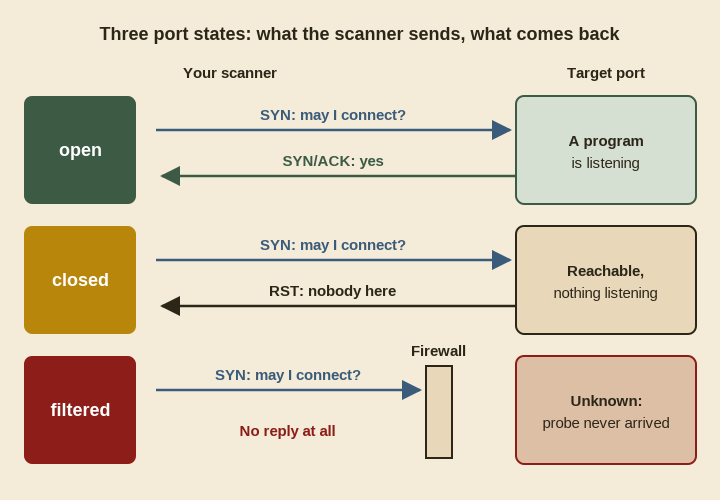 The scanner asks the same question each time. The answer, or the silence, tells it the state.
| State | What happened | What it means for you |
|---|---|---|
| open | A program accepted the connection | Something is listening. Know what it is and why. |
| closed | The machine answered, but no program is on that port | Nothing to reach here. The machine is up. |
| filtered | No answer, or an error from a device in the way | A firewall is blocking the probe. Nmap cannot tell what is behind it. |
Open is the one to study. An open port is a program that will talk to anyone who can reach it. Closed is harmless. Filtered usually means a firewall is doing its job.
What exactly is listening? Version detection
A port number is only a hint. Port 80 is normally a web server, but any program can listen on any port. Nmap's first guess at the service name comes from a lookup table, not from the machine. To find out what is really there, add -sV.
sudo nmap -sV 192.168.1.50
This scans the same ports, then talks to each open one to identify the program and its version.
Nmap scan report for 192.168.1.50
Host is up (0.0042s latency).
Not shown: 996 closed tcp ports (reset)
PORT     STATE    SERVICE       VERSION
22/tcp   open     ssh           OpenSSH 9.6p1 Ubuntu 3ubuntu13 (Ubuntu Linux; protocol 2.0)
80/tcp   open     http          nginx 1.24.0 (Ubuntu)
445/tcp  filtered microsoft-ds
8080/tcp open     http          Jetty 9.4.50
MAC Address: 00:00:5E:00:53:50 (Example Computer)
Service Info: OS: Linux; CPE: cpe:/o:linux:linux_kernel

Nmap done: 1 IP address (1 host up) scanned in 8.31 seconds
Read it from the top:
- Nmap scan report for: the machine these results belong to.
- Host is up: it answered, and how fast.
- Not shown: 996 closed tcp ports: of 1,000 ports checked, 996 were closed, so Nmap left them out. The four that follow are the interesting ones.
- PORT: the port number and protocol. STATE: open, closed or filtered. SERVICE: the kind of service. VERSION: the program and version that answered.
- 22/tcp open ssh: an SSH server for remote login, and its exact version. Did you set that up? Is it up to date?
- 80/tcp open http: a web server, nginx.
- 445/tcp filtered: Windows file sharing's port. Something is blocking the probe, so Nmap cannot say more.
- 8080/tcp open http: a second web server, a different program, on a port nobody mentioned. This is the line to chase.
- Nmap done: the summary and how long it took.
The version column is where the scan pays off. A version number can be checked against the maker's security advisories, which tells you whether the program needs an update.
What do you do about what you find?
A scan gives you two kinds of surprises.
A device you do not recognize. Do not panic and do not assume a break-in. Note its MAC address and maker, then open your router's list of connected devices and match it. Many phones use a random MAC address on each Wi-Fi network, so the maker may be blank. Still stuck? Switch off or unplug your own devices one at a time and scan again to see which line disappears. If something is left that truly is not yours, change the Wi-Fi password and reconnect only what you own.
A service you did not know was open. Go to that machine and find the program. On Linux:
sudo ss -tlnp
This lists every TCP port the machine is listening on and the program behind each one.
Then decide. If you need the service, update it and limit who can reach it with the machine's firewall. If you do not, turn it off or uninstall it. A service that is not running cannot be attacked. "Firewalls, NAT and Port Forwarding" in this set covers the firewall side.
Tip
Scan your network on a quiet evening and save the result. The first scan tells you little. The second one, a month later, tells you what changed, and change is what you are looking for.
Useful options, saving results and a legal practice target
| Option | What it does |
|---|---|
-sn | Finds live devices, with no port scan |
-p 22,80,443 | Scans only the ports you list |
-F | Fast mode: scans fewer ports than the default |
--top-ports 100 | Scans the 100 most common ports |
-sV | Identifies the program and version on each open port |
--open | Shows only open ports |
--reason | Shows why Nmap decided on each state |
-oN file.txt | Saves the report as readable text |
-oA name | Saves in all three main formats at once |
To keep a record:
sudo nmap -sV -oN home-scan-2026-11.txt 192.168.1.0/24
This scans every device on your network for services and writes the report to a text file you can compare with next month's.
Treat the saved file as private. It is a list of everything on your network and what each device is running.
If you want to practice against a machine on the internet, the Nmap project runs one for that purpose: scanme.nmap.org. Its page says you are authorized to scan it, and asks in its own words: "Try not to hammer on the server too hard." It describes a few scans in a day as fine and repeated scanning or password-guessing tools as not.
nmap -sV scanme.nmap.org
This runs a service scan against the Nmap project's own test machine, which is the only internet host this article suggests you scan.
What to remember
- Scan only what you own or have written permission to test.
-snanswers "who is here?" A plain scan answers "which ports answer?"-sVanswers "what program is that?"- Open means a program is listening. Closed means the machine answered and nothing is there. Filtered means a firewall is in the way.
- A port number is a guess at the service. The version column is the evidence.
- For every open port, know what it is, why it is on, and whether it is up to date.
- An unknown device is a question. Answer it with your router's device list before you assume the worst.
- Save your scans. The difference between two scans is the useful part.
Run the discovery scan on your own network tonight and put a name to every line. When you want to see what those devices are actually saying to each other, "Wireshark: Reading Network Traffic" in this set is the next step.