Articles & BlogBy Trapper W. Brown7 min read
"The action can't be completed because the file is open in another program" means something running on the PC has the file open and has not let go of it. Until it does, Windows will not move, rename or delete the file. This is not serious. The file is not damaged and neither is the drive. The one way to get hurt here is to force a program shut while it still holds work you have not saved.
 A river lock passes one tow of barges at a time, and the next one waits its turn. A file held open by one program works the same way. Photo by the U.S. Army Corps of Engineers, public domain, via Wikimedia Commons.
What does this message mean?
A process is a running program. Some you can see as a window. Many run in the background with no window at all.
Microsoft's documentation for programmers explains the rule behind the message. When a program opens a file, it tells Windows whether it is willing to share that file with others for reading, for writing, for both, or for neither. Microsoft calls this the sharing mode. A file opened with no sharing cannot be opened again by anyone until the first program closes it. Microsoft's name for that is exclusive access.
The rule protects you. Two programs writing to one file with no coordination can corrupt it, and Microsoft's page says so. A program that asks for the file to itself is being careful with your data.
Windows' own list of error codes has an entry for this case, number 32, for a file that is being used by another process. Microsoft has no support page that quotes the File Explorer message word for word. The explanation here comes from its developer pages and from its support pages for the tools named below.
What usually causes it?
| Cause | The sign |
|---|---|
| The file is open in a program you can see | The message often names the program |
| A program was closed but is still running | Its name is still in Task Manager's list |
| The file is open on another device, or by another person | An Office document kept in a cloud or shared folder |
| The last program to use it did not close properly | The program froze or closed badly a moment ago |
The third and fourth rows come from Microsoft's page on locked Excel files. It says the other user is sometimes you: the file is open on a different device, or the previous copy of the program did not close properly.
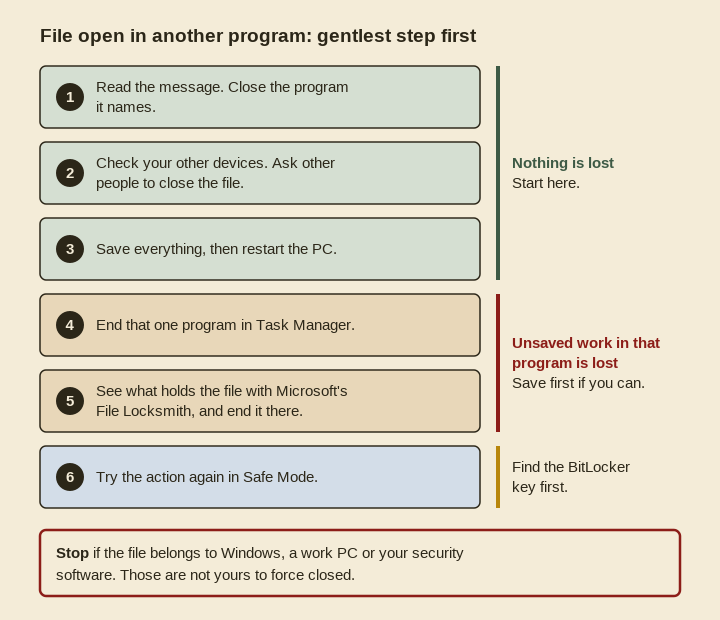 Each step is a little more forceful than the one before. Stop at the first one that works.
What to try, in order
- Read the whole message. It often names the program that has the file. Note the file's name too.
- Save your work and close that program. Close it fully, then try the action again. If the file is a document, close every window of the program that opens it.
- Check your other devices and other people. For Office files, Microsoft's steps are to make sure the file is closed on all your devices, then wait a few minutes for the server to release its hold. If another person has it open, ask them to close it. That is their work in the file, and waiting costs nothing.
- Restart the PC. Save everything first. A restart ends every running program, including the ones with no window, and it gives each one the chance to close in the normal way.
- End the one program in Task Manager. Use this when a restart is not possible. Microsoft's keyboard shortcuts page for Windows 11 and Windows 10 lists Ctrl + Shift + Esc as the way to open Task Manager. On the Processes tab, select the program and select End task. Those two steps are on a Microsoft Support page written for Windows 10 about a different program. Ending a task does not ask the program to save, so anything unsaved in it is lost. End only a program you recognize and started yourself.
- Ask Windows what has the file, with Microsoft's own tool. PowerToys is a set of utilities published by Microsoft. Its page says it runs on Windows 11 and on Windows 10 version 2004 or newer, and that the Microsoft Store is one of the two recommended places to install it. One of its tools, File Locksmith, does exactly this job. Microsoft's steps: open PowerToys and turn on Enable File Locksmith, then right-click the file in File Explorer, select Show more options, and select Unlock with File Locksmith. It lists the processes using the file. Each has an End task button, with the same caution as step 5.
- Try in Safe Mode. Microsoft describes Safe Mode as starting Windows in a basic state with a limited set of files and drivers. The program that held your file may not start there. Microsoft's path for Windows 11 and Windows 10 goes through the Windows Recovery Environment: Troubleshoot, then Advanced options, then Startup Settings, then Restart. Its page warns that an encrypted device will ask for the BitLocker key on the way. Find that key before you begin: "Enter the recovery key for this drive: Where to Find Your BitLocker Key" shows where it is kept. A normal restart leaves Safe Mode.
Watch out
Do not download an "unlocker" or "force delete" tool from a search result. I think the risk is not worth it: you would be handing an unknown program the power to end other programs and remove files. Microsoft's File Locksmith and Task Manager cover the same ground. Do not end processes you cannot identify, and never end your security software to free a file.
Microsoft documents two more routes that this article does not print. One is a clean boot, which starts Windows with non-Microsoft services and startup programs switched off to find the one that interferes. I left the steps out because the services switched off can include security software. The other is Process Explorer, a Microsoft Sysinternals tool for technicians that shows which process has a file open. Both pages are in the sources.
When to stop and get help
Stop if the file is part of Windows or of a program, such as anything inside the Windows or Program Files folders. Those files are open because something is using them. Stop if the file lives on a work PC or a shared network folder: the person who runs it is the one to ask.
Stop if File Locksmith shows no process you recognize. If the PC holds work or irreplaceable files and the steps have not helped, stop and take it to a repair professional.
What to remember
- The message means a running program has the file open. The file and the drive are fine.
- Programs can ask Windows for a file to themselves. That is a protection against two programs writing over each other.
- Close the program first, then check other devices and people, then restart.
- Ending a task throws away unsaved work in that program. Save first where you can.
- Microsoft's File Locksmith shows what is holding a file. No outside unlocker is needed.
- Leave Windows' own files and your security software alone.
I think a restart is the most underrated fix on this list, because it is the only one that closes everything the polite way. If the message comes back for the same file after a restart, some program is opening that file every time Windows starts, and File Locksmith will name it. A related message with a different cause has its own page here: "You need permission to perform this action: What It Means and What to Try".
Sources (10)
- Microsoft Learn, "Creating and Opening Files", updated 17 July 2026
- Microsoft Learn, "System Error Codes (0-499)", updated 14 July 2025
- Microsoft Support, "Excel file is locked for editing"
- Microsoft Support, "Keyboard shortcuts in Windows"
- Microsoft Support, "Runtime Broker is using too much memory"
- Microsoft Learn, "File Locksmith utility", updated 21 October 2026
- Microsoft Learn, "Install PowerToys", updated 11 November 2026
- Microsoft Support, "Windows startup settings"
- Microsoft Support, "How to perform a clean boot in Windows"
- Microsoft Learn, "Process Explorer", 5 November 2026