Articles & BlogBy Trapper W. Brown7 min read
"The file is too large for the destination file system" is a message about one file, and the amount of free space on the drive has nothing to do with it. The drive you are copying to is set up in a way that cannot hold any single file past a fixed size. Nothing is broken, and the file you are copying is fine. The risk is in the fix, because the two fixes that change the drive can cost you what is already on it.
 This helicopter fits inside the cargo plane only because its blades were folded first. A file over the limit will not go onto a FAT32 drive at all, however much room is left. Photo by Senior Airman Julianne Showalter, U.S. Air Force, public domain, via Wikimedia Commons.
What does this message mean?
A file system is the set of rules a drive uses to keep track of files: where each one starts, how long it is, what it is called. Windows can read and write several. Microsoft's comparison table lists the four main ones as NTFS, exFAT, UDF and FAT32.
Each has a ceiling on how big one file can be. For FAT32 that ceiling is low. Microsoft's table gives it as 4 GiB, which is a little under 4.3 billion bytes and is the figure most people call 4 GB. A FAT32 drive with 100 GB free still cannot take a 5 GB file.
Microsoft has no support page that quotes this message word for word. The explanation here comes from its file system reference pages.
| File system | Largest single file, per Microsoft | Where Microsoft says you usually meet it |
|---|---|---|
| FAT32 | 4 GiB | SD cards and small flash drives |
| exFAT | 2 to the 64th power bytes, minus one | SD cards and flash drives |
| NTFS | 2 to the 64th power bytes, minus one | PCs, external hard drives, larger flash drives |
Microsoft's specification calls exFAT the successor to FAT32 and says one of its design goals was to allow very large files.
What usually causes it?
- A flash drive or memory card that came as FAT32. The file is a movie, a disc image, a backup or a game, and it is over the limit.
- A drive set up for another device. A drive prepared for a camera, a car stereo or a television may be FAT32 because that is what the device reads.
- An older external drive. It may have been set up as FAT32 years ago and never changed.
To confirm, Microsoft's steps are: open File Explorer, right-click the drive, choose Properties, and on the General tab read the line next to File system. This only reads. If it says FAT32 and your file is over 4 GB, you have your answer. If it says NTFS or exFAT, this article does not explain your case, and the steps below that change the drive will not help.
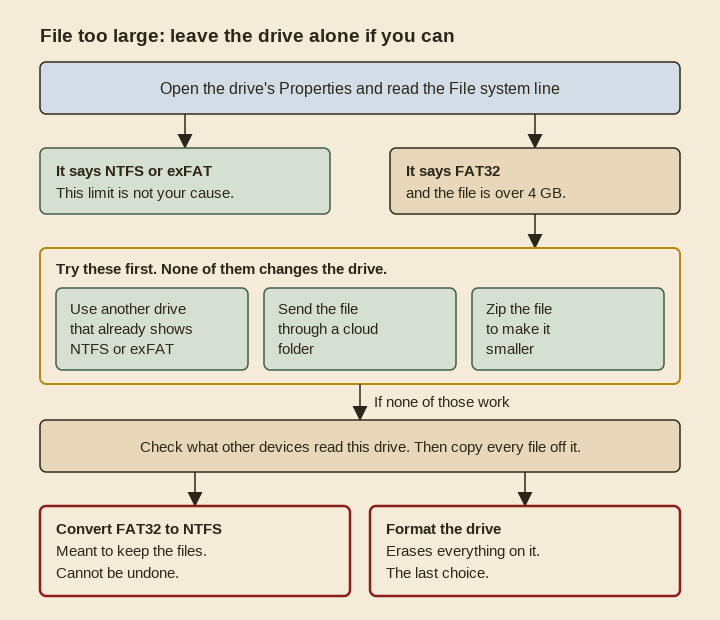 Try the choices that leave the drive alone before the two that change it.
What to try, in order
- Check the file system. Use the Properties steps above.
- Use a different destination. If you have another drive that already shows NTFS or exFAT, copy the file there.
- Send the file another way. If the goal is to get the file to another computer, a cloud folder skips the drive. Microsoft's limits page for OneDrive gives 250 GB as the largest single file it will upload, download or sync.
- Try making the file smaller. Microsoft's steps for Windows 11 and Windows 10: right-click the file, select Show more options, then Send to, then Compressed (zipped) folder. This creates a zipped copy and leaves the original alone. Microsoft's page warns that files that are already highly compressed, such as JPEG pictures, come out about the same size. I think that is also the case for most video, so this helps mainly with files only a little over the limit.
- Find out what else uses the drive. Before you change the file system, check the manual for any camera, television, console or car that reads this drive, and see which file systems it accepts. A drive changed to suit Windows may stop working there.
- Convert the drive from FAT32 to NTFS. Read the warning below first. Microsoft's OneDrive support page gives the steps for Windows: find the drive's letter in File Explorer, press the Windows logo key and R, enter
cmd, and at the prompt typeconvert e: /fs:ntfs, using your drive's letter in place ofe. This command changes the drive. It rewrites the file system from FAT32 to NTFS and is meant to leave the files where they are. - Format the drive as a last choice. Read the second warning first. Microsoft's steps for Windows 11 and Windows 10: right-click the Start button and select Disk Management, right-click the volume you want to format, select Format, then select OK, and OK again. Microsoft's page describes formatting with the default settings and does not walk through the file system box in that dialog. Read that box before you select OK, and make sure it does not still say FAT32.
Watch out
Before you convert, copy everything on the drive to another place. Microsoft says the conversion keeps the files and still recommends having backups of all of them. The change is one-way: Microsoft's command reference says a drive converted to NTFS cannot be converted back to FAT or FAT32, and the only route back is to copy the files off and reformat. The command works only on FAT and FAT32 drives. It does not turn a drive into exFAT.
Watch out
Formatting erases the drive. Microsoft's page says it "will destroy any data on the partition" and to back up anything you want to keep before you begin. Copy the files to another drive, open one or two of the copies to be sure they work, and check twice that you picked the right drive. "Backups That Work: The 3-2-1 Rule" explains why a second copy matters.
Microsoft's reference for the format command lists the file systems Windows can create (FAT, FAT32, NTFS, exFAT and others). This article prints no command line for formatting, and none for the disk tool named diskpart. Disk Management does the same job with a confirmation step.
When to stop and get help
Stop before step 6 if the drive holds the only copy of anything you care about and you have nowhere to copy it. Get a second drive first.
Stop if the drive in question is the one Windows runs from, or if the PC belongs to an employer or school. Stop if copying files off the drive produces errors of its own. That can be a sign of a failing drive, and I think a file system change is the wrong next move for one. If the PC or the drive holds work or irreplaceable files and the steps have not helped, stop and take it to a repair professional.
What to remember
- The message is about one file's size and the drive's file system. Free space does not matter.
- FAT32 cannot hold a single file over 4 GiB. NTFS and exFAT can.
- File Explorer shows the file system on the drive's Properties window. Looking changes nothing.
- A different drive, a cloud folder or a zipped copy can get the file moved with no change to the drive.
- Converting to NTFS is meant to keep your files, cannot be undone, and still calls for a backup first.
- Formatting erases everything. Copy the files off and check the copies before you start.
I think the right order is to solve the problem without touching the drive if you can, and to treat a file system change as a small project with a backup in front of it. "Backing Up Your Computer and Reimaging It: The Deep Guide" covers how to make that backup and how to test it.
Sources (9)
- Microsoft Learn, "File System Functionality Comparison", updated 27 March 2023
- Microsoft Learn, "exFAT file system specification", updated 10 July 2025
- Microsoft Support, "Windows File Recovery"
- Microsoft Support, "Install OneDrive on an external drive"
- Microsoft Learn, "Convert", 31 August 2016
- Microsoft Support, "Disk Management in Windows"
- Microsoft Learn, "format", updated 28 September 2023
- Microsoft Support, "Zip and unzip files"
- Microsoft Support, "Restrictions and limitations in OneDrive and SharePoint"