Articles & BlogBy Trapper W. Brown7 min read
CRITICAL_PROCESS_DIED means that one of the handful of programs Windows cannot run without has stopped or been damaged, so Windows halted itself and restarted. A single crash that does not return is rarely serious. The same code coming back again and again is a fault to find, and it deserves a backup of your files first.
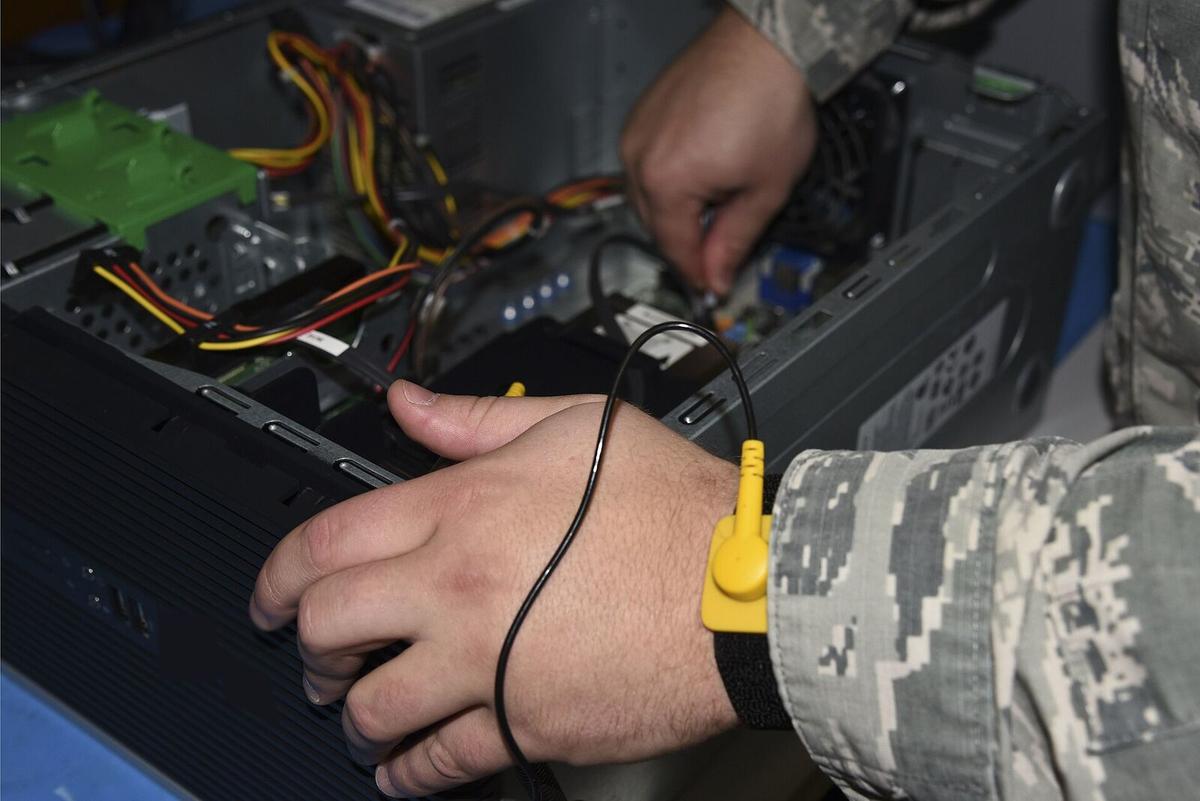 Finding what damaged a system process can mean checking parts as well as software. Photo by Airman 1st Class Janelle Patiño, U.S. Air Force, public domain, via Wikimedia Commons.
What does this message mean?
A process is a running program. Most of them can fail without taking Windows down: the app closes and you open it again. A small set is different. Microsoft's reference page for this stop code, which carries the number 0x000000EF, says the code indicates that a critical system process terminated. It lists the built-in ones by file name: csrss.exe, wininit.exe, logonui.exe, smss.exe, services.exe, conhost.exe and winlogon.exe.
When one of those processes ends, Windows has no safe way to carry on. Microsoft's page says the check happens when the state of the process is corrupted or damaged, and that the system stops because the integrity of the operating system is in question.
Microsoft's reference page for this code is addressed to programmers, and it sends everyone else to the company's general stop code steps. This article draws on both. For how to read the screen, find the code again after a restart and start in safe mode, see "How to Read Any Blue Screen and Find the Stop Code".
What usually causes it?
The code tells you what died. It does not tell you what killed it, and Microsoft says that finding the exact cause typically takes a debugger, a programmer's tool. Its tips for people without one point at these suspects:
- Something new. Hardware you recently added, or a driver (the software that lets Windows talk to a device) or system service installed shortly before the crashes began. Microsoft's advice is to work out what changed.
- Damaged Windows system files. The page recommends the System File Checker, which scans Windows system files and restores corrupted ones.
- Malware. Microsoft notes that viruses can corrupt a disk and that the corruption can produce stop codes.
- Out-of-date firmware. Firmware is the software built into the PC's main board. The page suggests checking with the manufacturer for an update.
- A failing part. The page also says to run the hardware diagnostics the manufacturer supplies.
This code, by itself, does not point at hardware the way some others do. It can be software, a part, or both.
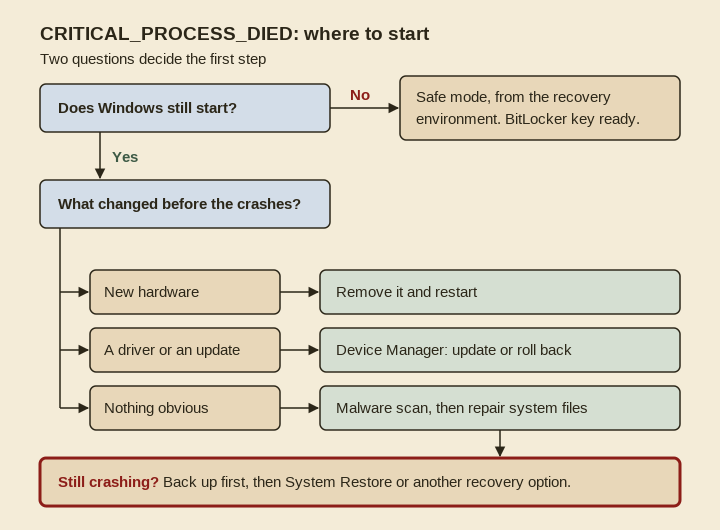 Start with whether Windows runs at all, then with what changed.
What to try, in order
These steps come from Microsoft's page for this code and its general stop code page for Windows 11 and Windows 10. Several of Microsoft's support pages now carry a notice that support for Windows 10 ended on October 14, 2025.
- Restart, and write down what changed. If the PC runs normally afterward, you are done for now. Note the code and anything you installed or plugged in shortly before.
- Copy your important files somewhere else while Windows still runs. This changes nothing on the PC, and it makes every later step safer. "Backups That Work: The 3-2-1 Rule" explains how.
- Remove new hardware. If you added a device before the error, shut down, remove it and restart.
- Check Device Manager. Right-click the Start button and select Device Manager. Look for a device marked with an exclamation point, right-click it and select Update driver. If the trouble began after a driver update, open the device's Properties, select the Driver tab, then Roll Back Driver. You need an administrator account for that.
- Install Windows updates. On Windows 11: Start > Settings > Windows Update, then Check for updates. On Windows 10: Start > Settings > Update & Security > Windows Update, then Check for Windows updates.
- Scan for malware. Search the Start menu for Windows Security, open it, and select Virus & threat protection > Quick scan.
- Repair Windows system files. Type
cmdin the search box, right-click Command Prompt and select Run as administrator. Microsoft's support page says to runDISM.exe /Online /Cleanup-image /Restorehealthfirst. It downloads the files needed for a repair from Windows Update. Then runsfc /scannow, which scans protected system files and replaces corrupted ones with a stored copy. Both commands change Windows system files and leave your documents alone. Do not close the window until the scan reaches 100%. - Look at the System log. Microsoft suggests checking the System log in the built-in Event Viewer tool for critical errors recorded at the same time as the blue screen. They can name the device or driver involved.
- Check with the PC's maker. Microsoft's page says to ask the manufacturer whether updated firmware is available and to run its hardware diagnostics. I think a firmware update is worth doing only from the maker's own support page and by its own instructions.
Watch out
Back up your files before the next step if you have not already. Microsoft's advice before any recovery process is to back up important files, because some recovery options remove apps, settings or everything on the drive.
Last: restore Windows. Microsoft's final basic step is a system restore point, or another choice from its "Recovery options in Windows" page. System Restore returns system files, settings and installed programs to an earlier date and leaves personal files alone. Press the Windows key and R, type rstrui.exe and press Enter. That page also lists uninstalling a recent Windows update, which Microsoft says does not affect your files and apps, and Reset this PC, which it calls the most disruptive. "Backing Up Your Computer and Reimaging It: The Deep Guide" explains what a full reinstall involves.
If Windows will not start
If the crash comes before you can sign in, Windows opens its recovery environment by itself after several failed starts. From there you can reach safe mode, which loads a limited set of files and drivers, and try the remaining steps from inside it. On an encrypted PC the recovery environment asks for the BitLocker key first: "Enter the recovery key for this drive: Where to Find Your BitLocker Key" covers where to find it.
When to stop and get help
Stop if the crashes continue after a restore, if the maker's diagnostics report a failing part, or if the PC cannot reach safe mode and you have no backup. No software step fixes a failing part, and repeated crashes on a failing drive put your files at more risk. A work computer goes to your IT department before you try any of this.
What to remember
- CRITICAL_PROCESS_DIED means a process Windows cannot run without stopped or was damaged.
- Ask what changed: new hardware, a driver, a service or an update.
- A malware scan and the two system file commands are Microsoft's own suggestions for this code.
- Back up before System Restore, a reset or a reinstall.
Microsoft says that pinning down this code typically takes a debugger. I think that work belongs with someone who does it for a living. If the PC holds work or irreplaceable files and the steps here have not helped, stop and take it to a repair professional.
Sources (10)
- Microsoft Learn, "Bug check 0xEF: CRITICAL_PROCESS_DIED", read 15 November 2026
- Microsoft Support, "Troubleshooting Windows unexpected restarts and stop code errors", read 15 November 2026
- Microsoft Learn, "Bug check code reference", read 15 November 2026
- Microsoft Support, "Use the System File Checker tool to repair missing or corrupted system files", read 15 November 2026
- Microsoft Support, "Update drivers through Device Manager in Windows", read 15 November 2026
- Microsoft Support, "Stay protected with the Windows Security app", read 15 November 2026
- Microsoft Support, "System Restore", read 15 November 2026
- Microsoft Support, "Recovery options in Windows", read 15 November 2026
- Microsoft Support, "Windows startup settings", read 15 November 2026
- Microsoft Support, "Windows recovery environment", read 15 November 2026