Articles & BlogBy Trapper W. Brown12 min read
For anyone who has joined a Wi-Fi network and never wondered how the laptop knew what address to use. By the end you will be able to read your own lease and tell a DHCP problem from every other kind.
A device cannot use a network until it has four pieces of information: its own address, the mask that says how big the local network is, the address of the router that leads out, and the address of a DNS server that turns names into numbers. You could type all four into every phone, laptop, television and printer you own. Nobody does, because a protocol called DHCP, the Dynamic Host Configuration Protocol, does it for you in moments.
It is worth understanding for a practical reason. When a device says it is connected and nothing loads, DHCP is one of the first places to look, and the clues it leaves are easy to read once you know them.
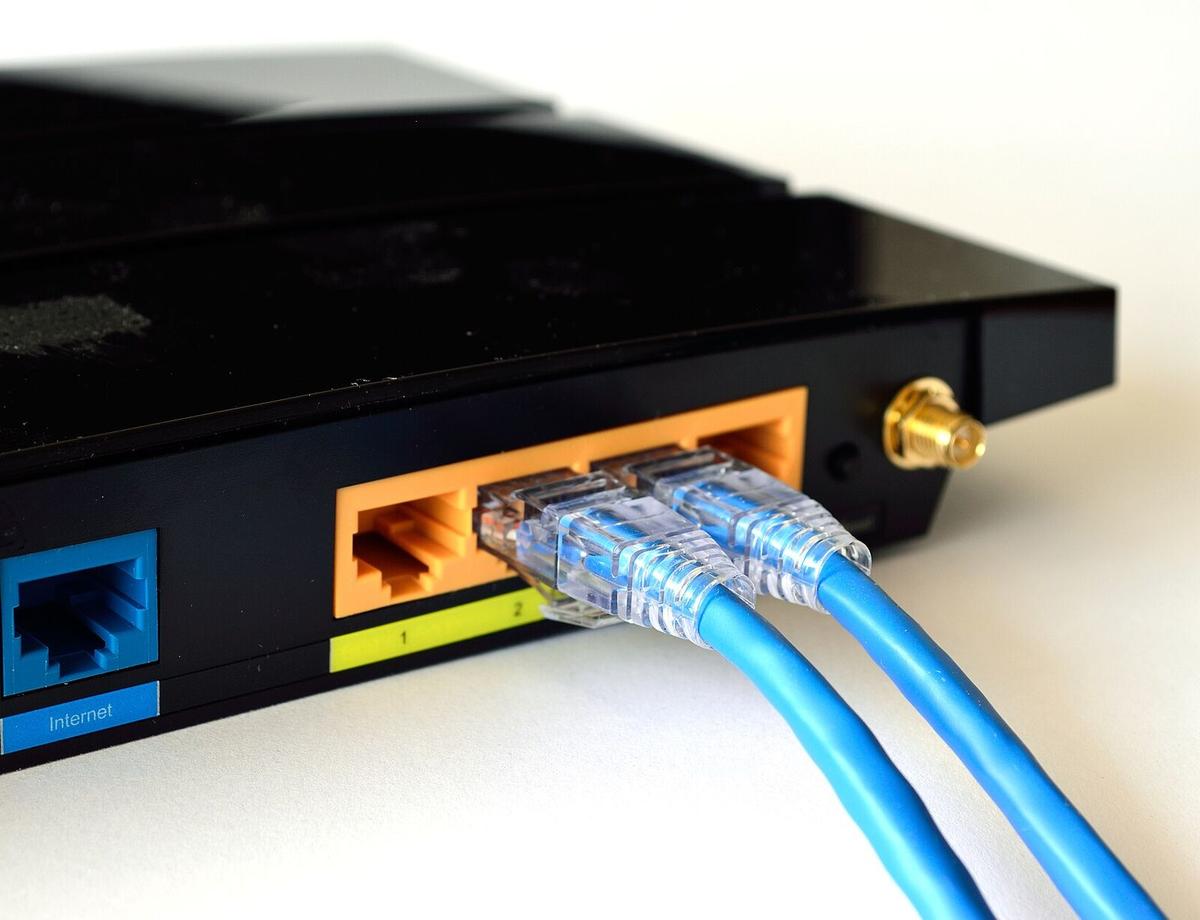 In most homes the DHCP server is this box: whatever plugs into the orange sockets asks it for an address. Photo by Raysonho, Open Grid Scheduler / Grid Engine, CC0, via Wikimedia Commons, cropped.
What problem does DHCP solve?
Addresses on a network have to be unique, and they have to belong to the right block. The article "IP Addresses, Ports and Your Home Router" covers what the address, mask and gateway are. DHCP is the clerk that hands them out and keeps the ledger so that no two devices get the same one.
The rules are in an internet standard called RFC 2131, published in March 1997. It grew out of an older protocol named BOOTP, and it still uses BOOTP's two port numbers: a client sends to UDP port 67, and a server answers to UDP port 68. UDP is the simple, no-handshake way of sending a message, which suits a device that does not yet have an address to shake hands with. "TCP, UDP and the Handshake: How Two Computers Agree to Talk" explains the difference.
RFC 2131 describes three ways a server can hand out an address:
| Method | What the server does | Where you see it |
|---|---|---|
| Dynamic allocation | Lends an address for a limited time | Phones, laptops, guests |
| Automatic allocation | Assigns an address permanently, picked by the server | Rare at home |
| Manual allocation | Hands out the address an administrator chose for that device | Printers, cameras, servers |
The standard notes that dynamic allocation is the only one of the three that lets an address be reused once its owner has gone. That is the one this article spends most of its time on.
What happens in the four messages?
A new device knows nothing, so it shouts. The conversation has four steps, and network people remember them by the first letters: D, O, R, A.
- Discover. The client broadcasts a DHCPDISCOVER message. A broadcast goes to every device on the local network. The message comes from the address
0.0.0.0, because the client has none, and goes to255.255.255.255, which means everyone here. - Offer. Any DHCP server that hears it may answer with a DHCPOFFER that names an available address and the settings that go with it.
- Request. The client picks one offer and broadcasts a DHCPREQUEST that names the server it chose. It is a broadcast on purpose: RFC 2131 says the other servers read it as notice that their offers were declined.
- Acknowledge. The chosen server records the loan and replies with a DHCPACK. The client now has its configuration.
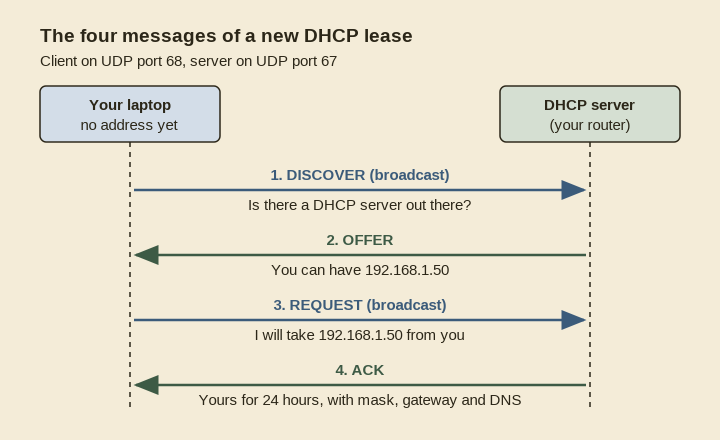 Discover, offer, request, acknowledge: four messages and the laptop is on the network.
The extra settings ride along as numbered options, defined in a companion standard, RFC 2132. Option 1 is the subnet mask, option 3 is the router, option 6 is the list of DNS servers and option 51 is how long the loan lasts.
Both sides are expected to check before they commit. The standard says a server should make sure the address is not already in use, for example by pinging it, and a client should do a final check of its own with ARP, the protocol that asks "who has this address?" on the local network. If the client finds someone already using it, it must send a DHCPDECLINE and start over, after waiting at least ten seconds.
There are eight message types in all. The other two you may meet are DHCPNAK, the server saying "no, that address is wrong for this network", and DHCPRELEASE, the client handing an address back early.
A device that has been on the network before takes a shortcut. It skips Discover and Offer and broadcasts a Request for the address it had last time. If the server agrees, one ACK finishes the job.
What is a lease?
The address is a loan, and the loan has a clock. The standard calls it a lease. The length is set on the server, and the standard measures it in seconds.
A client does not wait for the lease to run out. RFC 2131 gives it two timers:
- T1, by default at 50% of the lease. The client quietly asks the server that gave it the address to extend the loan.
- T2, by default at 87.5% of the lease. If the first server never answered, the client broadcasts the request to any DHCP server that will listen.
If the lease expires with no answer at all, the client must stop using the address and start again from Discover.
For example, take a 24-hour lease that starts at 8:00 in the morning. At 8:00 that evening (12 hours, T1) the laptop asks its server for more time and almost always gets a fresh 24 hours. If the server is down, the laptop keeps trying, and at 5:00 the next morning (21 hours, T2) it starts asking anyone. At 8:00 it gives the address up.
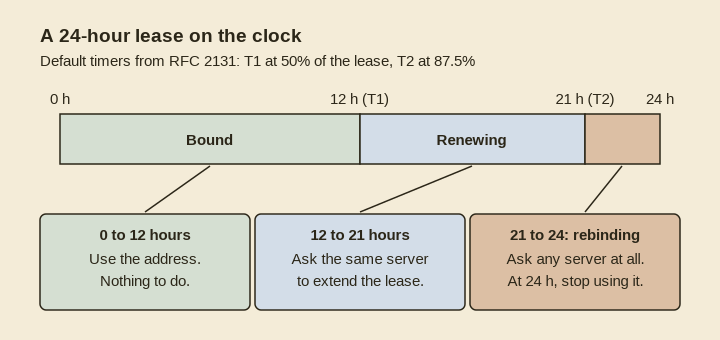 A healthy client renews at the halfway mark, so a lease rarely gets anywhere near its end.
How long should a lease be? It depends on how fast devices come and go. Here is a paired example with made-up numbers.
A family has a pool of 100 addresses and about 25 devices. Lease length barely matters. Even with leases a week long, the pool never runs dry.
A coffee shop has the same pool of 100 addresses and sees 60 new phones a day. With an 8-day lease, each phone that walked out an hour later still holds its address for 8 days. By the afternoon of the second day, 100 addresses are spoken for and the next customer gets nothing. With a 2-hour lease, addresses come back almost as fast as customers leave. As a rule of thumb, the more your devices are strangers, the shorter the lease should be.
What is a reservation?
Some devices should always be found at the same address: a printer, a camera recorder, a game server you forward a port to. You have two ways to do that.
A static address is typed into the device itself. The DHCP server knows nothing about it, so you must pick an address outside the pool, or the server may lend the same one to something else.
A reservation is the manual allocation from the table above. You tell the DHCP server, "when the device with this hardware address asks, always give it 192.168.1.20." The device still runs the same four messages. It simply gets the same answer every time.
I think the reservation is the better habit at home. The list of who has what lives in one place, on the router, and a device that is reset to factory settings comes back at its old address without anyone touching it.
Watch out
Some phones and laptops show each Wi-Fi network a different hardware address as a privacy feature. Apple's support page on private Wi-Fi addresses, for example, says its devices do this and may change the address from time to time. A reservation is tied to the hardware address the server sees, so if a reserved device keeps turning up at a new address, look at that setting for your home network.
What does a 169.254 address mean?
Sometimes nobody answers the Discover. The device then gives itself an address that starts with 169.254. Another standard, RFC 3927 (May 2005), sets the rules: the device picks an address at random between 169.254.1.0 and 169.254.254.255, probes with ARP to see whether a neighbor already has it, and uses it if not. Windows calls this Automatic Private IP Addressing, or APIPA.
These addresses work only between devices on the same piece of network. Routers will not pass them along, so there is no internet. The same standard says that once a normal address becomes available, the device must use that one for new connections.
So 169.254.x.x on your screen is a message: "I asked for an address and nobody answered." The fault is between the device and the DHCP server. Check, in this order, the cable or the Wi-Fi connection, whether the router is up, and whether the address pool is full. "The Magic Number: Subnetting in Your Head" lists this range among the addresses worth knowing by sight.
What is a rogue DHCP server?
DHCP has no built-in way for a client to check who is answering. RFC 2131 says so in plain terms: the protocol "is quite insecure", and an unauthorized server is easy to set up and can hand out wrong addresses, wrong routers and wrong name servers. A second DHCP server on a network, one that nobody in charge put there, is called a rogue.
Most rogues are accidents. Someone buys a second home router to get more Wi-Fi coverage and plugs one of its ordinary ports into the house network. Now two clerks are handing out addresses from two different ledgers, and whichever answers first wins. Half the devices in the house work and the other half get addresses in a range that leads nowhere.
A rogue can also be deliberate. If a server you do not control tells your laptop which router and which DNS server to use, it can steer your traffic. The U.S. National Vulnerability Database entry for CVE-2024-3661, published in May 2024, describes one use of this: a DHCP option that adds routes to a client can force traffic to leak outside a VPN tunnel, where an attacker on the same local network can read or disrupt it. That is one reason to treat the network in a hotel or airport as less trustworthy than your own. "VPNs: What They Do and What They Do Not" covers the rest of that subject.
The defenses sit on the network, not on the laptop:
- At home, make sure only one box runs DHCP. If you add a second router for coverage, its manual will say how to turn its own DHCP server off. Many makers call that setting access point mode or bridge mode.
- In an office, managed switches can mark each port as trusted or untrusted for DHCP. RFC 7513 describes the idea: by default a port is treated as if no DHCP server is attached, and server replies are forwarded only from the ports marked as leading to a real one. Vendors usually call the feature DHCP snooping.
- On Windows networks, Microsoft's DHCP documentation describes authorizing DHCP servers in Active Directory so that unauthorized ones do not hand out addresses.
How do you see your own lease?
On Windows, one command prints the configuration of every network adapter. It only reads and displays. It changes nothing.
ipconfig /all
Among the lines for your active adapter you will find something like this (an example, with made-up values):
   DHCP Enabled. . . . . . . . . . . : Yes
   IPv4 Address. . . . . . . . . . . : 192.168.1.50(Preferred)
   Subnet Mask . . . . . . . . . . . : 255.255.255.0
   Lease Obtained. . . . . . . . . . : Sunday, November 15, 2026 8:00:00 AM
   Lease Expires . . . . . . . . . . : Monday, November 16, 2026 8:00:00 AM
   Default Gateway . . . . . . . . . : 192.168.1.1
   DHCP Server . . . . . . . . . . . : 192.168.1.1
   DNS Servers . . . . . . . . . . . : 192.168.1.1
Read it against what this article covered. "DHCP Enabled: Yes" means the address was not typed in by hand. The two lease lines are the clock. The "DHCP Server" line is the one to look at when you suspect a rogue: at home it should be your router's address, and if it is anything else, go and find the box that owns that address.
What to remember
- DHCP gives a device its address, mask, gateway and DNS server in four messages: discover, offer, request, acknowledge.
- The address is a lease. A client asks to renew at half the lease time and asks any server at seven-eighths.
- A reservation makes the DHCP server give one device the same address every time, and keeps the record in one place.
- An address that starts with
169.254means no DHCP server answered. Look at the cable, the Wi-Fi and the router. - DHCP trusts whoever answers first. Run one DHCP server per network, and be wary of networks you do not control.
The next time a device joins your network, open the router's list of DHCP clients and watch the new line appear. Every entry there went through the same four messages.
Sources (10)
- IETF, RFC 2131, "Dynamic Host Configuration Protocol", March 1997
- IETF, RFC 2132, "DHCP Options and BOOTP Vendor Extensions", March 1997
- IETF, RFC 951, "Bootstrap Protocol (BOOTP)", September 1985
- IETF, RFC 3927, "Dynamic Configuration of IPv4 Link-Local Addresses", May 2005
- IETF, RFC 7513, "Source Address Validation Improvement (SAVI) Solution for DHCP", May 2015
- NIST, National Vulnerability Database, "CVE-2024-3661", published 6 May 2024
- Microsoft Learn, "ipconfig"
- Microsoft Learn, "DHCP (Dynamic Host Configuration Protocol) Basics", 11 January 2023
- Microsoft Learn, "What is DHCP Server in Windows Server?"
- Apple Support, "Use private Wi-Fi addresses on Apple devices"