Articles & BlogBy Trapper W. Brown7 min read
INACCESSIBLE_BOOT_DEVICE is a blue screen stop code that means Windows began to start and then lost contact with the drive it starts from. It is serious, because the PC may not start at all while it lasts. It does not by itself mean your files are gone: they may still be on the drive, with Windows unable to reach them.
 The drive Windows starts from, its cable and the controller it plugs into all have to answer during startup. Photo by Photographer's Mate 3rd Class Jason T. Poplin, U.S. Navy, public domain, via Wikimedia Commons.
What does this message mean?
Microsoft's reference page gives this code the number 0x0000007B and says it "indicates that the Microsoft Windows operating system has lost access to the system partition during startup." A partition is a section of a drive, and the system partition is the one Windows starts from.
Starting Windows is a relay. The firmware (the software built into the main board, called UEFI or BIOS) loads the first piece of Windows. Windows then has to read the rest of itself from the same drive, using its own storage driver. A driver is the software that lets Windows talk to a piece of hardware. This code appears when that handover fails.
Microsoft's page says this error always occurs while the system is starting. It also says that it "often occurs because of a boot device failure," and it lists failed storage hardware as one of the causes.
What usually causes it?
Microsoft's reference page and its guide for IT staff list these causes.
| Cause Microsoft lists | A sign that fits |
|---|---|
| A storage setting was changed in the firmware | It began right after someone changed BIOS or UEFI settings |
| The drive was moved, or a controller was added | It began after hardware work |
| A Windows update did not finish installing | It began on the restart after an update |
| The file system or startup files are damaged | It began after a power cut or a forced shutdown |
| The drive, controller or main board has failed | It began with no change at all |
A controller is the part of the main board, or an add-on card, that the drive plugs into. The signs in the right-hand column are my reading of each cause and are not quoted from Microsoft.
What to try, in order
"How to Read Any Blue Screen and Find the Stop Code" has the general steps for every stop code. The steps here are the ones Microsoft gives for this code, with those that change nothing first. Microsoft's support pages cover Windows 11 and Windows 10 and note that support for Windows 10 ended on October 14, 2025.
- Restart once. Microsoft's recovery page says to try restarting first. On Windows 11, version 24H2 or later, a feature called quick machine recovery can detect repeated startup failures and try to apply a fix from Windows Update with no action from you.
- Undo recent hardware changes. Microsoft says to remove any recently added hardware, especially hard disk drives or controllers, and see if the error clears. Shut down and unplug first.
- Undo recent firmware setting changes. Microsoft says that if you recently changed UEFI (BIOS) settings, such as the controller mode, you should revert those changes. If nobody changed them, leave them alone.
Watch out
Everything from here on runs from the Windows Recovery Environment or changes the system. Microsoft's advice before any recovery process is to back up important files. If Windows will not start, you have no backup and the files matter, stop here: a repair professional may be able to copy files off the drive before anything else is tried. "Backups That Work: The 3-2-1 Rule" covers backups for next time.
- Open the Windows Recovery Environment. Microsoft says that if Windows fails to start correctly multiple times, it enters this recovery screen automatically. Select Advanced options on the Automatic Repair screen. If the drive is encrypted, you will be asked for the BitLocker recovery key. "Enter the recovery key for this drive: Where to Find Your BitLocker Key" explains where it is kept.
- Start in safe mode, then restart normally. Select Troubleshoot > Advanced options > Startup Settings > Restart, then pick Enable Safe Mode with the number keys. Microsoft's page for this code says safe mode loads a core set of storage drivers that can let Windows reach the drive again. Once Windows is up in safe mode, restart to see whether it now starts normally. This changes no files.
- Run Startup Repair. Select Troubleshoot > Advanced options > Startup Repair. Microsoft says it scans for problems that stop Windows from starting, such as damaged system files, and tries to fix them.
- Use System Restore. Select Troubleshoot > Advanced options > System Restore and choose a restore point from before the error began. Microsoft says this rolls back system files and settings and does not touch personal files.
If Windows does start, even now and then, Microsoft's page adds checks to run from inside it: scan the drive for file system errors (right-click the drive, then Properties > Tools, where Microsoft's page names the button Check now), look in Device Manager for a device marked with an exclamation point, and run the hardware diagnostics supplied by the PC maker. It also gives the command SFC /scannow, run from a Command Prompt opened as administrator. That command scans Windows system files and replaces corrupted ones with a stored copy. Copy your files off the drive while Windows is running.
Three things on Microsoft's pages are left out of the steps above.
- Its recovery page offers Uninstall updates for a problem that began after an update. Removing a security update takes away protection, and Microsoft warns you to understand the risks first, so I have not printed the steps.
- Its guide for IT staff documents command line repairs for this code in the recovery environment, using tools named diskpart, bcdedit and bootrec and the disk checker with its repair switches, as well as registry edits. They are written for Windows 10 and for IT staff, and I think a mistake with them can leave a drive worse off. The page is in the Sources list. If you are unsure, that work belongs with a professional.
- Reset this PC and a clean reinstall from installation media are Microsoft's last resorts. A clean reinstall removes everything on the drive. "Backing Up Your Computer and Reimaging It: The Deep Guide" covers it.
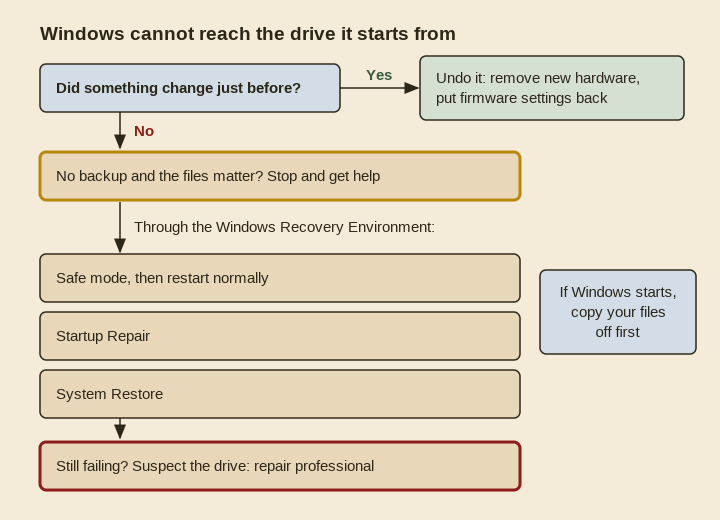 Undo what changed first, protect the files second, and repair third.
When to stop and get help
Microsoft's page says this error can occur "when the storage hardware has failed, and is not able to respond to the request from Windows," and its guide for IT staff lists a faulty main board or storage controller among the causes. That guide also says that if the drive holding Windows does not show up in the recovery tools, the next call is to the PC maker.
So stop if the steps above have not worked. No software step fixes a failing part, and I think repeated repair attempts on a failing drive put its files at more risk. A work PC goes to your IT department.
What to remember
- The code means Windows started to load and then could not reach the drive it starts from.
- Your files may still be there. Protect them before you try repairs.
- First undo what changed: new hardware or a firmware setting.
- Safe mode, Startup Repair and System Restore are the safe built-in tools, in that order.
- Command line repairs and reinstalling are last resorts with real risk of data loss.
- Microsoft lists failed storage hardware among the causes.
I think the right order of worry with this code is files first and Windows second, because Windows can be reinstalled and your files cannot. If the PC holds work or irreplaceable files and the steps here have not helped, stop and take it to a repair professional.
Sources (9)
- Microsoft Learn, "Bug check 0x7B: INACCESSIBLE_BOOT_DEVICE", read 15 November 2026
- Microsoft Learn, "Advanced troubleshooting for Stop error 7B or Inaccessible_Boot_Device", read 15 November 2026
- Microsoft Support, "Windows recovery environment", read 15 November 2026
- Microsoft Support, "Windows startup settings", read 15 November 2026
- Microsoft Support, "Startup Repair", read 15 November 2026
- Microsoft Support, "System Restore", read 15 November 2026
- Microsoft Support, "Recovery options in Windows", read 15 November 2026
- Microsoft Support, "Use the System File Checker tool to repair missing or corrupted system files", read 15 November 2026
- Microsoft Support, "How to uninstall a Windows Update", read 15 November 2026