Articles & BlogBy Trapper W. Brown7 min read
A printer that shows "Offline" is one Windows cannot reach right now. It is rarely serious: most of the time a restart, a network check or a cleared print job brings it back. Error 0x0000011b is a different problem. It turns up when a PC connects to a printer that another Windows PC is sharing.
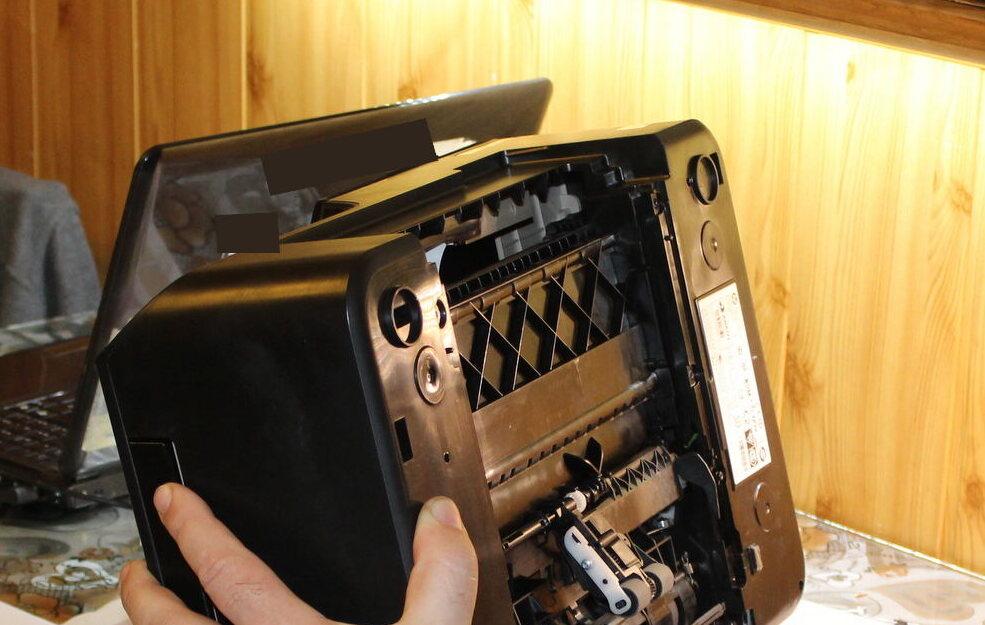 Most offline printers need nothing this drastic: the fault is usually in the connection or the queue, not inside the machine. Photo by Robo Michalec, CC0, via Wikimedia Commons.
What does this message mean?
"Offline" is a status Windows shows next to a printer in Settings. Microsoft's page covers a printer that shows it while powered on and connected. In plain terms, the PC asked the printer a question and got no answer.
Two parts of Windows sit between you and the paper. The print queue is the list of documents waiting to print. The Print Spooler is the background program that manages every print job.
Error 0x0000011b is harder to pin down. Microsoft has no support page that quotes the code, and its list of Windows system error codes has no entry for that number. What Microsoft does publish is a page on shared printers. A shared printer is plugged into one PC, called the host, and other PCs print through that host. The page names four kinds of cause: network settings, the sharing setup, driver mismatches and Windows security changes. A driver is the software that lets Windows talk to a device.
Microsoft documents one such security change in detail, on a page written for the people who run print servers. It closed a weakness in how two Windows PCs prove who they are to each other when one prints through the other. Updates released on or after September 14, 2021 enforce the stronger check by default. The same page warns that printing breaks when the host enforces the check and the other PC has not had the update. I think that is the closest match to 0x0000011b among Microsoft's pages, though none of the pages under Sources ties the code to it by number.
What usually causes it?
| What you see | What Microsoft's pages point to |
|---|---|
| Offline, and the printer uses Wi-Fi | The printer and the PC are not on the same Wi-Fi network |
| Offline, with documents waiting | A stuck job in the print queue, or a Print Spooler that needs a restart |
| Offline on Windows 10 | Pause Printing or Use Printer Offline is selected in the printer's queue window |
| "Printer in error state" | The printer itself: low paper or ink, an open cover or a paper jam |
| An error while connecting to a printer that another PC shares | Network settings, the sharing setup, driver mismatches or Windows security changes |
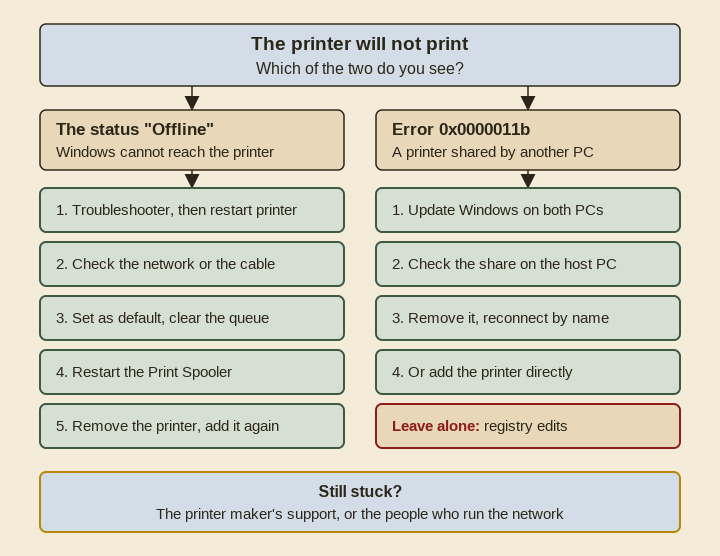 Two different problems, each with its own ladder of safe steps.
What to try, in order
Steps 1 to 8 are for a printer that shows Offline. The paths are Microsoft's for Windows 11. On Windows 10, Printers & scanners sits under Start, then Settings, then Devices.
- Run the printer troubleshooter. Microsoft says to start with the automated printer troubleshooter in the Get Help app.
- Restart the printer. Turn it off, unplug it, wait 30 seconds, plug it back in and turn it on.
- Check the connection. For a wireless printer, use the printer's own menu or its manual to confirm it is on the same Wi-Fi network as the PC. For a USB printer, check the cable at both ends.
- Set the printer as the default. Select Start, then Settings, then Bluetooth & devices, then Printers & scanners. Select your printer, then Set as default. If that button is missing, turn off Let Windows manage my default printer first. On Windows 10, select the printer, then Open queue, then open the Printer menu. Select Set As Default Printer, and clear Pause Printing and Use Printer Offline if either is selected.
- Clear the print queue. Select your printer, then Open print queue. Select the three dots, then Cancel all. Every waiting document is cancelled, so print them again afterward.
- Restart the Print Spooler. Type services in the search box on the taskbar and select Services. Scroll to Print Spooler, right-click it and select Restart.
- Remove the printer and add it again. In Printers & scanners, select the printer, then Remove, then Yes. With the printer on and connected, select Add device next to Add a printer or scanner. Then restart the PC.
- Update the driver. Microsoft recommends Windows Update for printer drivers. If it has none, go to the printer maker's own website, open its Support or Drivers section and search for the model number printed on the printer. Use no other site.
For error 0x0000011b on a shared printer, these are the safe routes Microsoft gives:
- Install Windows updates on both PCs. Microsoft's page on the security change says to update every PC involved, the host and the PCs that print through it. On Windows 11, select Start, then Settings, then Windows Update, and check for updates. One caution: Microsoft states that support for Windows 10 ended on October 14, 2025, and that it no longer provides free security fixes for it. A Windows 10 host may not be able to catch up with a Windows 11 PC. "Running End-of-Life Software Is Driving Without Insurance" explains what that means.
- Check the share on the host. The host must be on and on the same network. In Printers & scanners on the host, select the printer, then Printer properties. On the Sharing tab, confirm Share this printer is selected and note the share name. If asked to sign in, enter the host's username and password.
- Remove the shared printer and connect again. On the PC that shows the error, remove the shared printer and restart. Then, in Printers & scanners, select Add device, then Add manually, then Select a shared printer by name. Enter the path in the form Microsoft gives,
\\ComputerName\PrinterShareName, with the host's name and the share name. - Skip the share. If the printer has its own Wi-Fi or network port, Microsoft's page on adding a printer covers installing it on each PC directly. I think that is the fix that lasts.
Some things are left out on purpose. Microsoft documents a registry setting (the registry is the database of Windows settings) that turns the stronger check off. Microsoft labels that choice as not recommended and says it leaves devices unprotected. This article prints neither that setting nor any step that removes a security update. Microsoft Learn also has a page for administrators on how PCs with Windows 11, version 22H2 and later connect for printing. It is linked under Sources, and none of its commands are repeated here.
When to stop and get help
Stop when the printer shows "Printer in error state" or stays offline after every step. Microsoft says that status may mean a problem with the printer itself, and the maker's own support pages are the next stop.
Stop also if the PC or the printer belongs to an employer or a school. The fix belongs to the people who run that network.
If the next fix you find is a registry edit or the removal of a security update, stop there. Both trade a printing problem for a weaker PC. If the PC holds work or irreplaceable files and the steps have not helped, stop and take it to a repair professional.
What to remember
- "Offline" means Windows cannot reach the printer right now. It says nothing about damage.
- Work in order: troubleshooter, printer restart, network, default printer, queue, Print Spooler, then remove and add the printer.
- Drivers come from Windows Update or the printer maker's own website.
- Error 0x0000011b belongs to printers shared from another PC. Microsoft has no page that quotes the code.
- For a shared printer: update both PCs, check the share, reconnect by name, or connect each PC to the printer directly. Leave registry fixes alone.
None of the steps above touches your files, so there is time to take them in order. "Home Wi-Fi: The Six Router Settings That Matter" covers the router that a wireless printer depends on.
Sources (10)
- Microsoft Support, "Troubleshooting offline printer problems in Windows"
- Microsoft Support, "Fix printer connection and printing problems in Windows"
- Microsoft Support, "Fix shared printer connection problems in Windows"
- Microsoft Support, "Fix print spooler service not running errors in Windows"
- Microsoft Support, "Add or install a printer in Windows"
- Microsoft Support, "Download and install the latest printer drivers"
- Microsoft Support, "Managing deployment of Printer RPC binding changes for CVE-2021-1678 (KB4599464)"
- Microsoft Learn, "RPC connection updates for print in Windows 11", updated 12 February 2026
- Microsoft Support, "Install Windows Updates"
- Microsoft Learn, "System Error Codes (0-499)"