Articles & BlogBy Trapper W. Brown7 min read
Error 0x80004005, shown with the words "Unspecified error", means that some part of Windows or a program failed and did not report a reason. It is rarely a sign of damage by itself. It is also about as unhelpful as a code can be, because the same number turns up in places that have nothing to do with each other.
The useful clue is what you were doing when it appeared. This article covers five cases that Microsoft documents on its own pages, and only those.
 When a fault gives no reason, the work is to narrow down where it is, one test at a time. Photo by Mass Communication Specialist 3rd Class Jason A. Johnston, U.S. Navy, public domain, via Wikimedia Commons.
What does this message mean?
Windows programs report success or failure to each other with numbered codes. Microsoft's reference list of the generic ones gives 0x80004005 the name E_FAIL and the text "Unspecified error". A second Microsoft list describes the same code as "Unspecified failure".
That is the whole meaning. The same lists hold more specific codes, for a refused permission or a bad value, and the program that failed used none of them.
Microsoft has no single page that explains this code for home users. It has pages for particular products that list the code among others, and those are used here.
What usually causes it?
Each Microsoft page gives the code its own cause, and the causes should not be blended. A fix for one case does nothing for another.
| Where you saw it | What Microsoft's page for that case says |
|---|---|
| Upgrading or installing Windows | "Unspecified error", with three things to try |
| Activating Windows | Run the Activation troubleshooter |
| The camera, on Windows 11 | A general error, often due to hardware or driver failure |
| Opening a shared folder on the network | One of the messages you can get when the other device supports only an old, unsafe sharing method |
| Installing or updating Microsoft Edge | Unspecified error, "usually environment related" |
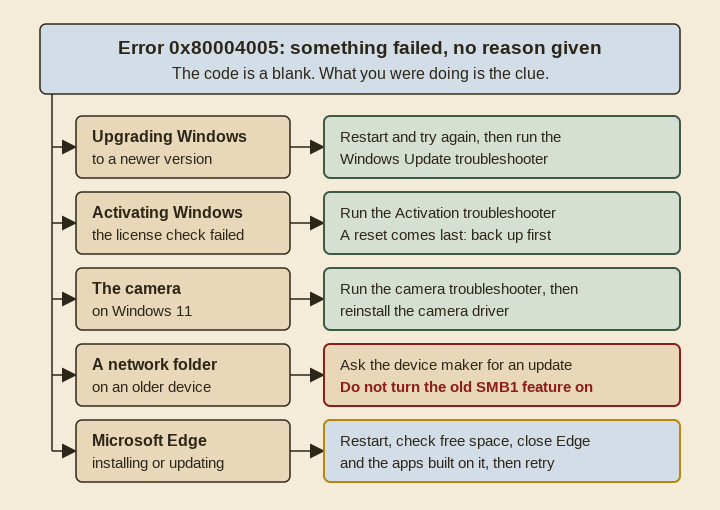 Five places Microsoft documents the code, and the first safe move for each.
What to try, in order
Write down what you were doing and the exact wording on the screen, then go to the case that matches.
If you were upgrading or installing Windows. Microsoft's page "Get help with Windows upgrade and installation errors" lists the code on its Windows 11 tab.
- Restart the PC and try again. This is the first item on Microsoft's list for the code.
- Run the Windows Update troubleshooter, a built-in tool that tests for known faults and repairs what it can. On Windows 11, Microsoft's path is Start, Settings, System, Troubleshoot, Other troubleshooters, then Run next to Windows Update.
- Use the page's general fixes: unplug hardware you do not need, such as printers and external drives, and free up drive space.
- The last item on Microsoft's list is to try upgrading in Safe Mode, which starts Windows with a limited set of files and drivers. Microsoft's page "Windows startup settings" explains how, and warns that an encrypted device will ask for its BitLocker key first. "Enter the recovery key for this drive: Where to Find Your BitLocker Key" explains where that key is kept.
If the next try shows a different code, follow the new code. "0xC1900101: What the Windows Upgrade Error Means and What to Try" covers another upgrade code.
If you were activating Windows. Microsoft's page "Get help with Windows activation errors" says to run the Activation troubleshooter. For this code the page gives the path Start, Settings, Update & Security, Activation, then Troubleshoot. That is the Windows 10 layout. Elsewhere on the same page, Microsoft's Windows 11 path to the same screen is Start, Settings, System, Activation.
Watch out
Microsoft's page says that if the troubleshooter does not work, you might need to reset your device. Microsoft's recovery page says Reset this PC reinstalls Windows from scratch, with a choice to keep your personal files or remove everything, and tells you to back up your important files first. "Backing Up Your Computer and Reimaging It: The Deep Guide" explains how.
I would contact Microsoft support before resetting a PC over an activation message. "Activate Windows Watermark and Error 0xC004F074: What They Mean and What to Do" covers activation in more depth.
If the camera stopped working. Microsoft's page "Camera doesn't work in Windows" lists the code on its Windows 11 tab.
- Check the plain things the page lists first: an external camera's cable, and any camera switch or key on a laptop.
- Run the camera troubleshooter: Start, Settings, System, Troubleshoot, Other troubleshooters, then Run in the Camera section.
- Reinstall the camera driver. A driver is the small piece of software that lets Windows talk to a device. Microsoft's steps: open Device Manager from Start, expand Cameras, right-click your camera and select Uninstall device (the page also ticks the box to delete the driver software, if it is offered), then restart the PC. Windows tries to put a default driver back on its own. After the restart, right-click the camera again, select Update driver, then Search automatically for drivers.
Microsoft's description of the code here includes hardware failure. The page suggests testing an external camera on a different device. If it fails there too, no software step will fix it.
If you were opening a shared folder on the network. Microsoft's page on the old sharing method called SMB version 1 lists "Unspecified error 0x80004005" among the messages you can get when you connect to a device that supports only that method. Windows 11 does not include SMB version 1 by default, and Microsoft says it strongly recommends that you do not reinstall it, because it has known security problems involving ransomware. Microsoft's advice is to contact the maker of the device and ask for an update that supports a newer version.
A second Microsoft page, written for Windows 10 and for administrators, lists other network settings to change for this code. It also describes turning the old method back on. This article leaves that step out and prints none of the others. The page is under Sources.
If Microsoft Edge will not install or update. Microsoft's page for administrators lists the code as an Edge update error. Its common checks are safe for anyone: restart the device, make sure the system drive has 1 to 2 GB free, right-click the installer and select Run as administrator, and close Edge and the apps built on it (the page names Microsoft Teams, the new Outlook and Windows Widgets) before you try again. The page also describes turning off security software for a short time, which this article leaves out.
When to stop and get help
Stop when your case is not one of these five. A fix written for a different case will not help, and I think a change to the registry (the database of Windows settings) copied from a list of general fixes for this code is a poor gamble.
Stop also when the next step on Microsoft's page is a reset of the PC, or when the PC belongs to an employer or a school. Microsoft's activation page says to contact customer support for a code its list does not cover.
If the PC holds work or irreplaceable files and the steps have not helped, stop and take it to a repair professional.
What to remember
- 0x80004005 means something failed and gave no reason. The code alone cannot tell you what.
- What you were doing when it appeared decides which fix applies.
- For a Windows upgrade: restart, run the Windows Update troubleshooter, unplug extra hardware.
- For activation and the camera: Windows has a troubleshooter for each.
- For an old network device: get an update from its maker, and leave SMB version 1 off.
- Back up before anything that resets the PC.
A code that means "unspecified" cannot have one fix. Start from where you saw the message, and use the page Microsoft wrote for that place.
Sources (11)
- Microsoft Learn, "COM Error Codes (Generic)", updated 26 April 2022
- Microsoft Learn, "Common HRESULT values", updated 10 July 2025
- Microsoft Support, "Get help with Windows upgrade and installation errors", read 15 November 2026
- Microsoft Support, "Troubleshoot problems updating Windows", read 15 November 2026
- Microsoft Support, "Windows startup settings", read 15 November 2026
- Microsoft Support, "Get help with Windows activation errors", read 15 November 2026
- Microsoft Support, "Recovery options in Windows", read 15 November 2026
- Microsoft Support, "Camera doesn't work in Windows", read 15 November 2026
- Microsoft Learn, "SMBv1 not installed by default in Windows Server and Windows", updated 18 June 2025
- Microsoft Learn, "Can't access shared folders from File Explorer in Windows 10", updated 12 February 2026
- Microsoft Learn, "Install, update, or roll back failures for Edge and Edge WebView2", updated 28 January 2026