Articles & BlogBy Trapper W. Brown7 min read
"Preparing Automatic Repair" means Windows failed to start correctly several times in a row and is opening its built-in recovery tools. Seeing it once is not serious. Seeing it on every start, a loop, means the automatic fix is not working, and the PC will stay unusable until you choose a different tool yourself.
 A PC that will not start is worked on from the outside in, one layer at a time. Photo by Staff Sgt. Joshua Breckon, U.S. Air Force, public domain, via Wikimedia Commons.
What does this message mean?
Microsoft has no page that quotes this message or uses the word loop for it. What it does publish explains the screen. Windows has a set of repair tools called the Windows Recovery Environment, or Windows RE. Microsoft says that if Windows fails to start correctly multiple times, it enters Windows RE automatically. The first thing it runs is Startup Repair, a tool that scans the PC for a startup problem and tries to fix it.
Microsoft lists what Startup Repair tries to repair: missing or damaged system files, corrupted boot configuration data (the settings that tell the PC how to start Windows), a damaged master boot record (the first part of the drive the PC reads), incompatible drivers and registry errors. A driver is the software that lets Windows talk to a piece of hardware. The registry is the database of Windows settings.
A loop is that cycle repeating: Windows fails, the repair runs, and the next start fails the same way.
What usually causes it?
Microsoft's pages point to a few usual suspects:
- A recent update. Its recovery page gives uninstalling an update as a fix when the problem started after one.
- A driver or a damaged system file, both on Startup Repair's own list.
- A known, widespread fault. Windows 11 has a feature named quick machine recovery for startup failures that hit many PCs at once.
- Hardware. The IT guide says that a PC stuck before Windows begins to load might have a hardware issue.
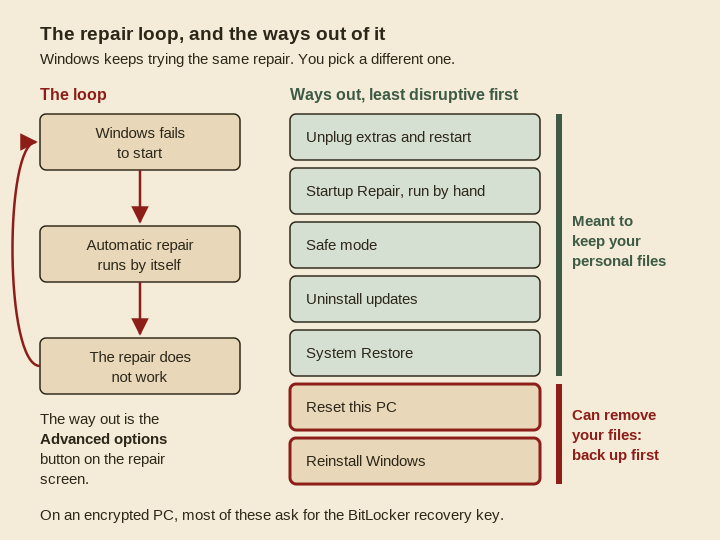 The loop repeats one repair. The exit is to choose another, starting with the ones that keep your files.
What to try, in order
Watch out
Read this before you start. Microsoft's recovery page says some recovery options can result in data loss, and to back up important files first. A PC that will not start cannot make a new backup, so check what you already have. If the PC holds files that exist nowhere else, stop before the point-in-time restore in step 7 and take it to a repair professional. On an encrypted PC, Microsoft says most of these tools ask for the BitLocker recovery key. "Enter the recovery key for this drive: Where to Find Your BitLocker Key" explains where to find it.
Microsoft's page "Recovery options in Windows" says to start with the least disruptive option and move on only if needed. These steps follow that order, for Windows 11 and Windows 10. Its pages note that support for Windows 10 ended on October 14, 2025.
- Unplug extras and restart. Microsoft's IT guide begins by disconnecting external devices. Remove everything except the keyboard, mouse and display, then start the PC once more.
- Open Advanced options. On the Automatic Repair screen, select Advanced options. If the PC never reaches that screen, Microsoft gives a way to bring it up: turn the PC on, and when the Windows or maker's logo appears, hold the power button until it shuts down. Do that twice. On the third start, Windows should show the Automatic Repair screen.
- Try quick machine recovery (Windows 11, version 24H2 or later). Select Troubleshoot > Advanced options > Quick machine recovery. With an internet connection, it checks Windows Update for a Microsoft fix to a widespread startup problem and applies it. Microsoft says it does not reset the PC or affect your files, apps or settings.
- Run Startup Repair by hand. Select Troubleshoot > Advanced options > Startup Repair > Restart. If it cannot fix the problem, Microsoft says it reports what it found.
- Try safe mode. Select Troubleshoot > Advanced options > Startup Settings > Restart, then use the number keys to pick Enable Safe Mode. Safe mode starts Windows with a limited set of files and drivers. If Windows starts this way, Microsoft says the default settings and basic drivers are not the cause, which narrows the search to what safe mode leaves out.
- Uninstall the latest update. Select Troubleshoot > Advanced options > Uninstall Updates and choose the recent update to remove. Microsoft says your files and apps are not affected, that some updates cannot be uninstalled, and that you should understand the risk before removing a security update.
- Roll Windows back. Select Troubleshoot > Advanced options > System Restore and pick a restore point from before the trouble. Microsoft says System Restore undoes system changes and keeps personal files. Windows 11, version 24H2 and later, also has Troubleshoot > Point-in-time restore. That one is different: it returns the whole PC to a snapshot from the last 72 hours, and files you created after the snapshot are lost.
The last steps: reset or reinstall. Both come after the warning above. Troubleshoot > Reset this PC reinstalls Windows. You choose Keep my files, which still removes apps and settings, or Remove everything. Microsoft warns that the screen may go black for a long time during a reset, occasionally upwards of 15 minutes, and that restarting the PC yourself could cause the reset to fail. If the reset fails too, Microsoft's final option is reinstalling from installation media made on another PC, which removes everything. "Backing Up Your Computer and Reimaging It: The Deep Guide" explains what that involves.
Two things are left out. The Startup Settings menu can disable early launch anti-malware protection and driver signature enforcement, which are security features. And Microsoft's guide for IT staff documents command-line repairs for the recovery environment, including boot record repairs and a setting that stops the repair cycle. Those are for support staff and are not printed here. The guide is linked below.
When to stop and get help
Stop before any step that can remove files if you have no backup of files you need. Stop if you cannot find the BitLocker recovery key: Microsoft says its support staff cannot retrieve or recreate one, and that without it the remaining choice is a reset that removes all of your files.
Stop as well if the signs point to hardware. Microsoft's IT guide says a PC stuck before Windows begins to load might have a hardware issue. If a blue screen names a stop code, look it up: "INACCESSIBLE_BOOT_DEVICE: What the Blue Screen Means and What to Try" covers one that appears at startup. No software step fixes a failing part. A work PC goes to your IT department, which Microsoft notes may be able to help remotely.
What to remember
- "Preparing Automatic Repair" is Windows opening its recovery tools after several failed starts.
- A loop means Startup Repair is not fixing the cause. The way out is Advanced options.
- Work down the list: Startup Repair, safe mode, uninstall updates, System Restore.
- Reset this PC and reinstalling can remove files. Know what backup you have first.
- On an encrypted PC, find the BitLocker recovery key before you begin.
If the PC holds work or irreplaceable files and the steps have not helped, stop and take it to a repair professional.
Sources (11)
- Microsoft Support, "Windows recovery environment", read 15 November 2026
- Microsoft Support, "Startup Repair", read 15 November 2026
- Microsoft Support, "Recovery options in Windows", read 15 November 2026
- Microsoft Support, "Windows startup settings", read 15 November 2026
- Microsoft Support, "Quick Machine Recovery in Windows", read 15 November 2026
- Microsoft Support, "How to uninstall a Windows Update", read 15 November 2026
- Microsoft Support, "System Restore", read 15 November 2026
- Microsoft Support, "Point-in-time restore for Windows", read 15 November 2026
- Microsoft Support, "Reset your PC", read 15 November 2026
- Microsoft Support, "Find your BitLocker recovery key", read 15 November 2026
- Microsoft Learn, "Advanced troubleshooting for Windows startup issues", updated 12 February 2026